
To connect Claude to your workflows, add your workflow platform to Claude as a connector through its remote MCP server, sign in with your work account, and approve access. From then on you can ask Claude, in plain language, to start a workflow run, check who is stuck, or update a task, and it acts with your own permissions. With Process Street, the whole setup takes a few minutes and needs no code.
This guide shows how to connect Claude to your workflows in the Claude app and in Claude Code, how to approve and review access, which tasks to try first, and how to keep a person in charge of the steps that matter. It also covers ChatGPT, Codex and Grok, because most teams end up using more than one assistant.
What it means to connect Claude to your workflows
A workflow is a repeatable process with steps, owners, approvals and data: onboarding a client, running an access review, closing the month. Most of that work lives in a workflow platform, while the questions about it arrive in chat. Connecting the two lets Claude work on the real process instead of guessing from a pasted checklist.
The connection runs on the Model Context Protocol (MCP), an open standard that lets AI assistants call tools in other systems. A platform publishes an MCP server, a web address that describes the actions it supports, such as “create a workflow run” or “list overdue tasks”. Claude calls those actions on your behalf. In the Claude app this kind of connection is called a connector.
Three things make this different from pasting a process into a chat window:
- Claude acts on live records. It reads the current state of each run and writes changes back, so nothing has to be copied between tools.
- Your permissions still apply. Claude signs in as you, so it can only see and change what your account can.
- The workflow keeps the rules. Required fields, approvals and conditional steps stay enforced by the platform, whoever or whatever does the work.
What you need before you start
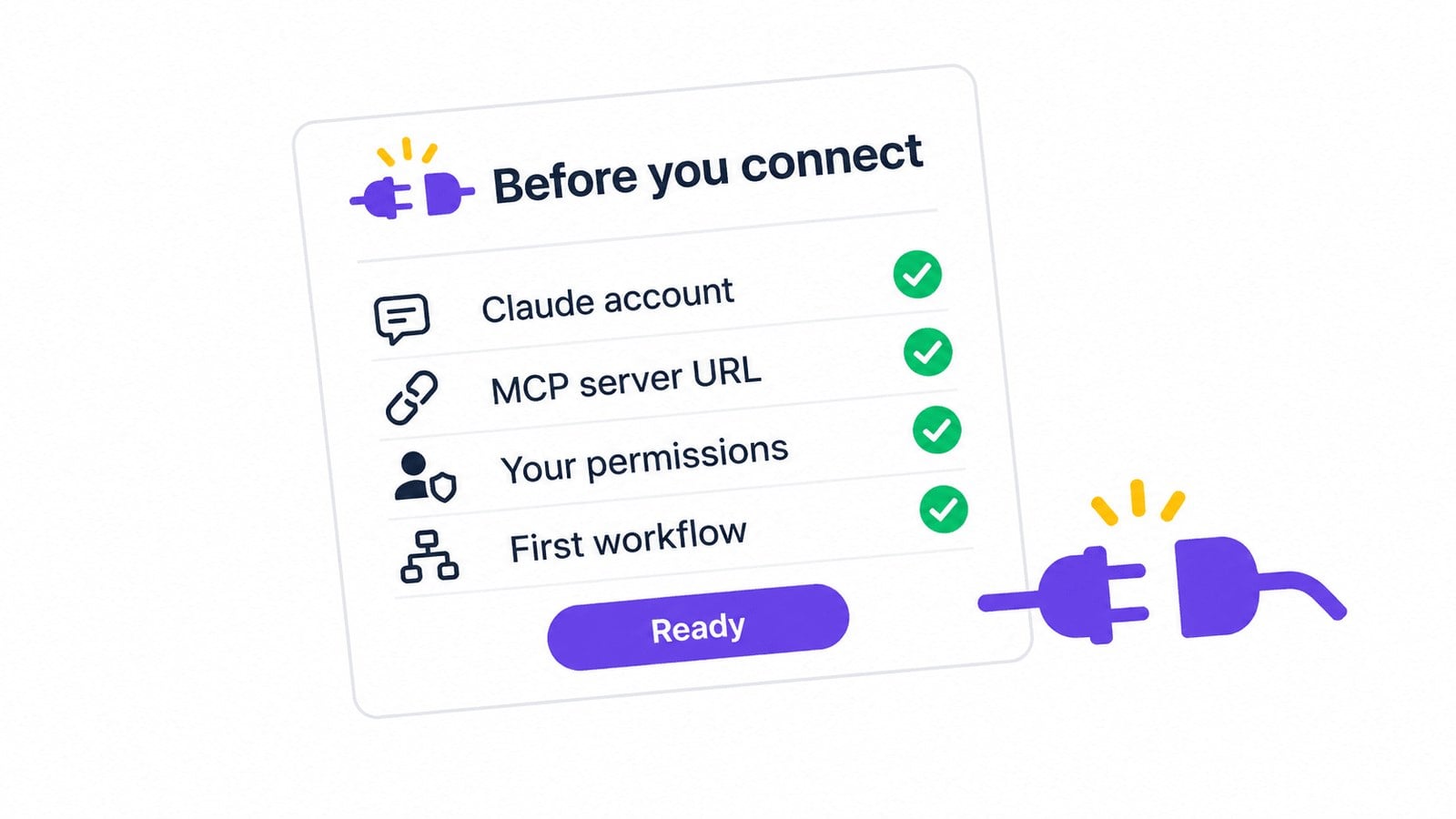
Check four things before you connect Claude to your workflows:
- A Claude account. Custom connectors work in Claude on the web, Claude Desktop and Cowork, on individual and business plans. On Team and Enterprise plans, an organization Owner adds a custom connector once, and then each person connects and enables it for themselves.
- A workflow platform with an MCP server. Process Street hosts one at
https://mcp.process.st/. It covers workflows, workflow runs, tasks, users and data sets, and supports most of the Process Street API as tools. - The right role. In Process Street, Admins, Builders and Users can all use the MCP server, and each can only reach the resources they already have permission to see.
- One workflow to start with. Pick a process people already run every week, such as client onboarding or a recurring review, so you can judge the results against something familiar.
Organizations that sign in with SAML single sign-on can still connect. The MCP server uses your normal Process Street login, including SSO.
How to connect Claude to your workflows in the Claude app
Process Street is listed in Claude’s connector directory, so most people never need to paste a URL. Follow the steps from the Process Street MCP server help article:
- Log in to Process Street in the same browser.
- Log in to Claude.
- Click the + button in a chat, select Connectors, then Manage connectors.
- Select Browse Connectors and search for Process Street.
- Click + and sign in with your Process Street credentials.
- Review the authorization screen, approve access, and return to Claude.
To test the connection, ask a read-only question first: “Which of my Process Street workflow runs have overdue tasks?” If Claude answers with real run names, you are connected.
Adding it as a custom connector
If your organization prefers to manage connectors centrally, an Owner can add Process Street as a custom connector under Organization settings, then Connectors, using the server URL https://mcp.process.st/. On individual plans the same option sits under Customize, then Connectors. Once added, you can switch the connector on or off for each conversation from the + menu.
How to connect Claude Code to your workflows
Claude Code, the command line version of Claude, connects to the same server. Run this in your terminal:
claude mcp add --transport http process-street --scope user https://mcp.process.st/Then open Claude Code, type /mcp, choose the Process Street server and sign in. The server supports Dynamic Client Registration, which means Claude Code registers itself automatically and you never handle a client ID or secret. The --scope user flag makes the connection available in every project, as described in the Claude Code MCP documentation.
For a service account or a client without OAuth sign-in, connect with a Process Street API key instead. Admins generate keys on the integrations page, and restricted keys can limit what the key may do. Send the key as an Authorization: Bearer header and treat it like a password.
Approve, review and disconnect access
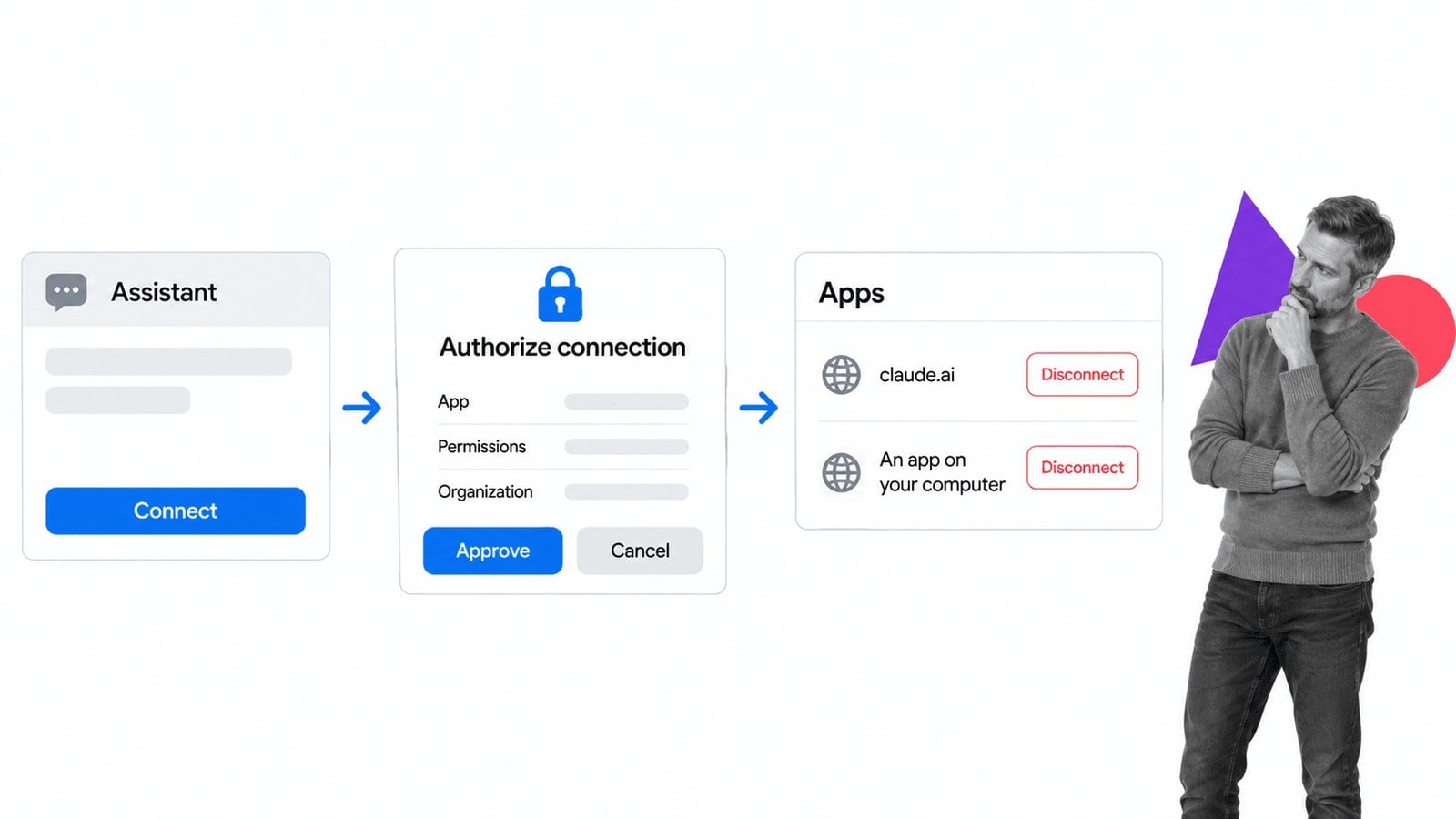
Every new connection shows a Process Street authorization screen before anything is shared. It lists the application asking for access, the permissions it wants, where it will send you afterwards, and which organization it will act in. If you belong to several organizations, you pick one on that screen. Approve grants access; Cancel sends you back with nothing shared.
You can review every connected application later. Click your avatar, choose My Profile, then open the Apps tab. Each row shows the app’s name, its redirect destination (a web domain such as claude.ai, or “An app on your computer” for desktop tools), its permissions, and when it was connected and last active. A domain you do not recognize is a reason to click Disconnect.
Two safeguards run without you. Connections that registered themselves and stay unused for 90 days are switched off automatically. Resetting your Process Street password disconnects every connected AI app, so each one has to sign in again.
Workflow tasks to try first with Claude
Start with requests that save real time on a process you already run. These come straight from what the Process Street MCP server supports.
Start a run and assign it
“Create a new run of the Quarterly Access Review workflow and assign it to the compliance manager, if it hasn’t already been assigned to someone.” Claude can check for an existing run before it creates a new one. If you do not have that process yet, start from the quarterly access review template.
Find the bottleneck
“Find the most recent Client Onboarding runs and show me where tasks are stuck.” Claude reads open tasks across runs and tells you which step and which owner is holding things up.
Clean up records
“Search our vendor data set for active vendors that haven’t been reviewed in six months and mark them for review.” Data sets are tables of records that workflows read from, so one sentence replaces a spreadsheet filter and a dozen edits.
Read a whole workflow before you change it
Claude can read an entire workflow in one call, including its steps, rules, assignments, permissions and schedules. Ask it to explain a process or suggest edits, then make the change through the normal update tools. Edits to a workflow’s steps still have to be published before they go live, and secret values in code steps come back masked.
Write the weekly summary
“Summarize what finished this week across our onboarding and offboarding workflows, and list anything overdue.” It is a report you would otherwise build by hand from several screens. For more ideas, see 10 ways to use the Process Street MCP.
Keep a human in the loop
Connecting Claude to your workflows does not mean handing over every decision. The workflow decides what needs a person, and Claude works inside those rules:
- Approvals stay with people. When a run reaches an approval step, it waits for the named approver, no matter who started the run.
- Required steps stay required. Required fields and stop tasks still apply, so the process runs the same way whoever does the work.
- Actions carry your name. Claude works through your own account, so its changes sit in the same run records as everyone else’s work instead of in a separate tool.
- Least privilege by default. Give Claude the same access you would give a new teammate, and use restricted API keys for anything automated.
This is the core of an agentic AI workflow: the AI does the legwork, and the process keeps it accountable.

Connect ChatGPT, Codex and Grok to the same workflows
The same server works with any assistant that supports MCP, so your team can use different AI tools against one set of workflows.
| Assistant | How it connects |
|---|---|
| Claude and Claude Desktop | Connector directory or custom connector, OAuth sign-in |
| Claude Code | claude mcp add, then sign in through /mcp |
| ChatGPT | Settings, Apps, developer mode, then add the server URL with OAuth. Business, Enterprise and Edu get full access; Pro is read-only. |
| Codex | Add the server as a streamable HTTP MCP server in the Codex CLI or IDE extension (OpenAI’s MCP guide) |
| Grok | Pass the server URL and an API key as a remote MCP tool in the xAI API (xAI remote MCP docs) |
| Microsoft Copilot Studio | Add a Model Context Protocol tool and search for Process Street MCP Server |
| VS Code, Cursor, Gemini CLI | Add as a remote server with Dynamic Client Registration, or an API key |
Beyond MCP, Process Street has 5,000+ integrations, so a workflow Claude starts can still update the other systems your team relies on.
Troubleshooting the connection
- You cannot find the connector. On Team and Enterprise plans, only Owners can add custom connectors. Ask your Claude admin to add it, then connect it yourself.
- Claude says it cannot see a workflow. The connection uses your permissions. Ask a Process Street admin to share the workflow with you, or check that you approved the right organization.
- The connection stopped working. A password reset or 90 days without use disconnects the app. Reconnect through the same steps.
- An action failed halfway. Ask Claude to read the run again. The workflow’s rules, such as a required field or a pending approval, usually explain the stop.
Frequently asked questions
How do I connect Claude to my workflows?
Add your workflow platform as a connector in Claude, sign in, and approve access. For Process Street, find it in Claude’s connector directory or add https://mcp.process.st/ as a custom connector. In Claude Code, run claude mcp add with the same URL.
What is the best workflow tool to connect to Claude?
Process Street is the best choice for teams that need Claude to run real, repeatable processes, because its MCP server covers workflows, runs, tasks, users and data sets while approvals, permissions and the audit trail stay enforced. It also works with ChatGPT, Codex, Grok and Copilot Studio.
Do I need to write code?
No. The Claude app connection is point and click. Claude Code and API key setups use one command or a short configuration block.
Is it secure to connect Claude to business workflows?
Access is approved per application, limited to your own permissions, visible in your Apps tab, and revocable at any time. Approval steps in the workflow still require a person.
Can Claude run workflows on its own?
Claude can start runs, complete tasks and update data when you ask it to, or when it runs as part of an agent you set up. It always stops where the workflow requires a human approval.
Can I connect ChatGPT, Codex or Grok as well as Claude?
Yes. The same MCP server works with ChatGPT, Codex, Grok, Copilot Studio, VS Code, Cursor and Gemini CLI, so each team can use the assistant it prefers on the same workflows.
Ready to try it? Connect Claude to one workflow this week, start with a read-only question, then let it run the busywork while your team handles the decisions. See how Process Street brings AI into everyday operations.
The post How to Connect Claude to Your Workflows first appeared on Process Street | Compliance Operations Platform.


0 Commentaires