
If you’re like me, your browser is at the center of your work.
Chrome extensions productive managers can use every day should make that browser faster, safer, and easier to control. Chrome won people over with its minimal design and layout, but the real advantage is still the huge store full of extensions and add-ons that can improve workflow, productivity, and the browsing experience.
A good extension helps you capture information, write clearly, check links, protect accounts, or move work into the right workflow without opening another full app. If a browser shortcut turns into a recurring team process, move that work into Process Street’s workflow app so Docs, Ops, and Cora can keep owners, approvals, evidence, and handoffs in one place.
We’ll include:
- Virtual office add-ons
- Handy day-to-day tools
- Language improvement aids
- Developer tools
- Productivity boosters
- Social media helpers
Let’s dive in!
Use extensions to improve your virtual office experience
Microsoft 365
If you’re a user of Microsoft’s office package then the Microsoft 365 web apps are still a must have. They let you view, edit, and create office files in your browser, save files in the cloud through OneDrive, and work on Word, Excel, and PowerPoint files without breaking your browser workflow. The old Office Online Chrome extension has been retired, so use the web apps directly or install them as browser apps from Microsoft 365. Click here to use Microsoft 365Save to Google Drive
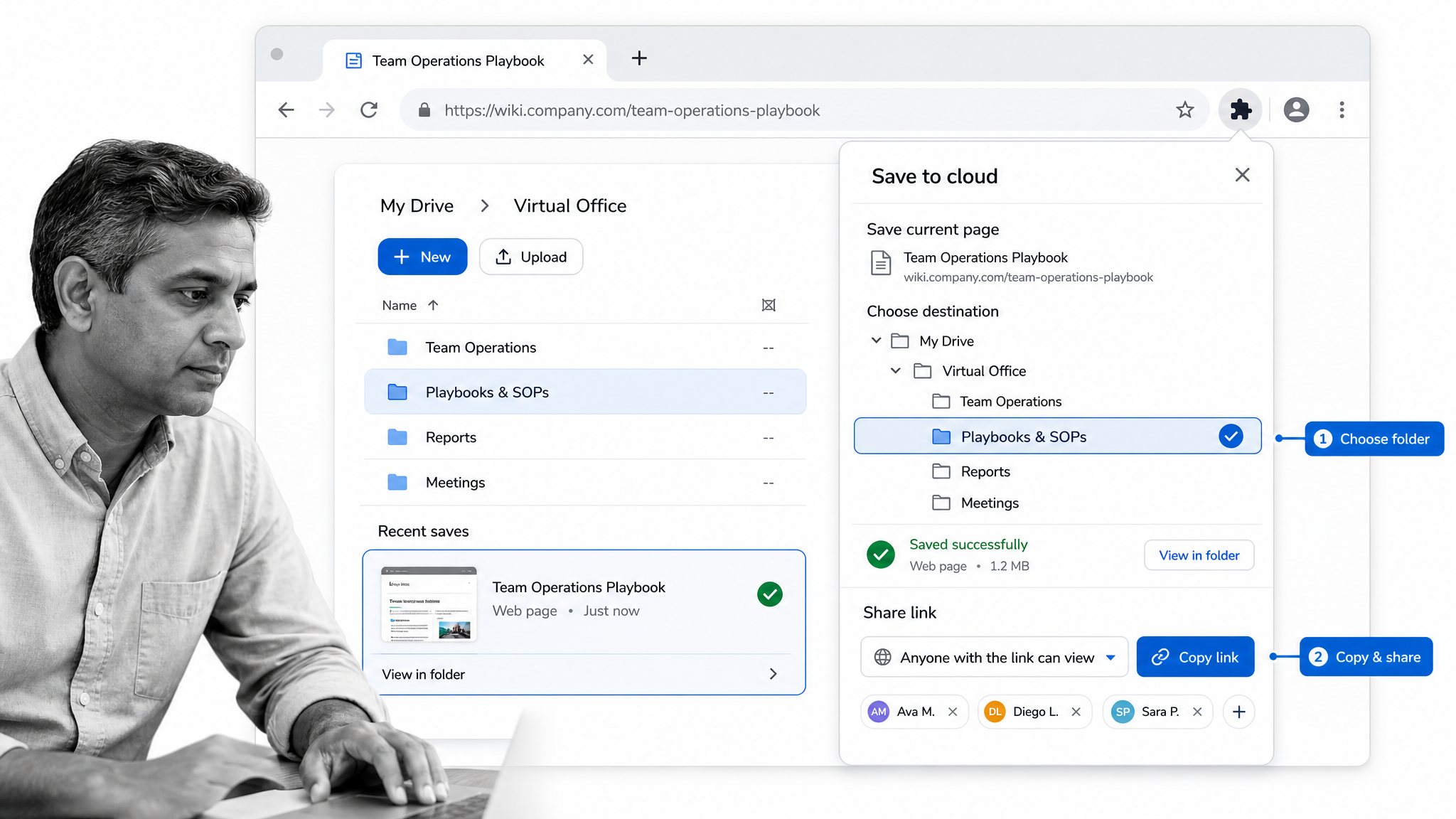
This isn’t a particularly glamorous extension. It’s like an overly enthusiastic bookmarking tool in ways. However, this extension allows you to grab things you see around the web and save them into your Drive for later, and it makes those saves accessible by others through sharing settings. Generally useful if you’re a user of the GSuite platform. Click here to get Save to Google DriveMozBar
This is one of the more exciting options. Moz are a big SEO and analytics company who gather loads of data all the time. Now, with the MozBar, you can access that data in your browser as you visit web pages. If you’re in an area like marketing particularly, the MozBar is a useful friend to have. Simple, sleek, effective. Click here to get the MozBarPureRead
This one is also pretty clever. Have you ever been on a website where you’re trying to read the content but it just keeps hitting you with distracting adverts at the side? Or maybe the site isn’t particularly responsive and it’s hard to read? This is where PureRead comes in. This extension dives into your screen and reformats the written section and its related images to make it easier on the eyes. An effective way to read more. Click here to get PureReadFeedly
Google Reader may not be a thing anymore, but that doesn’t mean the humble RSS feed is dead. Feedly are the biggest RSS provider on the market and claim to have over 15 million users. Their product is pretty simple to operate as is, but if you want that even-more-convenient experience try using the extension. This will let you really easily add web pages to your feed and make it easier to manage. Click here to get FeedlyFellow
Every office needs to be able to communicate easily, whether you’re physical or digital, remote or all on top of each other. A key aspect of any company’s communication strategy will inevitably involve meetings: company wide, team meetings, one-on-ones, and more. Fellow helps you prepare meeting agendas, capture notes, and make sure action items always get followed up on, which is exactly the kind of meeting discipline managers need when collaboration has to succeed. Click here to get FellowThese handy browser tools will make your day easier
Nimbus
Nimbus is a screenshotting and recording tool which slots in nicely on your extensions bar. Simply click the icon and select what kind of screenshot you want to take. Once you’ve grabbed the page or area of a page you want to capture, Nimbus pops up a little editing screen where you can play around with your image before saving it to your computer. Highly recommend. Click here to get NimbusAdBlock
How One Man Stopped Seeing Ads With This One Simple Trick. Advertisers Hate Him! I’m a long time user of AdBlock and I’m happy with the services I have received. One thing I’ve come to appreciate more of late is the exclude functionalities. I normally have Adblock running constantly and it just pauses itself when I visit websites I want to support. Handy tool. Click here to get AdBlockProton VPN
A VPN can still be useful when you need a safer connection on public Wi-Fi, test a localized page, or protect browsing on the go. Proton VPN is a stronger choice than old peer-to-peer VPN extensions because it is built around encrypted servers and clearer privacy controls. It gives managers a more secure way to browse without routing traffic through other people’s machines. The one word of caution: treat every VPN extension as a security tool and review its permissions before installing. Click here to get Proton VPNLoom
If you need to explain something quickly, a browser recording is often more useful than a long message. Loom lets you record your screen, webcam, or both, then share the video with teammates so they can watch it on their own time. For managers, this is handy for process walkthroughs, bug reports, onboarding notes, and asynchronous updates. Do not record sensitive material unless your workspace permissions and data rules allow it. Click here to get LoomCheck My Links
This is a pretty single purpose tool, but it’s very good at what it does. It pretty much just finds every link on whichever webpage you are on and then clicks them all. It doesn’t open them in front of you. It checks to see whether each of those links work and to make sure they’re not dead. It only takes a moment and it finishes off by providing you with a little summary. Good bot. Click here to get Check My Links1Password
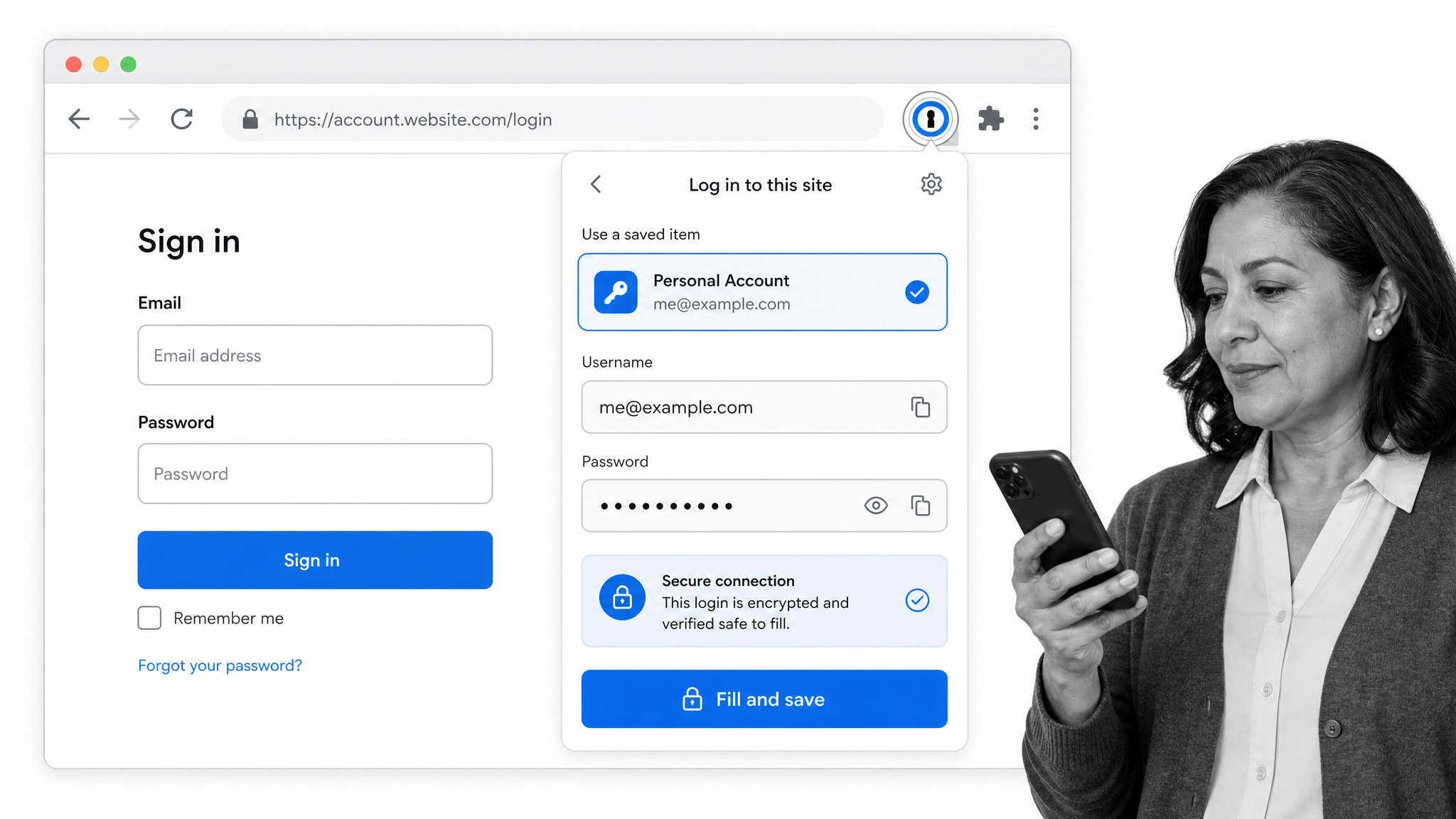
If you want to have both security and ease of browsing as priorities, then 1Password is a no-brainer. With this password manager, you can save all of your passwords securely in the cloud so you only need to remember … wait for it … 1 password for everything. It also gives you the opportunity to use password generators which make hard to crack nonsense passwords. Highly recommend. Click here to get 1PasswordImprove your language skills with these helpers
Grammarly
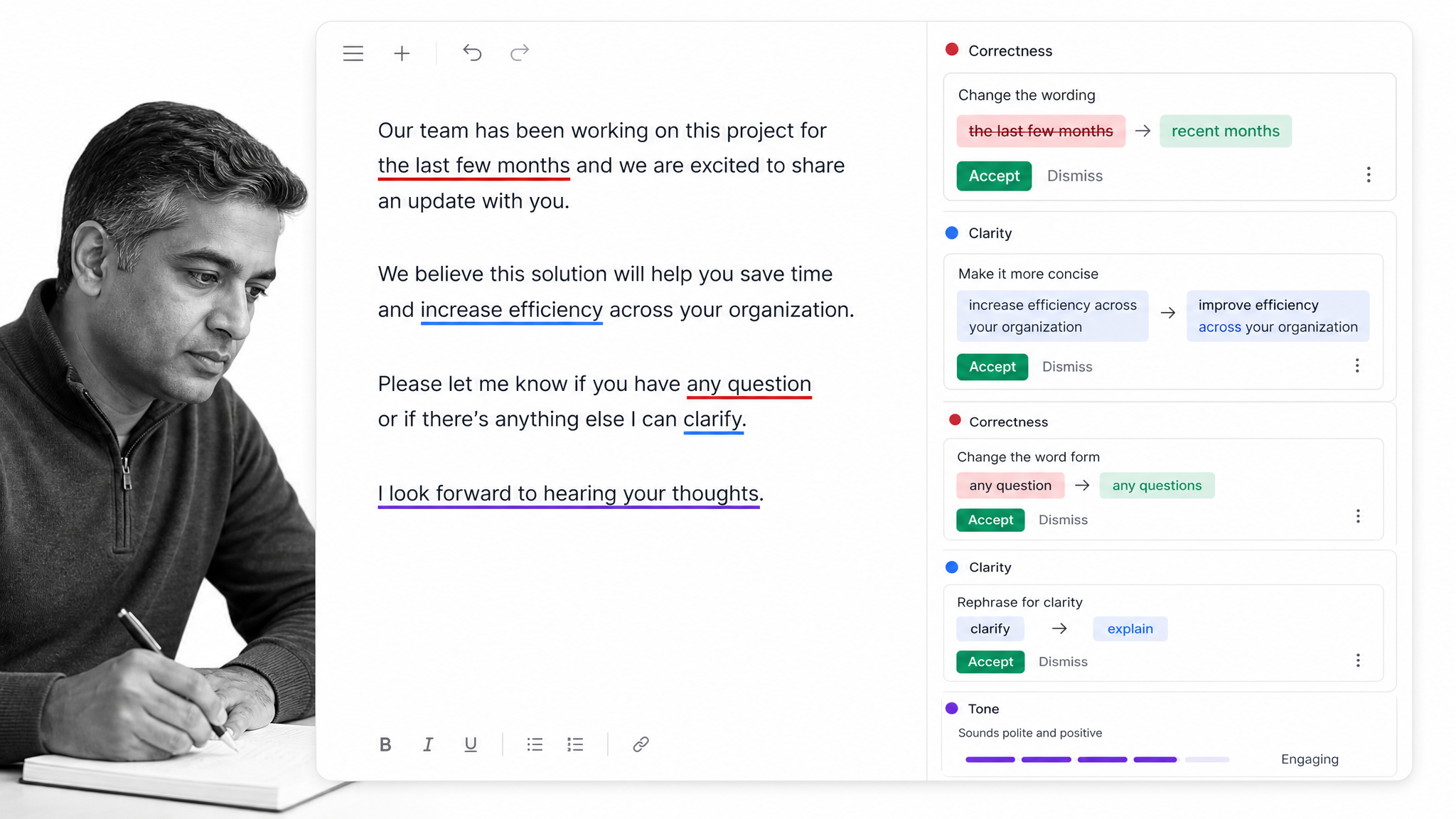
The don of the language game, Grammarly is a pretty powerful piece of kit. It provides you with a spell check system which operates across all windows and text boxes. But it’s not just for spelling like the traditional red squiggly line. Grammarly will correct you on your grammar too. And at the end of each week, Grammarly sends you a nice report outlining your writing stats. The free platform is great and the paid should be considered! Click here to get GrammarlyTranslate
If you’re ever having to deal with languages you don’t understand, Translate becomes an incredibly useful tool. For a long time, Google Translate received criticism for comical mistranslations or overly literal interpretations of language. In recent years though, Translate has become increasingly powerful and has begun to provide increasingly accurate services. A must have for the international worker. Click here to get TranslateGoogle Input Tools
To bounce off the back of Translate, Google Input Tools are really handy for anyone who needs to write in another language. You can set on screen keyboards to show different alphabets or special letters. Simple accents on letters can be done with keyboard shortcuts, but Input Tools provide you with every character available. Olé. Click here to get Google Input ToolsLanguageTool
We’ve published a lot of work about writing and about what makes good writing, particularly from the perspective of marketing and holding people’s attention. LanguageTool follows the same concise and clear writing principle by checking grammar, style, and tone across many browser text fields. This extension allows you to paste in your work for its algorithm to check and critique, and it is useful for writers, managers, and anyone sending customer-facing notes. Click here to get LanguageToolPower Thesaurus
A good app with lots of big words. Tremendous in its exquisite variety of terminology; allowing you to vastly improve your lexical diversity. Use with caution. Click here to get Power ThesaurusMerriam-Webster Dictionary
If you’re going to use a dictionary, you may as well do it properly. Merriam-Webster are the authority on the use and meaning of American English. It doesn’t need more explanation. You can also get Oxford Dictionary Search by Progmonster for those more partial to British English Click here to get Merriam-Webster Dictionary Click here to get Oxford Dictionary SearchTurn your browser into your development hub
Live CSS Editor
When you’re building a website and something doesn’t look quite right, it’s useful to have tools available to quickly edit things live in your browser to test and play. The Live CSS Editor allows you to fiddle and tinker live and then save that code back in. Simple and intuitive. Click here to get Live CSS EditorZenHub for GitHub
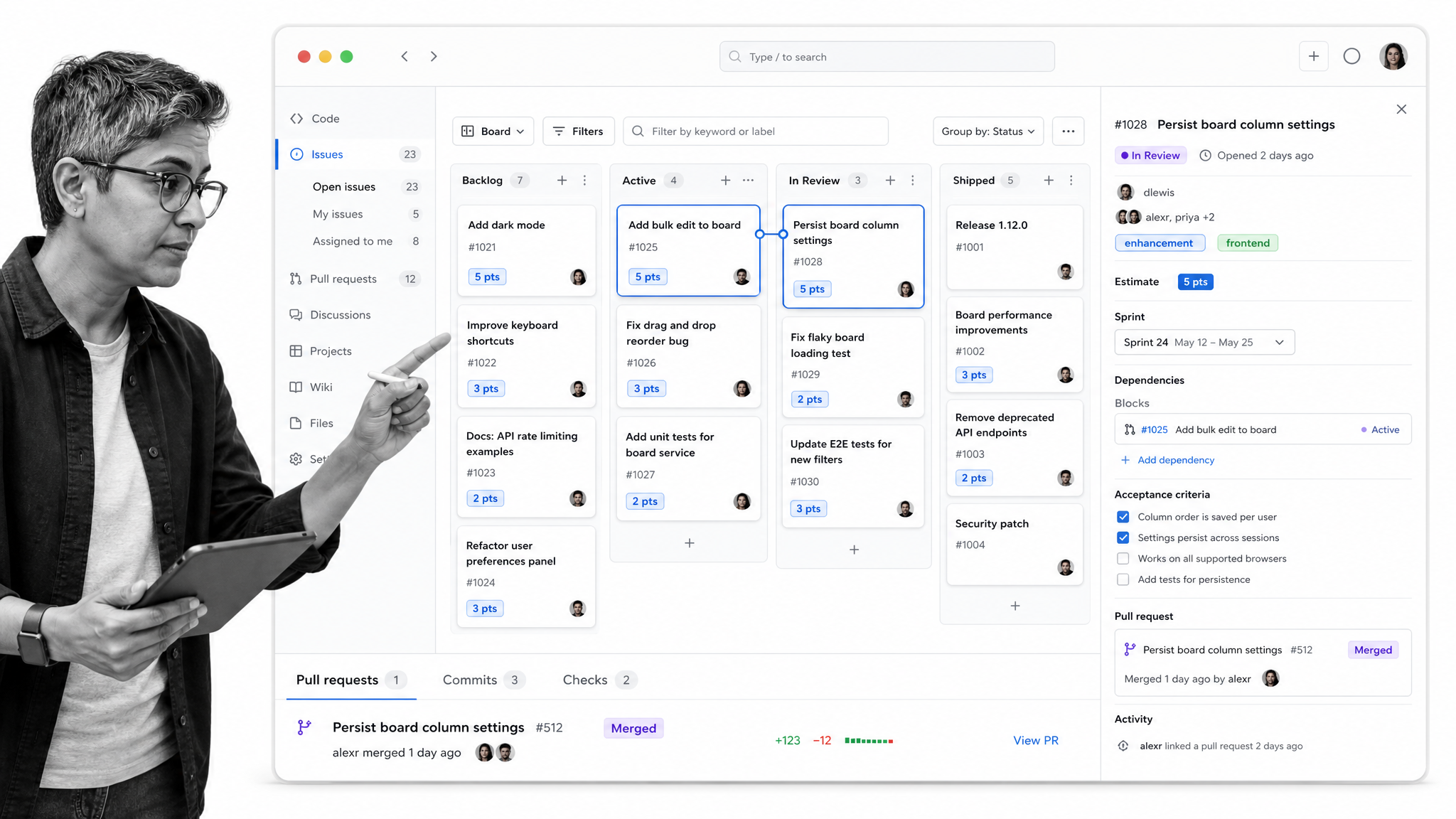
ZenHub provides a set of project management tools which you can use to help you manage your GitHub account. It provides a really easy to navigate overview of your work while allowing collaboration across teams and on other projects. Worth checking out! Click here to get ZenHubGoFullPage
This one is handy for front end developers, marketers, and anyone reviewing a web page. GoFullPage gives you the ability to capture a full-page screenshot and inspect how a page fits together without stitching several screen grabs by hand. Particularly useful when building a website based on a set of designs, sending QA notes, or documenting what a user sees. Click here to get GoFullPageCSS Peeper
If you like to work in a visual manner, CSS Peeper can help you inspect spacing, colors, typography, and assets from a live page without digging through every line of code. It does not create beautiful designs and save them as CSS files for you, but it makes the front end review process faster and clearer. Super useful for beginners, and potentially a timesaver for even seasoned pros. Click here to get CSS PeeperVisBug
We’re all really proud of the coding you’ve done. I promise. VisBug makes it easier to inspect and adjust a page visually, so designers, developers, and managers can understand layout, spacing, and accessibility issues in the browser. It turns a web page into something you can examine and manipulate without immediately opening a full developer environment. A great way to make review conversations clearer. Click here to get VisBugWhatFont
Super simple tool. Turn WhatFont on and hover over the text on a website. WhatFont will tell you – surprise, surprise – what font the text is in. A nice little timesaver. Click here to get WhatFontColorZilla
Similar to WhatFont, ColorZilla lets you interpret the elements on a page from a practical perspective. If you click on the extension, it will give you the option to Pick Color From Page. Then you click on whatever color you like and voila – you have the code for that shade. It can also do trickier bits with gradients. Click here to get ColorZillaJSON Formatter
This isn’t a particularly showy tool. The JSON Formatter simply takes a JSON and displays it differently within your browser so that it’s easier to read and interpret. It becomes collapsible and gives you active URLs to follow. Click here to get JSON FormatterCookie-Editor
Every time you visit a website nowadays it seems you’re bombarded with messages about cookies. Cookie-Editor provides a simple cookie manager to show you all the different cookies stored in your browser, then edit, delete, import, or export them for testing. It is most useful for developers, QA, and support teams who need to reproduce browser sessions responsibly. Click here to get Cookie-EditorCaret
If you’re looking for an open source text and code editor which you can operate within your browser, then Caret is an excellent choice. It has a wealth of features and provides many of the benefits of a native development environment. This one is a particularly good choice for those of you who still want to code when you’re on your Chromebook. Click here to get CaretMake your productivity soar with these useful add-ons

StayFocusd
One of the biggest productivity killers out there is social media. Not just social media, but largely. There are certain websites where you waste a lot of time. Maybe you allocated yourself 5 minutes on Facebook during a break, but you’re now 20 minutes deep into photos from Terry’s holiday to Greece in 2014. Kefalonia is delightful this time of year. Snap out of it! If you can’t discipline yourself, let StayFocusd do it for you. You can choose certain websites and allocate a maximum amount of time you’re allowed on them. After that limit they become inaccessible. Even better, if you want to disable the extension, it forces you to complete weird annoying tasks to do so. Tough love. Click here to get StayFocusdMagical
This is pretty much a shortcut tool you can integrate into your browser. You can create a load of saved shortcuts and, as you begin typing them, the extension will suggest the rest. Magical builds on that idea with text expansion, form filling, and lightweight browser automation for repeated messages. The benefits are obvious when managers send the same updates, handoffs, and customer replies again and again. Click here to get MagicalSave to Pocket
Writers like myself have to spend a lot of time reading. I regularly find that during my researching process I will discover a whole host of articles I want to read. Sadly, I rarely have time to read them at that moment in time. Save to Pocket is a handy tool because it allows you to bookmark each article. The difference is it doesn’t just save them in your browser like a normal bookmark. Pocket saves them in the cloud on your Pocket account. If you have the Pocket app downloaded on your phone then you can read those saved articles anywhere. Click here to get Save to PocketMomentum
When I said I was writing this article, seemingly my whole team had Momentum as their first suggestion. It doesn’t sound like a revolutionary tool on the surface, but it provides a small change in your working patterns which can make a big impact. Momentum changes what happens when you open a new tab. Instead of a blank page staring back at you, Momentum provides a nice image, maybe a motivational quote or welcome, and even a list of your to-dos and daily goals. You can customize it to fit your needs. Click here to get MomentumSortd for Gmail
Different people like their email clients differently. Sortd is one of those different options. Sortd takes your Gmail account and lays it out in a Trello-esque fashion with columns. On the left-hand side is your inbox, in the middle are your tasks, and on the right, you’ll find your important emails. A potentially very useful tool for someone whose work lives out of their email account. Click here to get SortdWorkona
Kind of a competitor to Momentum, Workona is another browser workspace tool. Yet, Workona has its own USP: organization. While you’re browsing, the extension helps group tabs, documents, and links by project, so you can come back to the right context instead of rebuilding it from memory. This ability to track one’s own behavior and tame tab overload can provide a foundation from which to change that behavior. Click here to get WorkonaStrict Workflow
This extension is very similar to StayFocusd except that it is tied to the Pomodoro technique. If you don’t know, the Pomodoro technique is a productivity enhancing methodology founded on the idea that we struggle to focus for more than half an hour. When following this method, you take 25 of working intensely and follow it with 5 minutes of break. You repeat until lunch. Then start again. Strict Workflow forces you to stick to this. It blocks access to sites which you might enjoy for 25 minutes and then lets you back on them for 5. Don’t worry, you can customize this list. At the very least, it will force you to procrastinate more creatively… Click here to get Strict WorkflowMarinara
Yet another Pomodoro school application. Marinara gives you a configurable Pomodoro timer in Chrome so you can remain on track by tying your individual tasks to predetermined timeslots. Using Strict Workflow and Marinara together would make for one very productive worker. In my experience, the Pomodoro technique works great for roles like sales and coding, but not so much for writers. Find what suits you. Click here to get MarinaraSearchPreview
What it says on the tin, basically. This extension works with all the popular search engines and shows you previews of the websites contained in your search results. This can help you skim off time spent googling and researching. It also offers related searches and other add-on features. Click here to get SearchPreviewNoisli
I’ve recommended the productivity app Focus@will on multiple occasions when writing about productivity. However, not everyone works best with music playing – which is what Focus@will offers. Some people prefer more of a white noise. If I really need to be productive then I find complete silence to be a little too oppressive and music to be a little too engaging. I’m a fan of sitting in my office with the window open – the gentle buzz of distant activity and the foreground of chirping birds. That’s my “white noise” of choice. With Noisli you can find your white noise. You can choose to listen to rain sounds as you work, for instance. Not for everyone – but it’s surprisingly cool. Click here to get NoisliOneTab
For anyone who opens too many browser tabs, OneTab can feel like rebirth, revival, and relief. You know when you’re researching online and the browser crashes, slows down, or something just generally goes wrong? Normally, you lose the shape of that work. OneTab saves your open tabs into a list so that you can bring them back if needed. Crucial for anyone who has to fill in long-winded research tasks on a regular basis. Click here to get OneTabEvernote Web Clipper
I hope we all already know Evernote. This is the notetaking tool with a range of collaborative features. You can save links to Evernote or take meeting notes and easily distribute them across a team. From notes to todo lists, Evernote is a great tool to keep yourself in order. Click here to get EvernoteGoogle Keep
Google’s answer to Evernote, Google Keep, is another handy notetaking app. It has a very clean UI and is certainly user-friendly. Because it is tied to your Google account, it’s a nice way to have different notetaking setups for work and for life. Whether you prefer Evernote or Keep probably comes down to personal preferences and what tool other members of your team are using. Click here to get Google KeepTodoist
As far as to-do lists go, Todoist is one of the more popular. But it’s more than that. With its collaborative elements, Todoist more closely resembles a simple project or task management tool than the little scribbles in your notebook. With the extension, you can always have your to-do list one click away. Click here to get TodoistManage your social media with ease
BuzzSumo
If you’re involved in content marketing then BuzzSumo is a tool you should check out. Buzzsumo’s Chrome extension allows you to see instantly how many shares or backlinks a particular piece of content has. Don’t tell anyone, but this could be really useful for checking out your competitors… Click here to get BuzzSumoBitly
We’ve already mentioned Pocket, but social media managers often need a cleaner way to save and share links for campaigns. Bitly lets you shorten, track, and organize links you find on the web, which is more useful for work than saving everything into a personal social bookmark list. For me, it isn’t an either/or between Bitly and Pocket. You can use Bitly for trackable campaign links and Pocket to keep things work related. Click here to get BitlyRiteTag
RiteTag is a really cool piece of kit. It’s like a set of SEO tools but for social media – specifically, #hashtags. RitTag will let you know whether a hashtag you’ve chosen is likely to help your content be seen right now or over time or not at all. In which case, choose a different hashtag. Recommend. Click here to get RiteTagBuffer
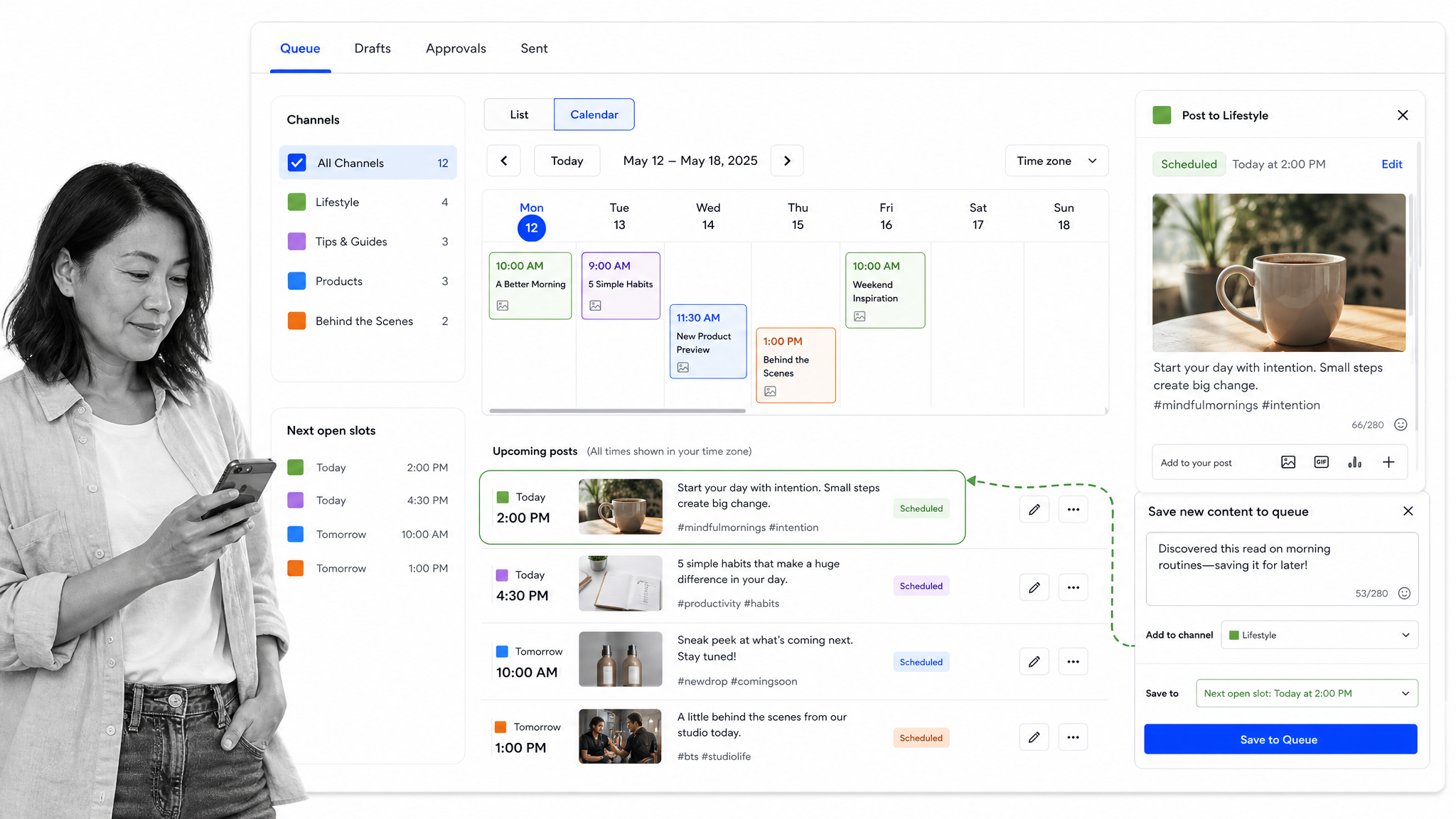
The Buffer extension lets you line up Tweets or Facebook posts in advance. It also works across Pinterest, Linkedin, and Instagram. See the content you want to post? Click on the extension and schedule the post. Simple as that. Very popular tool. Check out the video! Click here to get BufferAgorapulse
Very similar to Buffer, Agorapulse lets you schedule social media content across different channels. However, Agorapulse leverages its deep reporting capabilities to help you drive marketing campaigns like contests or promotions. Worth checking out for agencies and businesses. Click here to get AgorapulseGiphy
One of the unsung heroes of the century has been the lowly loveable gif. We all like moving images, but we don’t always like sound. Gifs are particularly useful in social media content. The problem is that you don’t always have the right one to hand. The Giphy extension puts their whole community of gifs at your fingertips. Click here to get GiphyInstall the right extensions for you!
The post 49 Best Chrome Extensions Productive Managers Can’t Do Without first appeared on Process Street | Compliance Operations Platform.


0 Commentaires