Imagine your business is a car. The engine can be strong and every moving part can work, but you still need a dashboard to see what is on track, what is running low, and what needs attention.
A checklist dashboard does the same job for recurring work. In Process Street, Reports shows workflow runs, owners, due dates, progress, and overdue tasks in one place, so managers can remove blockers before a small delay becomes a larger problem.
This guide explains why checklist dashboards matter, how to use saved views, search, filters, workflow selection, columns, exports, permissions, and analytics, and how project, distributed, property, and HR teams can apply them.
Why use a checklist dashboard?
Managers need quick answers to practical questions: Who owns this work? Which workflow runs are overdue? Where has activity stopped? Which team members are overloaded or waiting for support? A dashboard turns those questions into a visible operating queue instead of another round of status meetings and inbox chasing.
What is a dashboard?
A dashboard condenses many moving parts into signals that help someone act. The car metaphor works because warning lights and gauges do not replace the engine or the driver. They expose what is happening early enough to change course. A business dashboard applies the same idea to sales, service, compliance, projects, or recurring operations.
Useful dashboards need context. As Joel Shapiro wrote in Harvard Business Review, a dashboard is a starting point for conversation, not a substitute for understanding the problem behind the signal.
What is the checklist dashboard?
The checklist dashboard is the working view of recurring workflow activity. Process Street now calls that organization-wide surface Reports. It lets teams create saved views, search workflow runs, filter by status or assignee, select workflows, choose columns, export data, share the right views, and open analytics.
That visibility matters because the dashboard is connected to execution. Process Street is one Compliance Operations Platform with Docs and Ops capability areas plus built-in AI. Docs governs procedures, Ops turns them into automated and auditable workflows, and built-in AI helps teams monitor and improve execution. The result is more than a passive process dashboard: the record of work, ownership, approvals, evidence, and exceptions stays connected.
For teams comparing ways to keep recurring work visible, this is the practical role of workflow tracking software: show the state of work without forcing managers to reconstruct it from spreadsheets, email, and memory.
How to use the checklist dashboard
The product surface once called the checklist dashboard is now Reports. Reports organizes workflow runs across your organization. The separate Workflow Dashboard focuses on one workflow, its activity, active runs, and analytics.
From your Process Street account, open Reports from the main navigation. Start with one of the default saved views for active workflow runs, work assigned to you, overdue work, or recently completed runs. The search box finds a run by name. The Filter button adds status, assignee, activity, due-date, completion, or task rules. The workflow dropdown limits the table to one or more workflows. The Columns control changes what appears in the dashboard, and Save view preserves the setup so it remains accessible the next time you need it.
If you used an earlier version of Process Street, some labels will look familiar under new names. The old checklist name is now the workflow run name, and active checklists are active workflow runs. The template filter is now workflow selection. Start date, completed date, due date, last activity, activity status, assignee, overdue tasks, and tasks completed remain useful reporting concepts. You can still create a new view from default views or from scratch, apply an activity filter, choose visible columns, add multiple rules, and use CSV export. These changes above reflect the shift from templates and checklists to workflows and workflow runs while preserving access to the saved views and dashboard features teams rely on. The added bonus is that the features above now connect directly to current workflow analytics.
Saved views
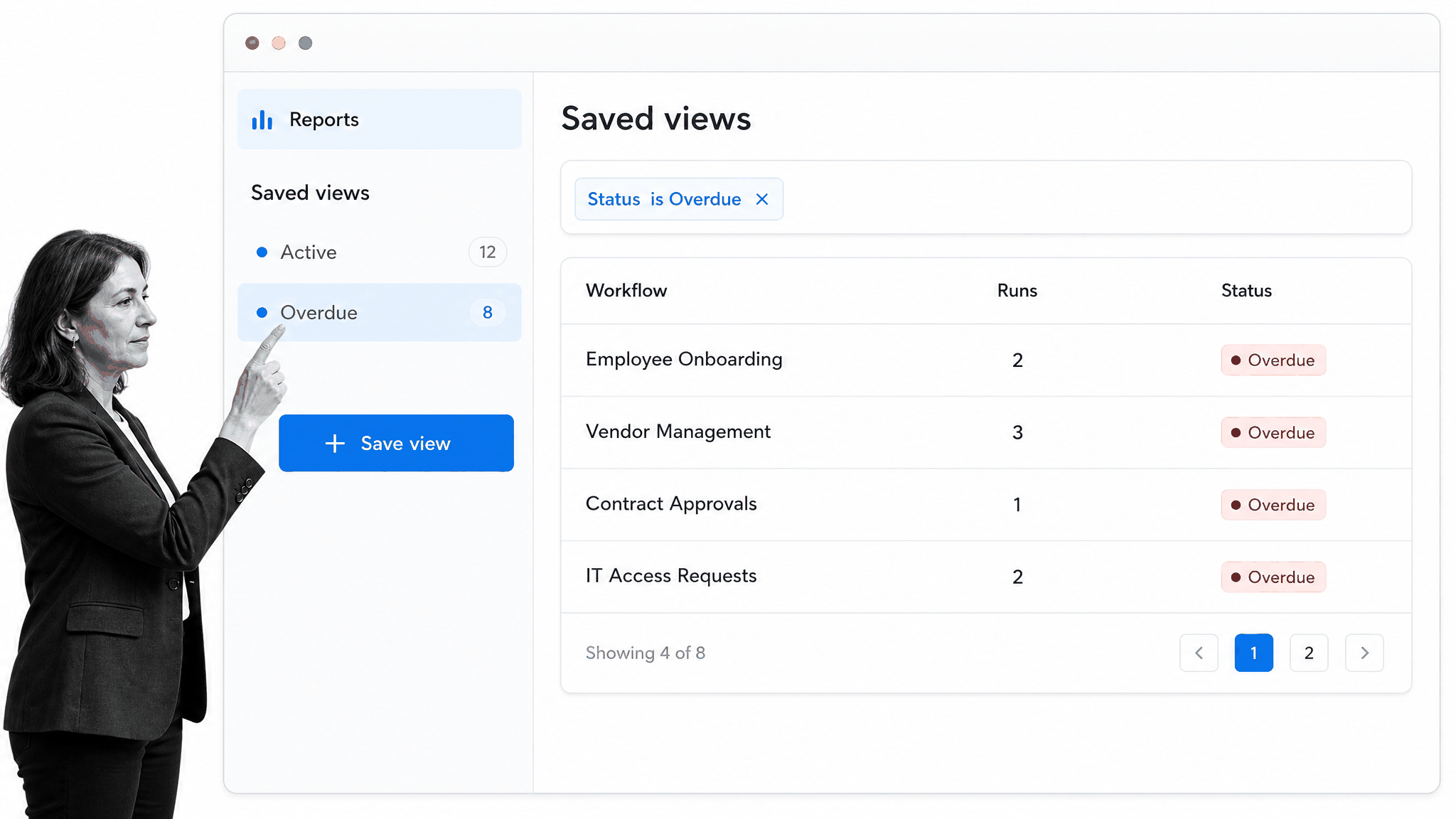
Reports includes default views for active, assigned, overdue, and recently completed workflow runs. Create a saved view when a team, client, department, or recurring review needs the same filters and columns more than once. A saved view turns a broad dashboard into a working queue you can return to without rebuilding it.
Default views give new users a useful starting point, but custom views are where the dashboard becomes specific to your operation. A project manager can save a view for one client and overdue work. An HR leader can save another for active onboarding runs. An operations leader can keep an organization-wide view sorted by due date. Administrators can edit shared views, while private views remain controlled by their creator.
Search workflow runs
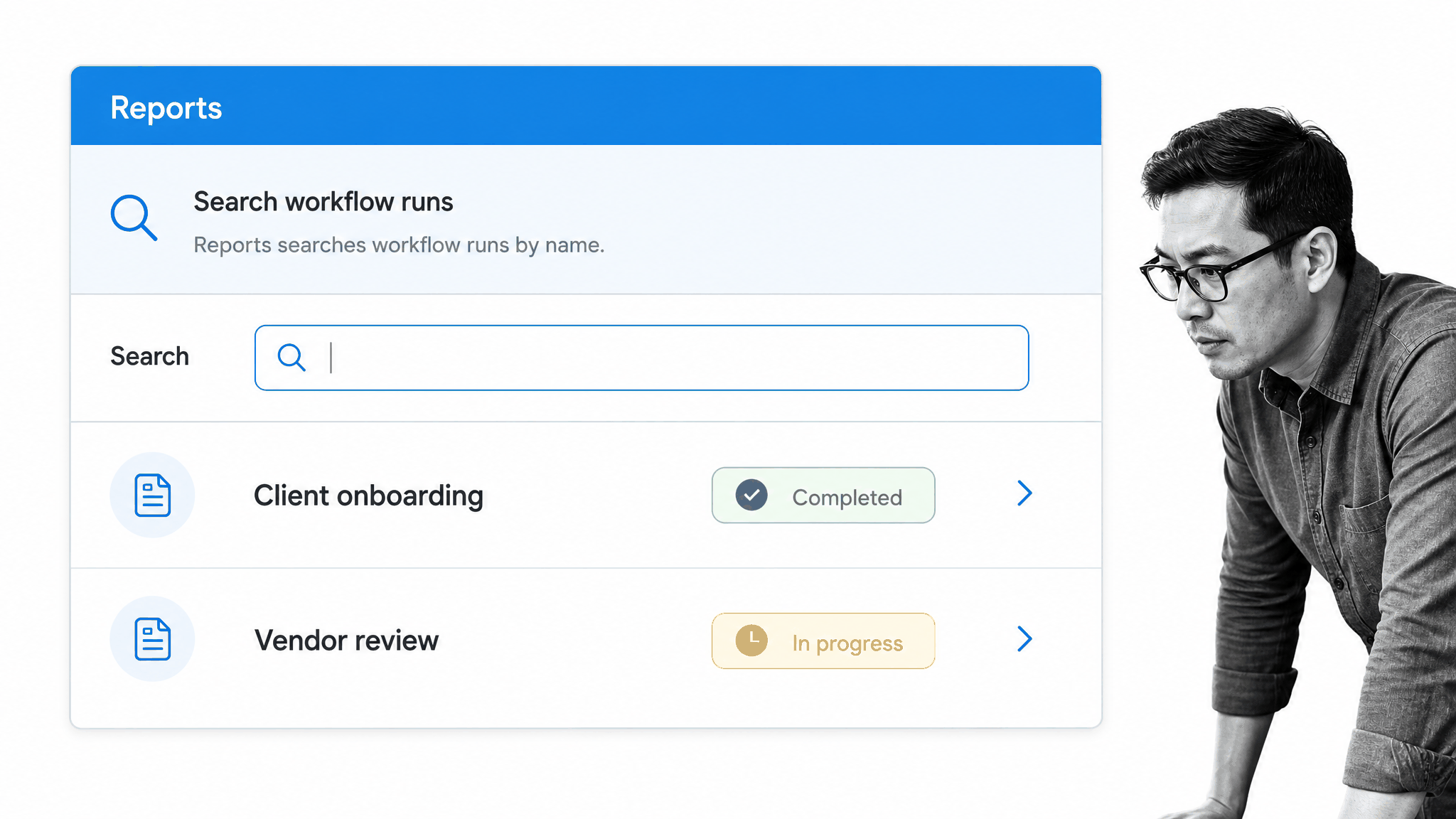
Use search when you know the workflow run name and need to get to it quickly. Search is intentionally narrow: it finds workflow runs by name. Use the Library when you need to find the workflow definition itself.
Search works best when workflow-run naming is consistent. Include a client, project, location, employee, or reporting period in the run name when that detail will help someone retrieve it later. If a search returns too many similar results, combine the name with a saved view or filter that limits the status, owner, workflow, or date range. The goal is to move from a broad inventory to the exact work item without opening every run.
Filter workflow runs
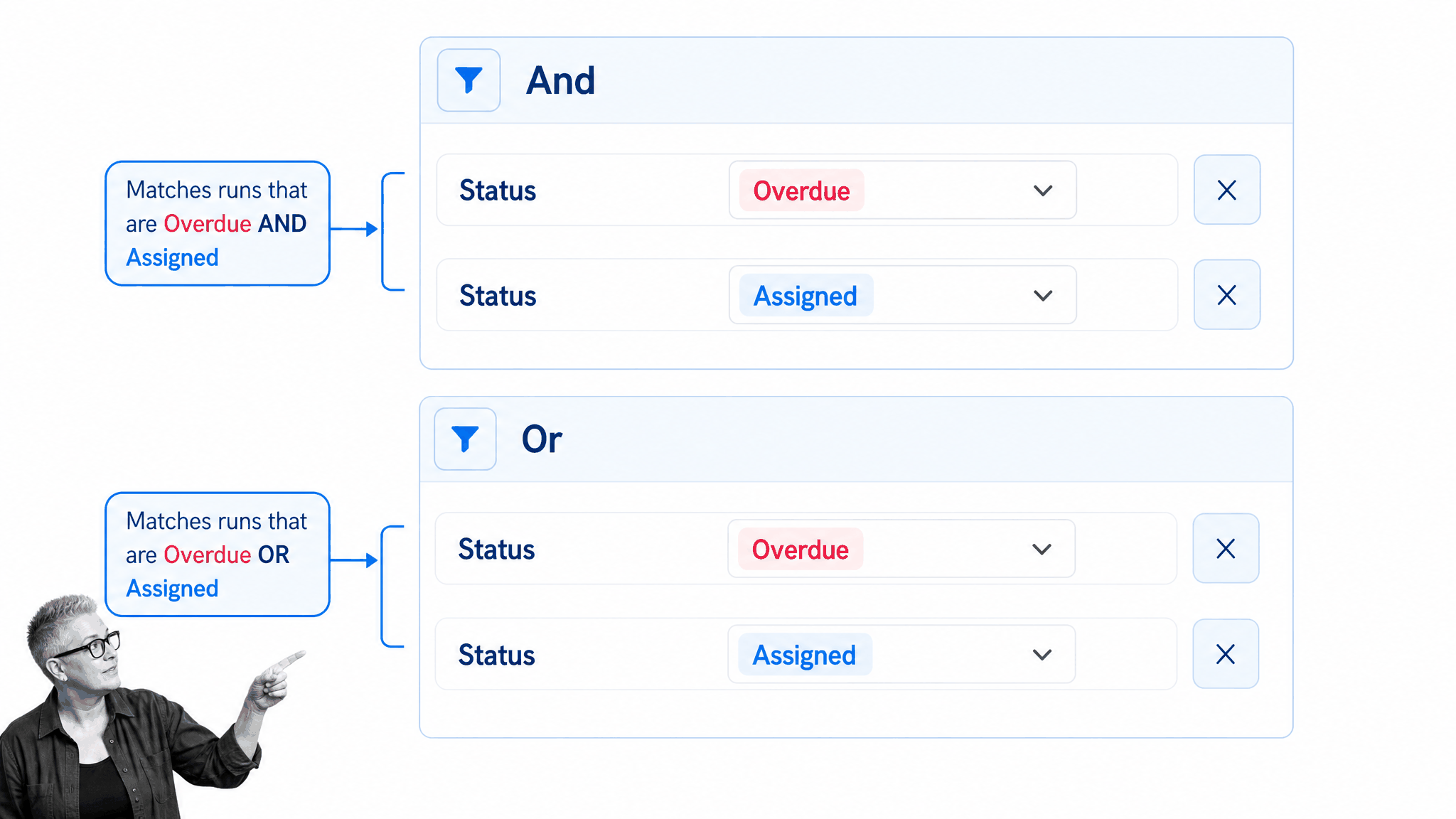
Filters answer operational questions such as which work is overdue, which runs belong to one assignee, or what started within a date range. Combine rules with And when every condition must match. Use Or when either condition is enough. The red-apple test still works: red And apple finds items that are both; red Or apple finds either.
Status filters can separate completed, archived, on-track, due-soon, and overdue work. Assignee filters expose personal or group workloads. Date filters isolate when work started, changed, became due, or completed. Numeric filters on overdue tasks and completed tasks help distinguish a run with one late item from one that has broadly stalled. Form-field filters can narrow a single workflow by the values collected inside its runs.
Select workflows
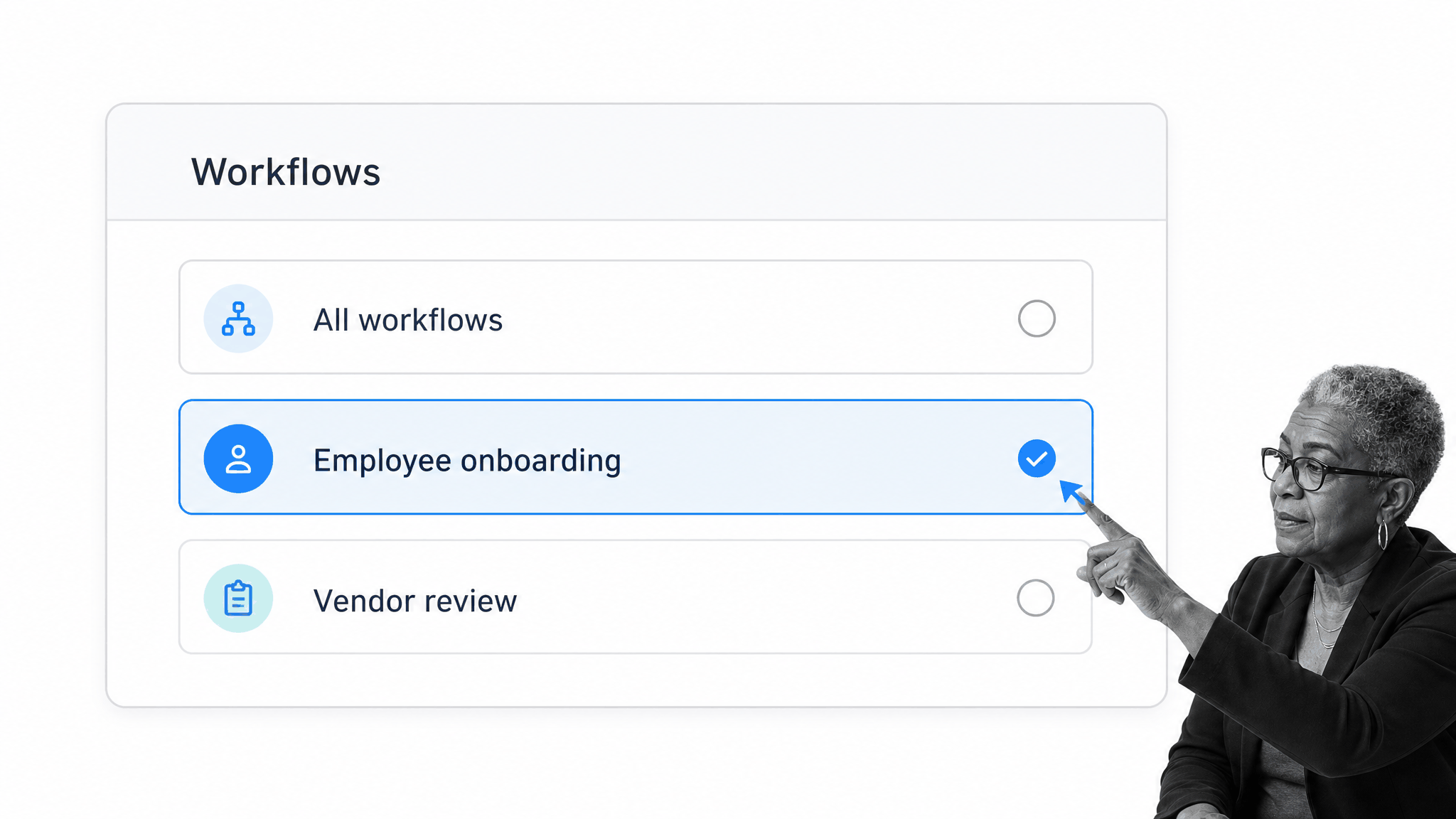
Choose all workflows for an organization-wide view, or select one workflow when you need its task and form-field data as report columns. A single-workflow report is useful when the same process runs repeatedly and the details inside each run matter as much as its overall status.
Selecting one workflow changes the level of detail available. Reports can then show tasks and form fields from that workflow as columns, which makes the dashboard useful for structured operational data, not only high-level status. Hidden conditional tasks remain identifiable, and the view can expose the information collected during execution. Use the all-workflows view for breadth and a single-workflow view for diagnosis.
Customize report columns
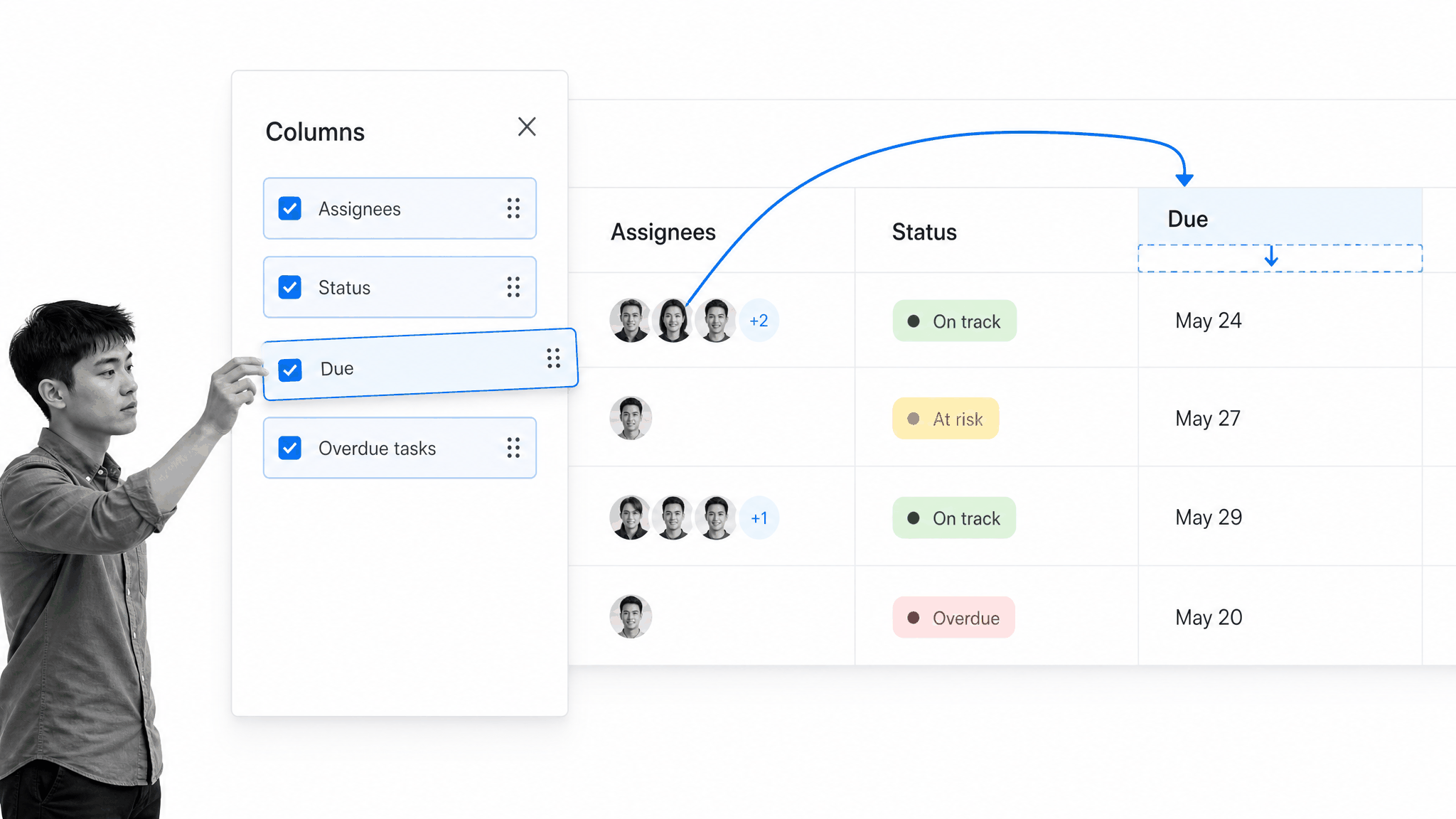
Columns control what the table shows. Useful choices include assignees, status, due date, completed date, overdue tasks, tasks completed, comments, and recent activity. In a single-workflow view, task and form-field columns can expose the evidence collected inside each run. Arrange the report around the decision you need to make, then save the view.
A useful report rarely needs every available field. Put the columns that drive action first: run name, status, owner, due date, overdue tasks, and recent activity. Add completed date or completed by when reviewing throughput. Add task or form-field data when the process requires evidence-level inspection. Sorting and column order should make the exception obvious before someone reads the full record.
Export report data
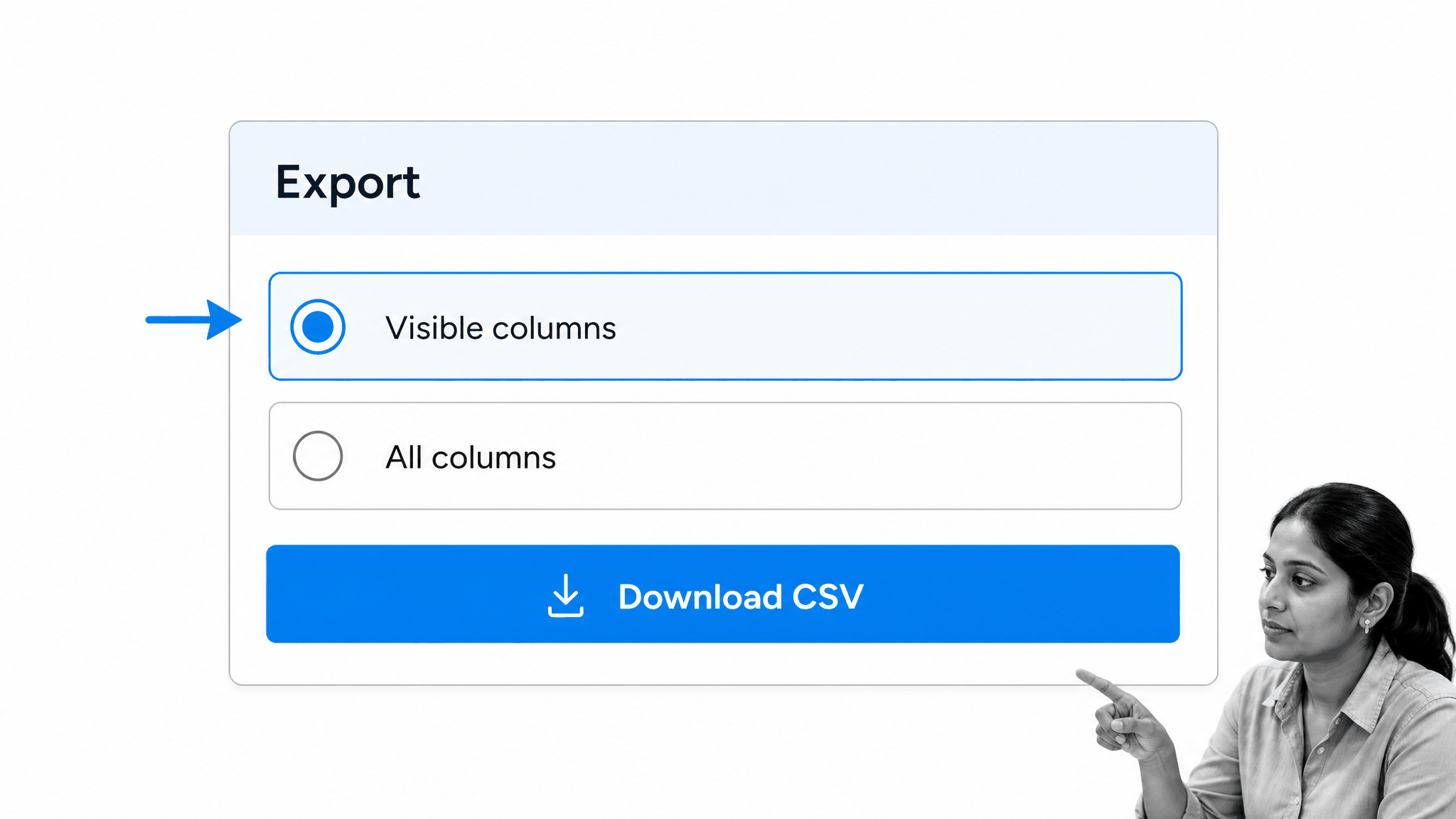
Export a saved view to CSV when the data needs to move into a model, audit packet, or external analysis. Reports can export only the visible columns or all available columns. Keep the view focused for daily use, then choose the broader export when the downstream analysis needs more context.
CSV export is useful when a reviewer needs an offline file, a deeper calculation, or a controlled handoff to another reporting system. Export only visible columns for a clean operational packet. Export all columns when the recipient needs the wider record. Dates are exported in UTC, so convert them when a local reporting period matters. A blank export can also indicate that the viewer lacks permission for the workflow runs in that saved view.
Share saved views
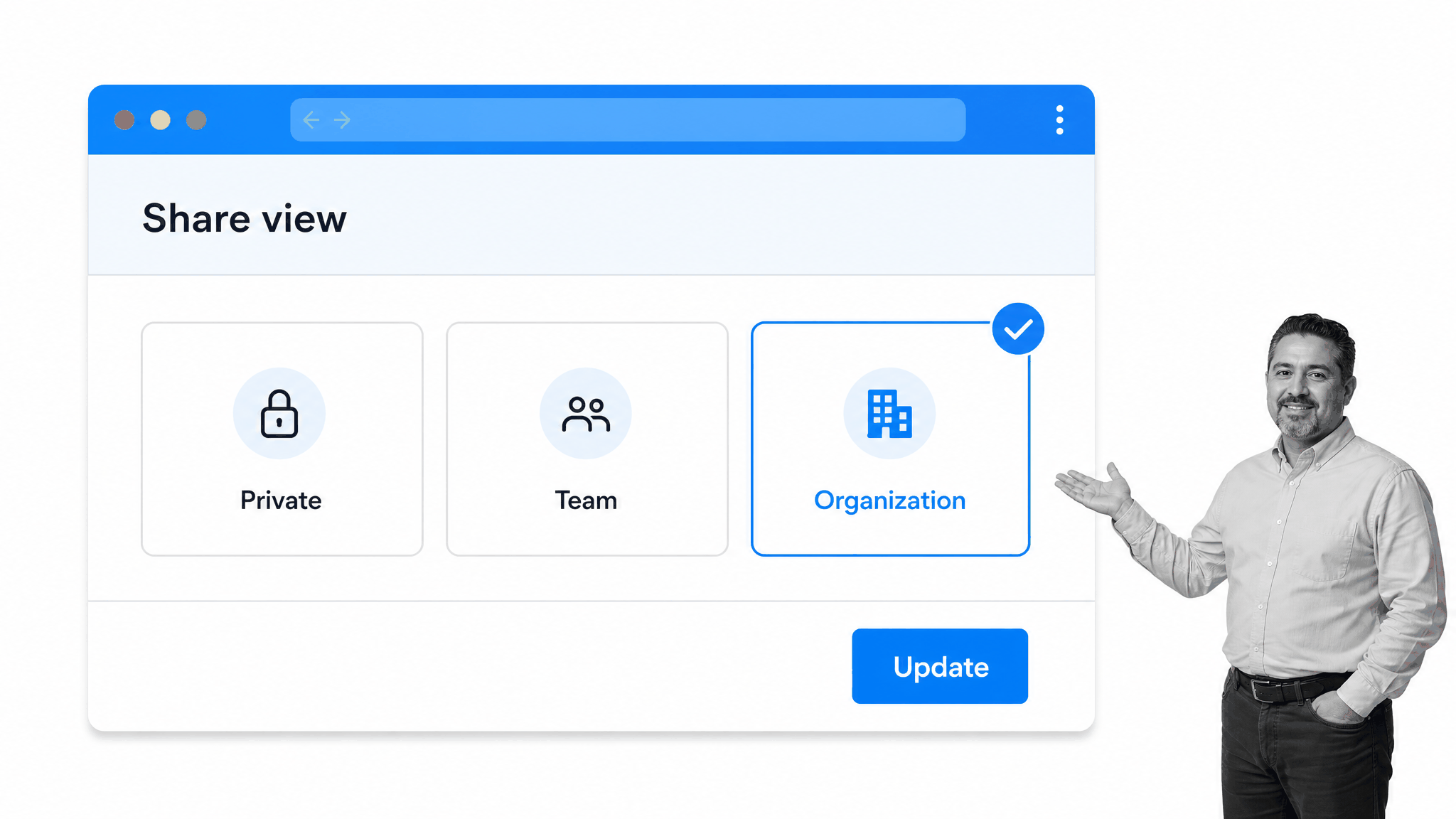
A view can stay private, be shared with selected people or groups, or be available across the organization. Permissions still control which workflow runs each person can see. Sharing a view creates a common operating picture without exposing work the viewer is not allowed to access.
Sharing the view does not override workflow permissions. Guests see only workflow runs assigned or shared with them, and they cannot create their own saved views. Selected people and groups can share a focused operating queue without opening access across the organization. Organization views are useful for common review patterns, but private views remain the right choice for sensitive or experimental reporting.
Analyze workflow performance
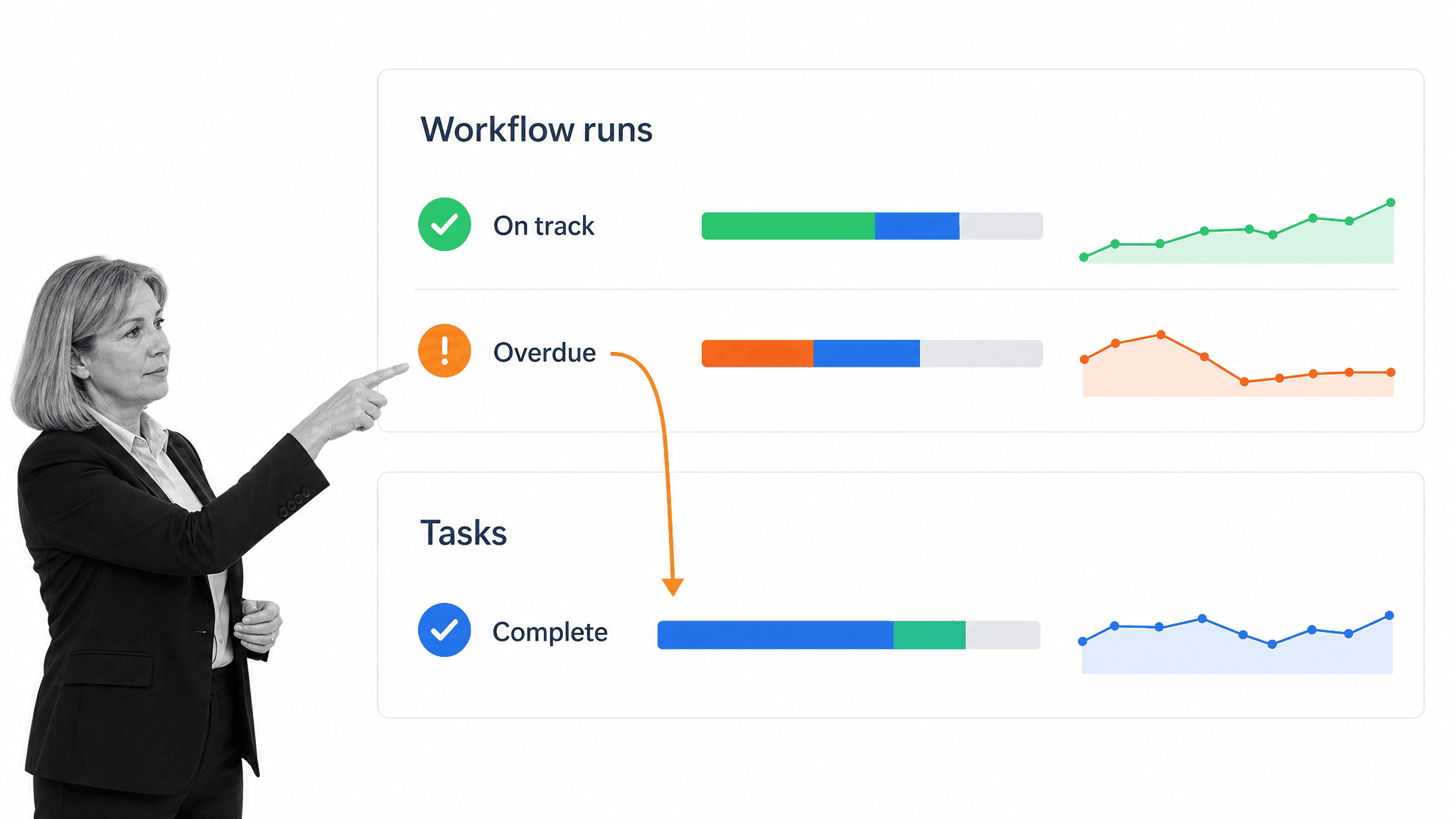
Switch from the report table to Analytics when the question moves from finding a run to understanding patterns. Analytics shows workflow-run and task status, completion, and timing. The Workflow Dashboard provides the command center for one workflow, while Reports gives you cross-workflow saved views and deeper analysis.
For one workflow, Analytics can show workflow-run counts, average completion time, overall status, task completion, and status by assignee. Across all workflows, it provides a higher-level view of completion and assignment. The Workflow Dashboard also summarizes active and completed work for one workflow and links to a custom report when deeper filtering is needed. Use the table to find the item, then analytics to understand the pattern.
Using the checklist dashboard in Process Street
Start with the decision you need to make. Use Reports for an organization-wide queue, the Workflow Dashboard for one workflow, and Analytics for patterns across runs and tasks. Save the view when the same review repeats. Then connect the signal to an owner and the workflow run where the work actually happens.
The dashboard is most useful when it leads to a specific intervention. An overdue status may mean the owner needs help, a prerequisite is missing, an approval is waiting, or the due date no longer reflects reality. Open the workflow run, inspect the task history and comments, then resolve the underlying constraint. Visibility creates the opportunity to act; it should not become a substitute for talking to the people doing the work.
A consistent review rhythm also matters. Project teams may review due-soon and overdue work each morning. Operations leaders may review exception views weekly. Compliance teams may use saved views to find missing evidence or approvals before an audit. The same Reports surface can support each cadence because filters, columns, workflow selection, and permissions change the operating question without creating another disconnected spreadsheet. Small adjustments to a saved view can address problems before they become bottlenecks.
Process Street has direct, universal integrations to 5,000+ systems. Need a new one? An AI agent builds it on the fly. That means a report can stay connected to the systems where requests, records, documents, and approvals originate without making integration tooling the center of the operating model.
Checklist dashboard use case one (the project manager)
Anyone who’s been tasked with managing recurring projects can use the workflow run dashboard to stay on top of all their project tasks and processes.Imagine you’ve got six major projects, all at different stages, on the go at once. All have tight deadlines and tiny budgets.
It can be hard to stay on track and figure out where you are with each one sometimes. Am I right?
You need to organize your workload meticulously, keep a close eye on time management, and be prepared for potential risks, escalating costs, and surprising curveballs.
To start with, use this Project Management Process Checklist. It’s perfect for managing large scale projects.
Check it out:
Set-up one of these workflow runs for each of your projects so you can work through the relevant recurring tasks and ensure you don’t miss anything.
Next, set up your workflow run dashboard to help you manage each of your six projects, simultaneously, from initiation to completion.
Create saved views that allow you to see all the workflow runs related to your projects in one place. Add filters that show your workflow runs by assignee, activity, status, and due date so you can spot the problems, manage the risks, and make sure you’re sticking to your project deadlines and budgets.
With your workflow run dashboard, you can instantly see where you are with each project. You can see what you’re working on, when you last worked on a particular part of the project, how far through the list of tasks you are, and if you’re running behind.
Checklist dashboard use case two (the remote workforce manager)
Managing a distributed workforce can be a tricky balancing act. You don’t want to micro-manage your workforce, but you do want to make sure they are working as productively as possible, on the right tasks.
This is where encouraging your team to use a workflow run like this Remote Daily Work Schedule Template can help.
It gives your team members ownership over what they want to achieve that day, and it gives you the opportunity to sensor check that they’re on the right track.
It’s a great way to be supportive without being oppressive. Give it whirl:
You might decide to use this workflow run, or you may have your own daily, weekly, or monthly workload workflow run system that you use. Either way, this is where the workflow run dashboard comes into its own.
Imagine being able to view all your team’s daily workload workflow runs in one place.
You could see how they’re progressing with their workloads throughout the day.
For example, create a saved view, using the ‘activity’ filter, so you can instantly see how many tasks each of your team members have completed. Check your dashboard at lunchtime. If someone’s only achieved one task out of the five they set themselves, you could use this as an opportunity to reach out and see if they need help.
It gives you a great little snapshot of what your team is doing and how they’re progressing throughout the day. Instead of spending your precious time checking up on them, you can spend it spotting potential problems early and offering support as and when it’s needed.
Checklist dashboard use case three (the property manager)
Property managers need at least ten pairs of hands. New tenants to look after, property owners to onboard, a never-ending list of jobs, and a regular cycle of maintenance and general upkeep of their portfolio to manage.
That’s a lot of plates to keep spinning.
Process Street has several, proven, workflow run workflows to help you, as a property manager build, manage, and grow your property portfolios.
I’ve included a couple to get you started, but you can find them all on the website.
Click here to get the Lease Renewal Process Checklist!
This workflow run will guide you through the lease renewal process to ensure that you and your tenant are satisfied with the end result.
Click here to get the Tenant Move-In Process Checklist!
Use this workflow run to make sure that your property is in excellent condition and is ready for new tenants.
So, you have all these workflow runs to help you manage your properties, but how do you manage these workflow runs?
With the workflow run dashboard of course!
Create a saved view that allows you to see when tasks are coming up, so you stay on top of all the upcoming jobs that need to be done. Add filters so you can quickly see what the status of tasks is. Check the activity level on tasks to remind yourself where you are in the process… the list is endless.
Bottom line is, you need processes to manage your property portfolio. These processes need to be carefully managed, so you stay on top of all the various moving parts of your property business and so you can maintain a level of consistency for your landlords and tenants. You can do this with the Process Street workflow run dashboard.
This webinar on property management processes, if you haven’t seen it yet, is well worth a watch:
Checklist dashboard use case four (the HR manager)
Imagine this: It’s the week after Christmas break and you have six new employees starting on the same day.
If you don’t already, try using a HR workflows, like this one for example; Employee Onboarding Checklist to make the whole process smoother, for you, and for your new starters.
Or, watch this video, it will help you create your own onboarding workflow:
Now you have your workflow runs to work through, you can use your workflow run dashboard to keep track of each one.
Create a saved view that allows you to see all six onboarding workflow runs in one place.
This will help you see what tasks need to be done, what tasks are coming up, when tasks need to be completed by, and if you’re on track with all your tasks.
It couldn’t be simpler, and it will give you the peace of mind that your new starters are being inducted into the organization smoothly and efficiently.
Checklist dashboard round-up
A car dashboard does not drive for you. It shows the signals that help you steer. A checklist dashboard works the same way: it gives managers a reliable view of progress, ownership, due work, and exceptions while the workflows continue to carry the work.
Use saved views for recurring operating queues. Use filters and columns to match the decision in front of you. Use the Workflow Dashboard when one workflow needs attention, and use Analytics when you need to see patterns across runs and tasks.
The payoff is simple: less time chasing updates, earlier intervention when work slips, and a clearer record of what happened. The dashboard helps you look under the hood without stopping the engine.
The post Checklist Dashboard: The Best Way to Keep Track of Your Team with Process Street first appeared on Process Street | Compliance Operations Platform.


0 Commentaires