A Google Docs checklist is an interactive list inside a Google document that lets you mark items complete while keeping instructions and collaboration in one shared file. It is a practical starting point for personal tasks, lightweight team coordination, and reusable checklist templates.
This guide shows you how to make a checklist in Google Docs, why checklists improve reliability, and how to choose between a document checklist and a governed workflow in Process Street. The choice depends less on which tool can display boxes and more on what the work needs after the boxes are created.
| Decision factor | Google Docs checklist | Process Street workflow |
|---|---|---|
| Best fit | Lightweight personal or shared task lists | Repeatable operational and compliance work |
| Core structure | Flexible document with interactive checklist rows | Governed workflow connected to controlled instructions |
| Ownership | Informal collaboration and eligible assigned tasks | Explicit task assignments, due dates, and run visibility |
| Decisions | Comments and suggestions | Approval tasks and conditional routing |
| Evidence | Links, notes, and attachments in the document | Required fields, evidence collection, and audit trail |
What is a Google Docs checklist?
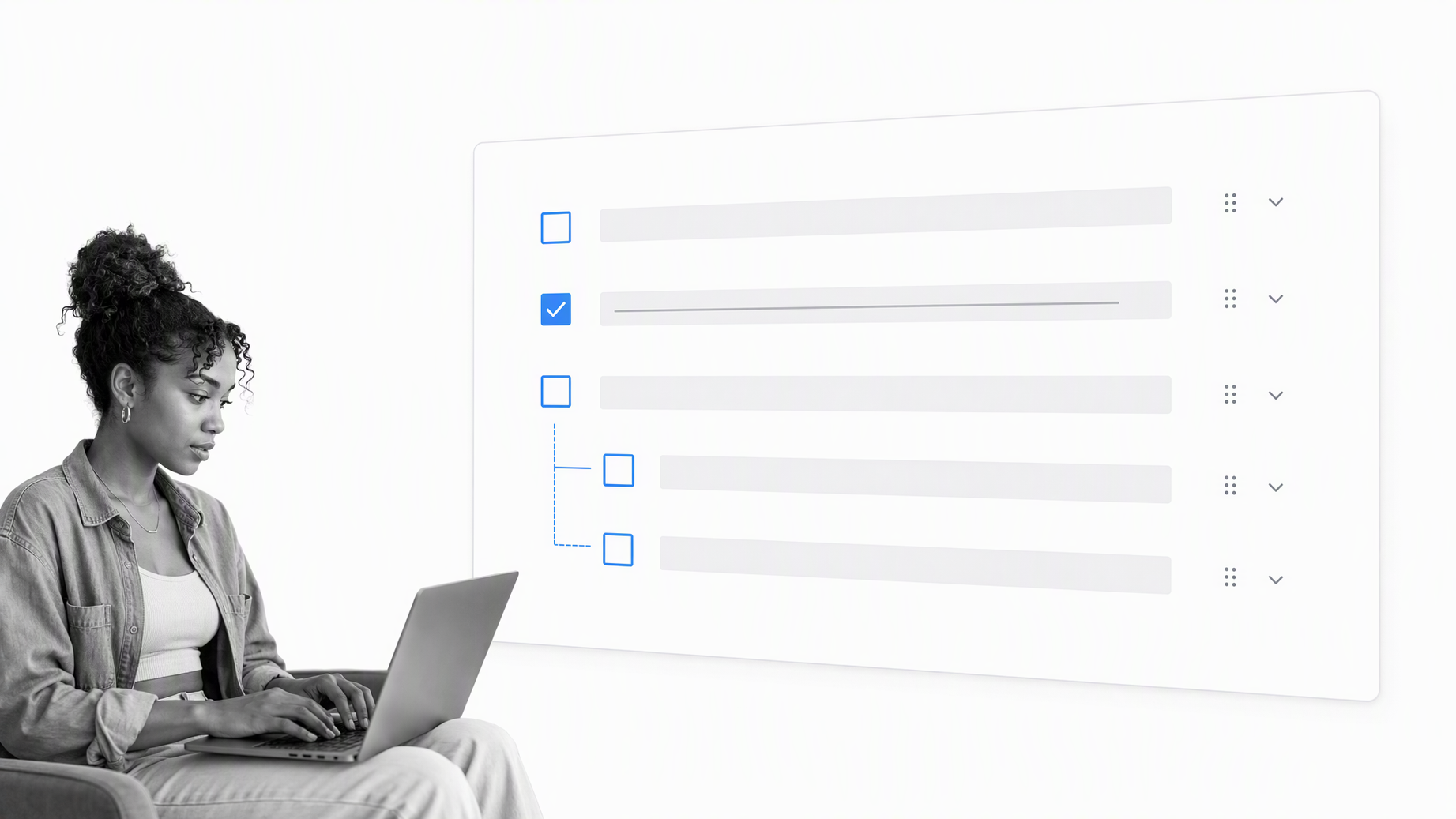
A Google Docs checklist is a list of typed items, one item per line, with an interactive checkbox at the start of each row. A completed item can appear crossed out, which makes progress visible without deleting the original task. Because the checklist sits in a document, you can place context, links, tables, comments, and supporting notes around it.
Many people begin with botched, coffee-stained paper lists and move to digitized checklists when school, university, or work becomes harder to coordinate. Electronic checklists can be collaborative, edited, and accessed by multiple people. That makes them more adaptable than paper and gives colleagues one place to record changes. Google Drive is familiar to many teams because it also supports spreadsheets, calendars, slideshows, and text documents, so a Google Docs checklist can fit an existing way of working.
The appeal is practical. Someone looking for productivity hacks or work management tools can create a straightforward list without installing an extension or adopting a separate application. The document can be shared immediately, comments can be added, and the list can grow with the project. That familiarity is why Google Docs is often the go-to tool for a person taking a first step from paper to digital task management.
Google Docs began as a text document tool, but its collaborative features make a checklist useful for small shared projects. Multiple people can edit the same file, leave comments, suggest changes, and review version history. On eligible Google Workspace accounts, users can assign checklist items to collaborators, set dates, and connect assigned items to Google Tasks and Calendar. Those capabilities make the native checklist more useful than the old workaround of replacing bullet symbols manually.
The format works well when the list itself is the main artifact and the consequences of a missed step are limited. Examples include meeting preparation, a packing list, an editorial outline, or a short project handoff. If the work needs enforced sequencing, evidence, approval gates, or reporting across many runs, the document becomes a reference point rather than a complete operating system.
How to make a checklist in Google Docs
Open a blank document or an existing Google Doc. You can build the checklist from the toolbar, use the Format menu, or type @checklist and choose the checklist building block. The native control is available on the web and in current Google Docs apps, although the placement of controls can vary by device.
1. Create your list
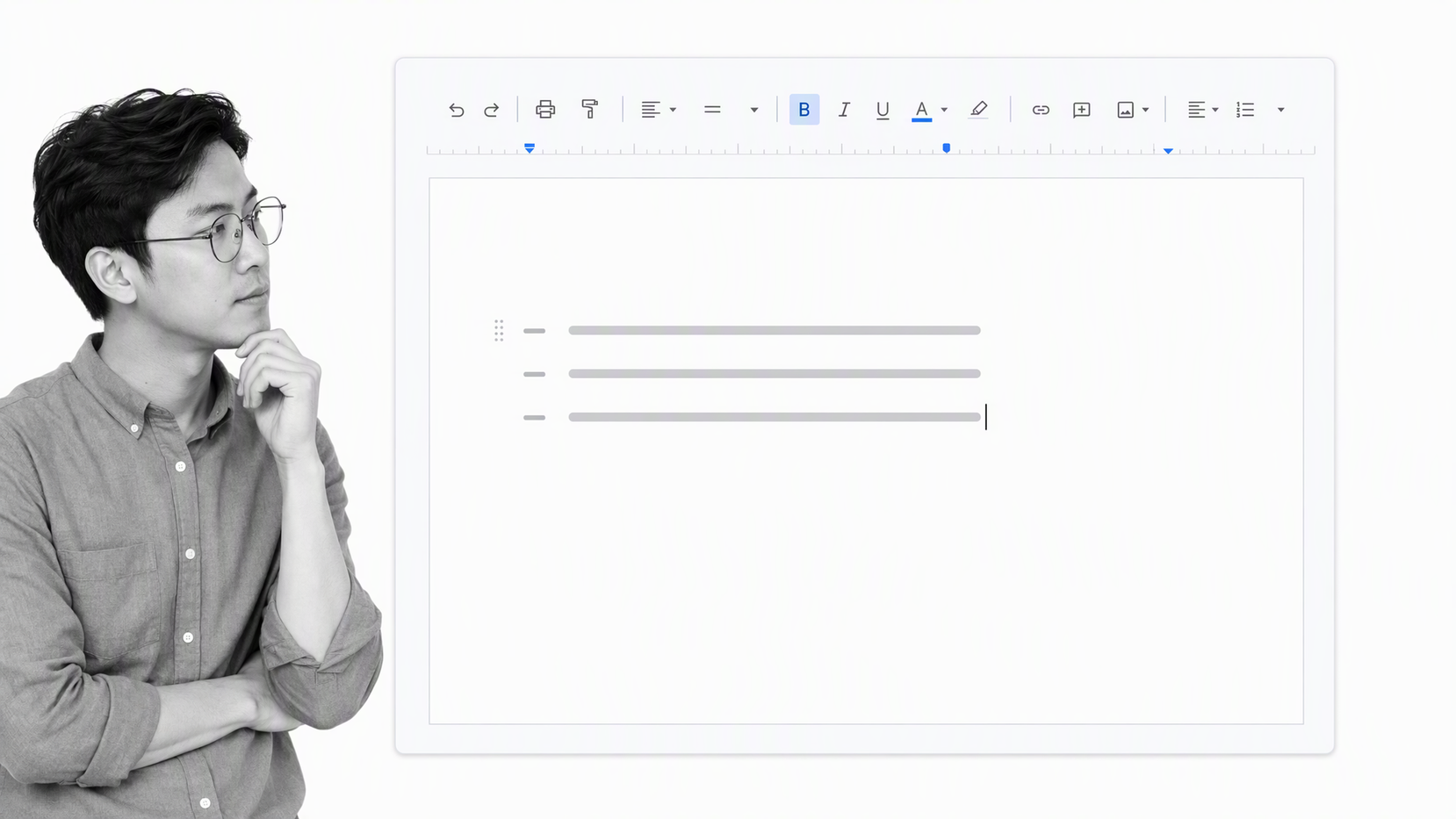
Type each task on its own line. Keep every item specific enough that someone can tell what done means. For example, “Review the draft against the brief” is more useful than “Draft.” If a step needs extra guidance, add a short note, link to a source, or place the details in a nearby paragraph.
A checklist should reduce ambiguity, not preserve it. Begin each item with a clear action verb and separate tasks that have different owners or completion criteria. Nested rows can show supporting steps, but too many levels make a simple document difficult to scan.
2. Add native checkboxes
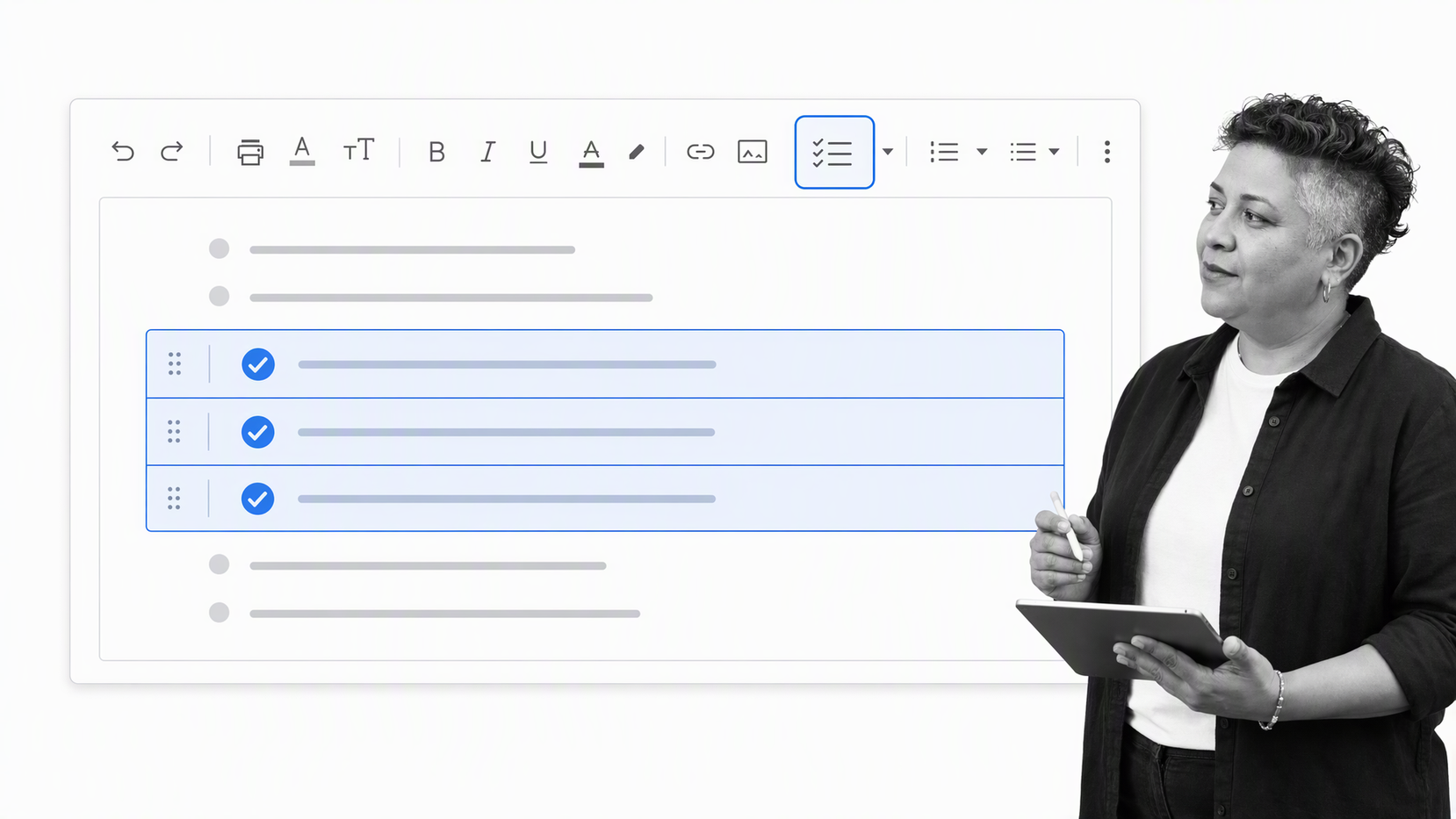
Select the task rows, then choose the checklist icon in the toolbar. You can also select Format, Bullets and numbering, and Checklist menu. Google Docs converts the selected lines into interactive checklist rows while preserving indentation.
If you are starting from an empty line, type @checklist and select the checklist option. Press Enter to add another row. Use Tab to create a nested item and Shift+Tab to move it back one level. This is faster and more reliable than the older method of choosing a checkbox-like bullet and manually swapping it for a checkmark.
3. Complete or assign tasks
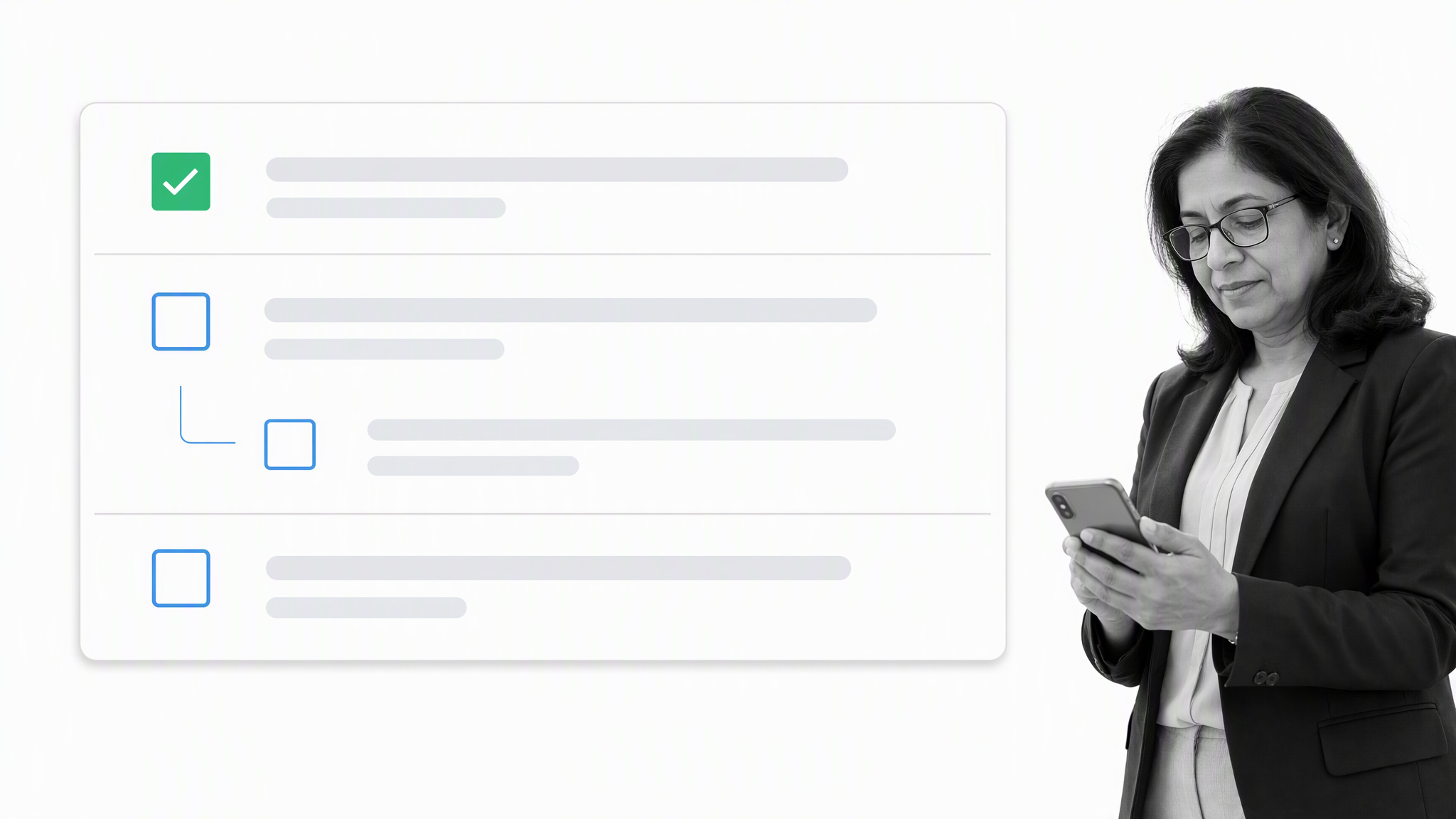
Click a checkbox to mark the item complete. Depending on the checklist style, Docs can apply strikethrough formatting to completed text. If your Google Workspace edition supports assigned tasks, click the assignment control beside the item, choose a collaborator, add a date, and confirm. The assignee receives the task through the connected Google experience.
Comments and suggestions are useful for discussion, but they are not the same as a formal approval. Agree on whether checking a box means the work was performed, reviewed, or approved. That distinction prevents a shared document from looking complete while important validation is still outstanding.
The benefits of using a Google Docs checklist
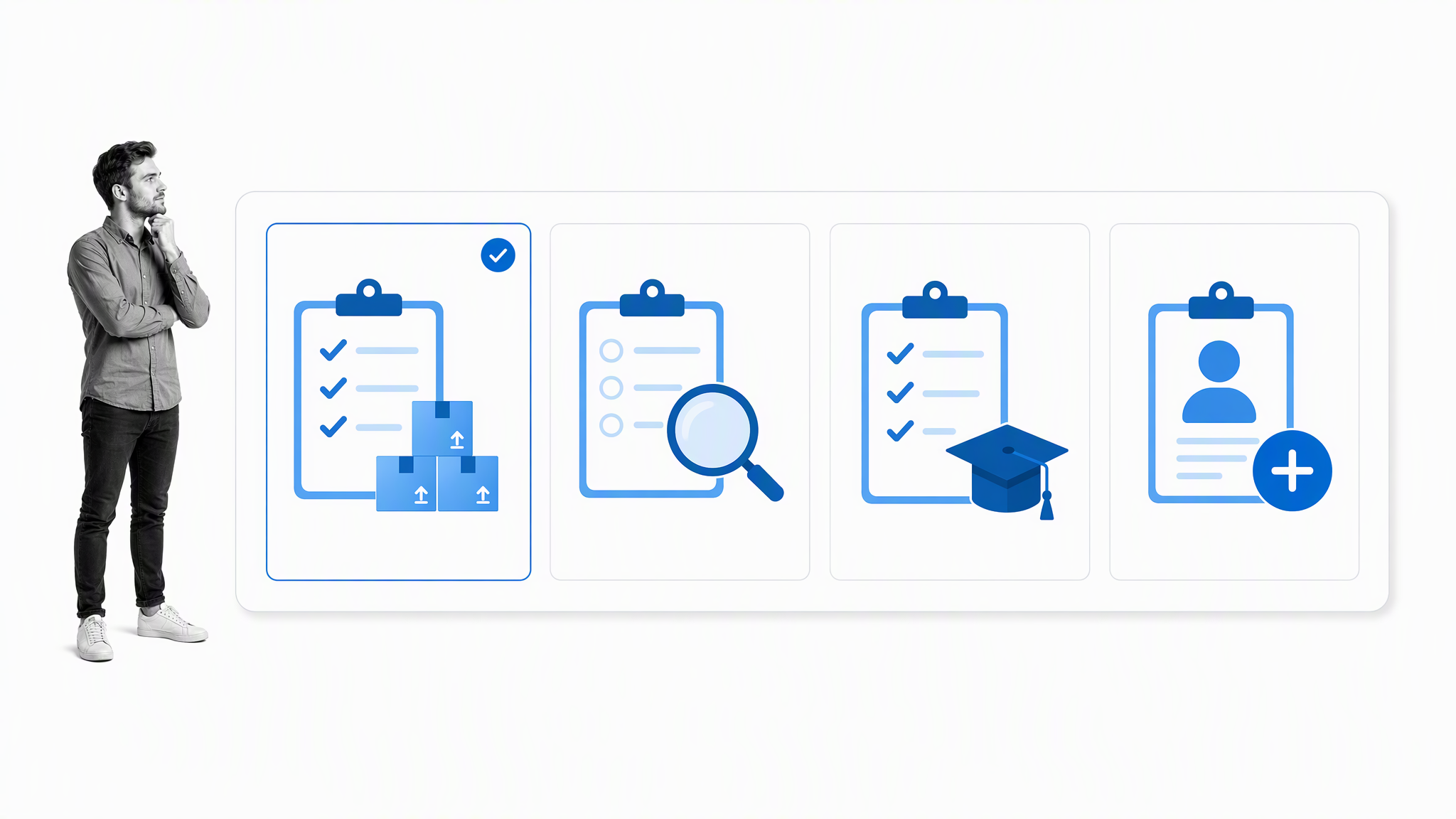
Creating checklists in Google Docs is a simple, quick process. The value comes from making the expected steps visible. A lightweight checklist can democratize knowledge, reduce avoidable error, and reinforce teamwork without asking people to learn a separate tool.
Benefit one: Checklists democratize knowledge
Listing and recording steps within a process makes the method accessible to others. Operations can be standardized to a best practice rather than kept in one person’s memory. In a shared document, colleagues can review the same instructions, suggest improvements, and see how the work is meant to flow.
Benefit two: Checklists reduce error
Checklists act as a prompt, guiding the user so an item is less likely to be missed. Complexity, stress, interruptions, and fatigue all make memory less dependable. A well-designed list moves the burden from recall to recognition and gives the operator a visible place to resume after an interruption.
Classic research into working memory described a narrow limit on how many pieces of information people can retrieve with relative accuracy. Later work has refined those estimates, but the operational lesson still holds: adding complexity and growing the number of tasks reduces the speed and accuracy of task handling. Checklists compensate for those fallibilities by placing the important sequence outside a person’s memory and reducing preventable human error.
Benefit three: Checklists reinforce teamwork
Mutual support is reinforced because team members can cross-check recorded tasks, observe what has been done, and see the order of work. Transparency improves when people share the same definition of complete. The checklist also creates a natural point for handoffs and review.
Checklists in the real world
“We are not built for discipline, we are built for novelty and excitement, not for careful attention to detail. Discipline is something we have to work at.” Atul Gawande, The Checklist Manifesto
The benefits of checklists become clearest in high-consequence settings. The World Health Organization developed the Surgical Safety Checklist to support communication and reduce avoidable harm around surgery. Aviation crews use structured checklists for normal, abnormal, and emergency procedures. High-risk industries, including nuclear power, use formal verification because a familiar task can still fail when conditions change.
Atul Gawande’s The Checklist Manifesto: How to Get Things Right brought these examples to a broad audience. Surgical procedures, aerospace operations, and nuclear power plant safety differ greatly, yet each depends on disciplined attention to detail. The common insight is not that every situation needs a longer list. It is that experts should identify the small number of critical checks, place them at the right pause point, and support communication when pressure is highest.
A Google Docs checklist will not create the controls used in those environments, but the same principle still applies: record the critical steps, make them easy to follow, and improve the list when experience reveals a gap.
Checklists are applied across a wide range of industries, and industry experts have recognized the substantial benefits they bring to operations. The exact format changes, but the disciplined approach remains useful.
Eight Google Docs checklist templates
A checklist template provides the backbone for a quality checklist to be used during a specific project or recurring task. The eight categories below cover common business needs. Copy the structure that matches your situation, edit the completion criteria, and assign responsibility before the work begins.
1. Inventory checklist template
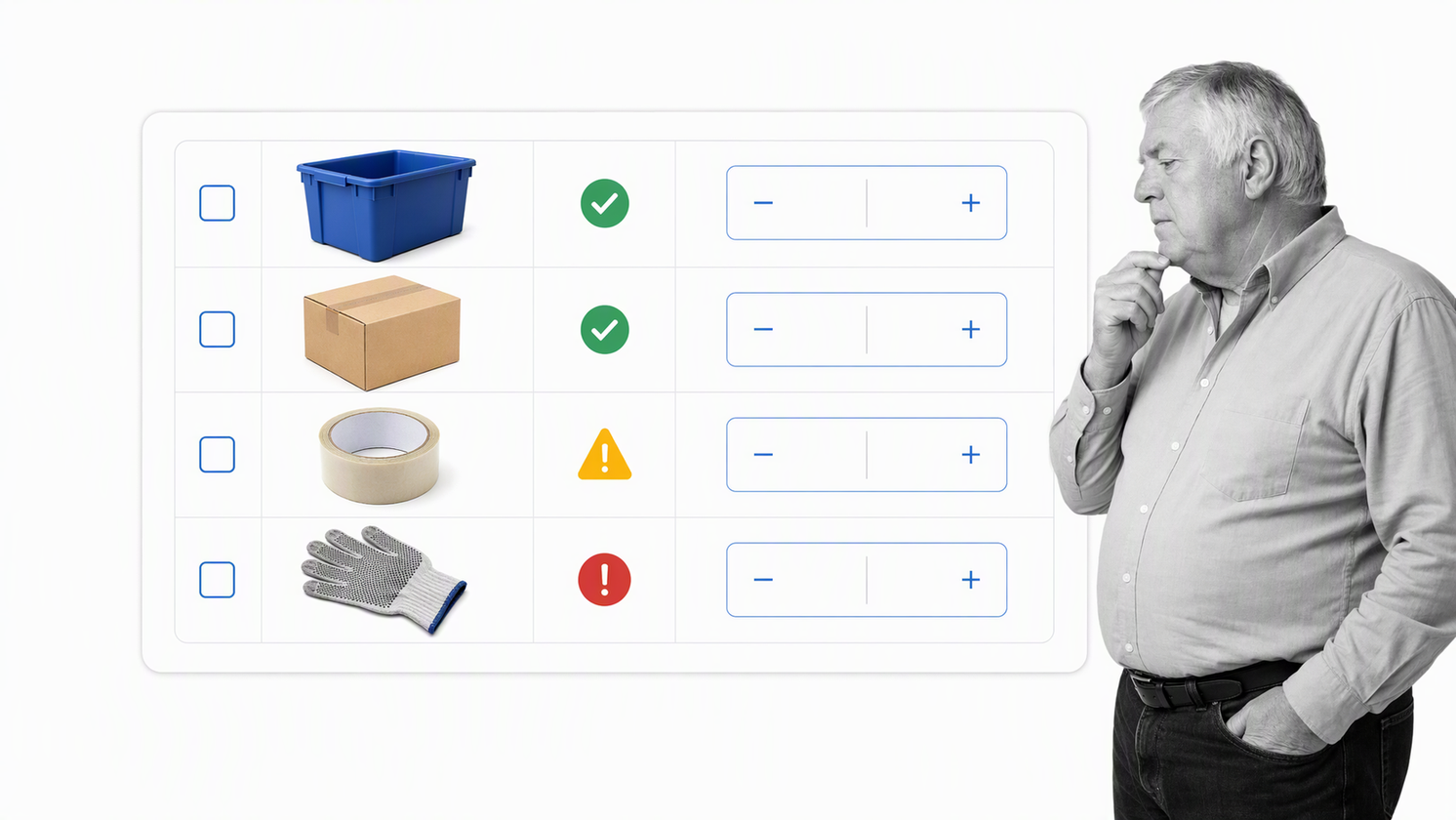
An inventory checklist records the item, expected quantity, observed quantity, condition, and action required. It is useful for a periodic stock count, equipment handoff, event supplies, or a small office inventory. Include a date and owner so the file does not become an undated snapshot. Start with an inventory checklist template and remove any fields you do not need.
2. Inspection checklist template
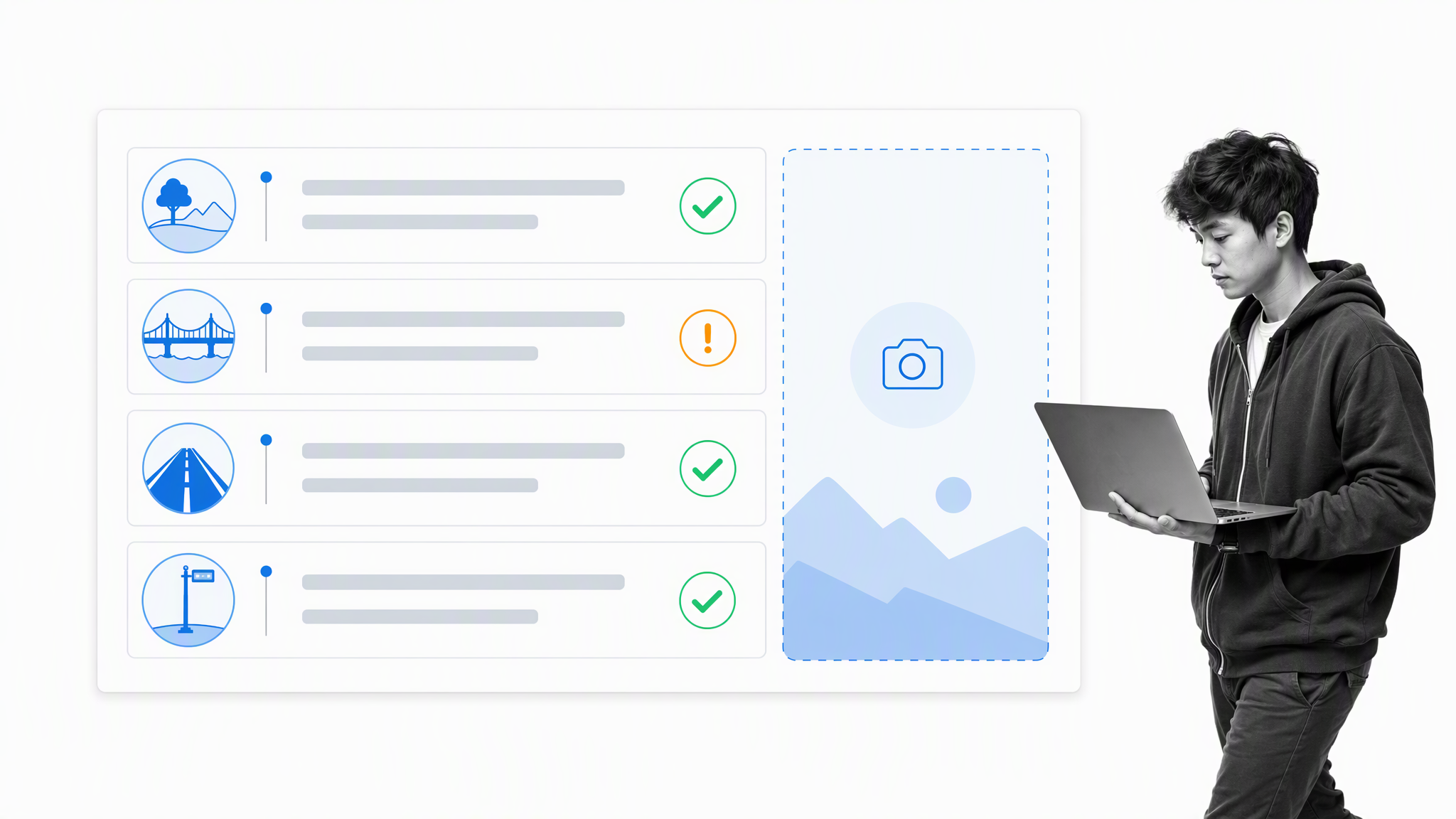
An inspection checklist turns criteria into observable checks. Write each row so the inspector can choose pass, fail, or not applicable and link supporting evidence. Add a follow-up owner for failed items. A basic inspection checklist template works for low-risk reviews, while regulated inspections usually need a controlled workflow and retained evidence.
3. Training checklist template
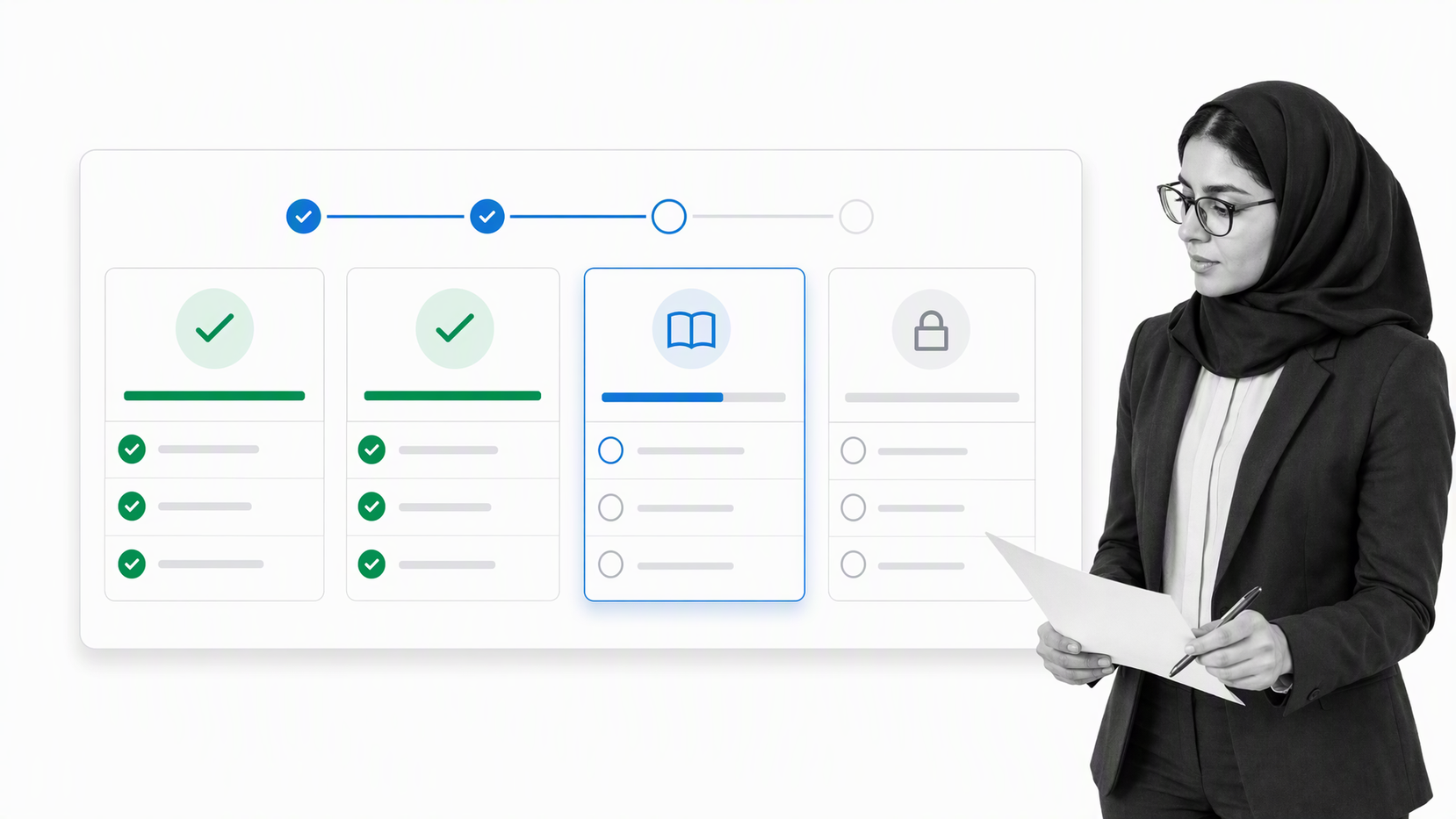
A training checklist sequences modules, practice, knowledge checks, and sign-off. It helps a learner and manager see what remains. Include the expected standard, not only the lesson title. A training checklist template can organize a small program, but recurring training across a workforce benefits from automatic assignments, due dates, and completion reporting.
4. Marketing checklist template
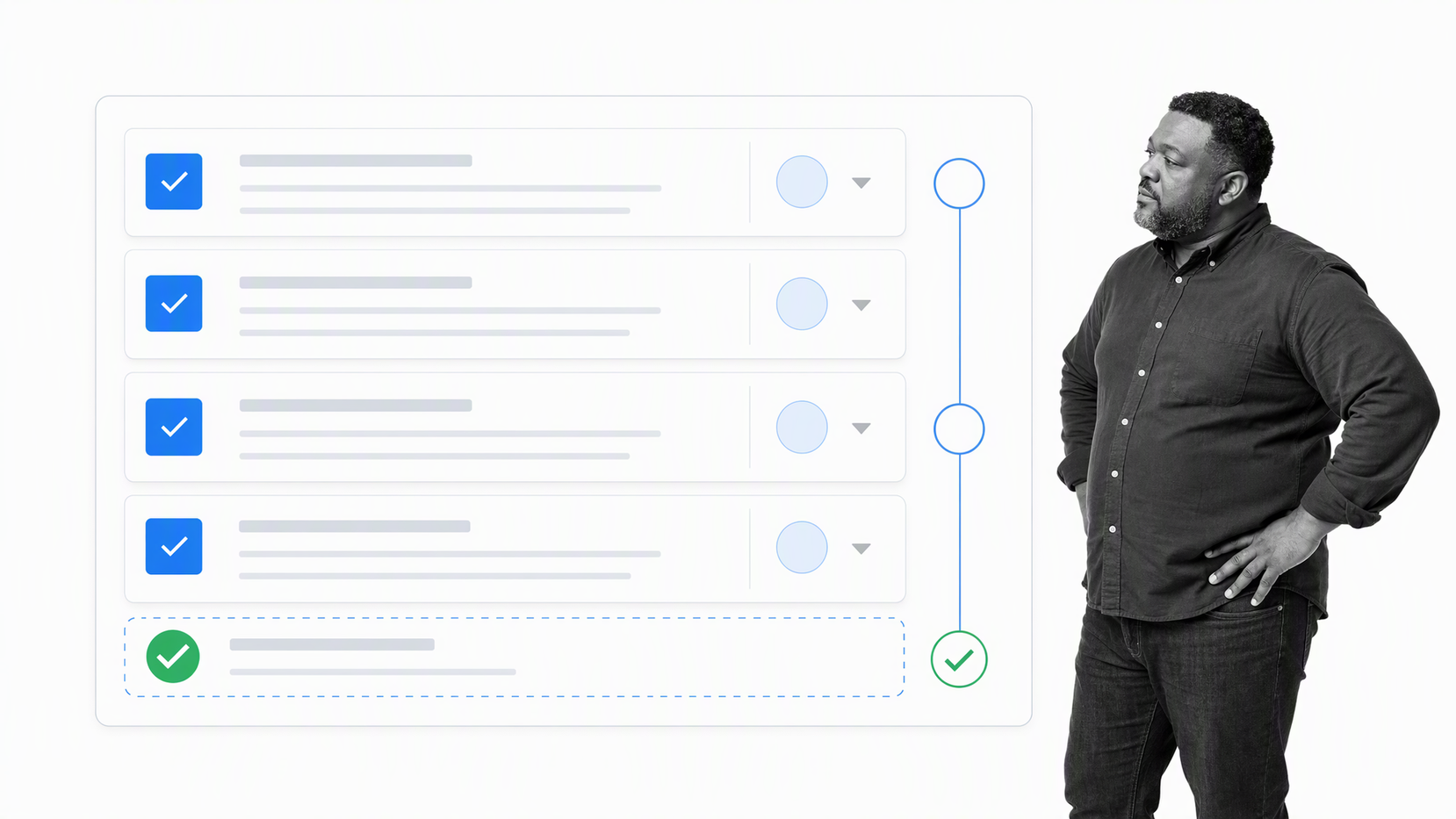
A marketing checklist can connect the brief, creative review, audience selection, tracking setup, launch, and post-campaign analysis. Define who approves claims and who owns the final release. This marketing checklist template offers a starting structure. For repeatable campaigns, link it to a documented marketing workflow so reviews and handoffs remain visible.
5. Task checklist template
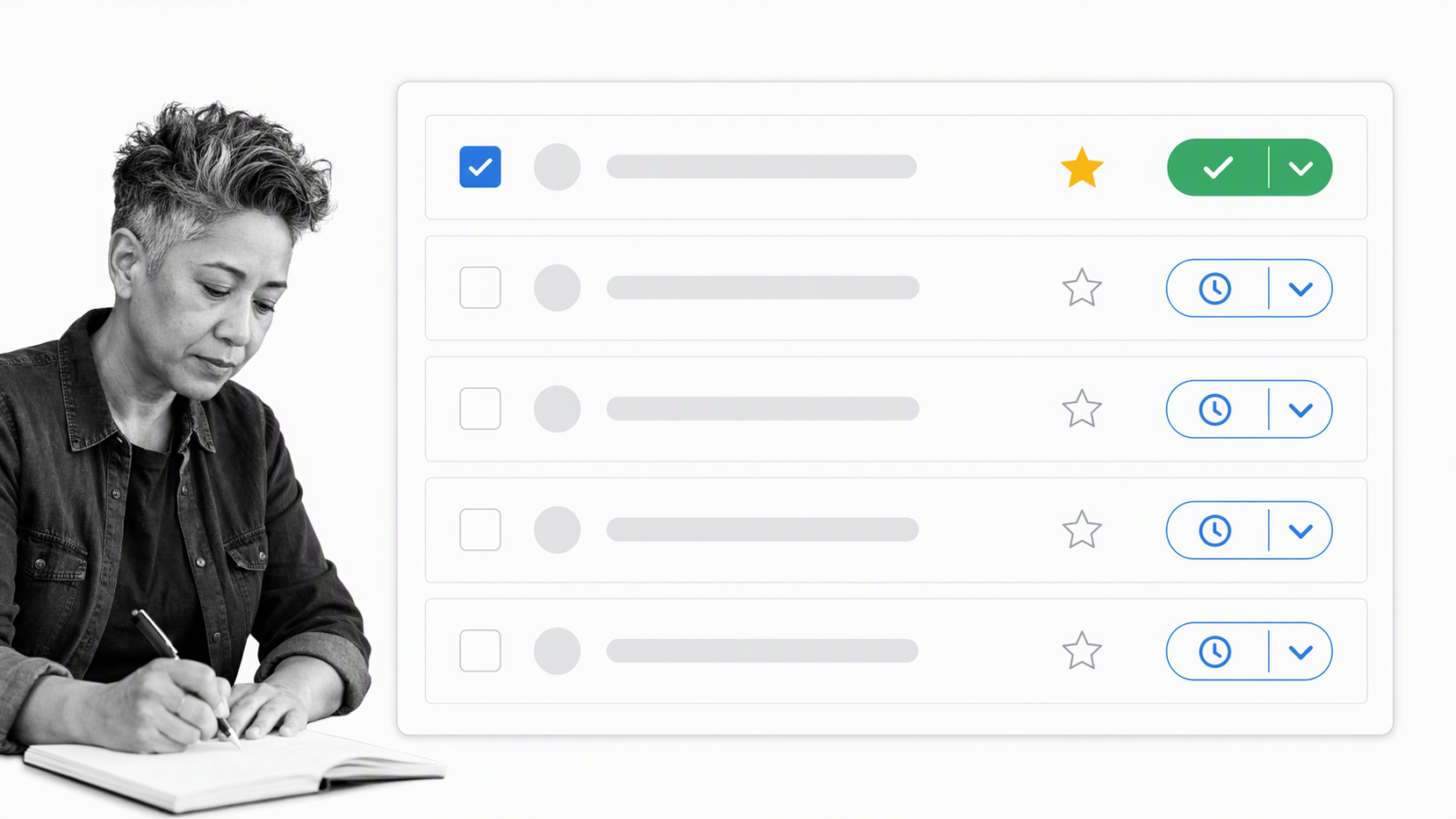
A task checklist is the most flexible option. It can cover a personal routine, project closeout, maintenance visit, or client handoff. Include only the fields needed to make action clear: task, owner, due date, and completion condition. The task checklist template is a useful blank frame.
6. HR policies checklist template
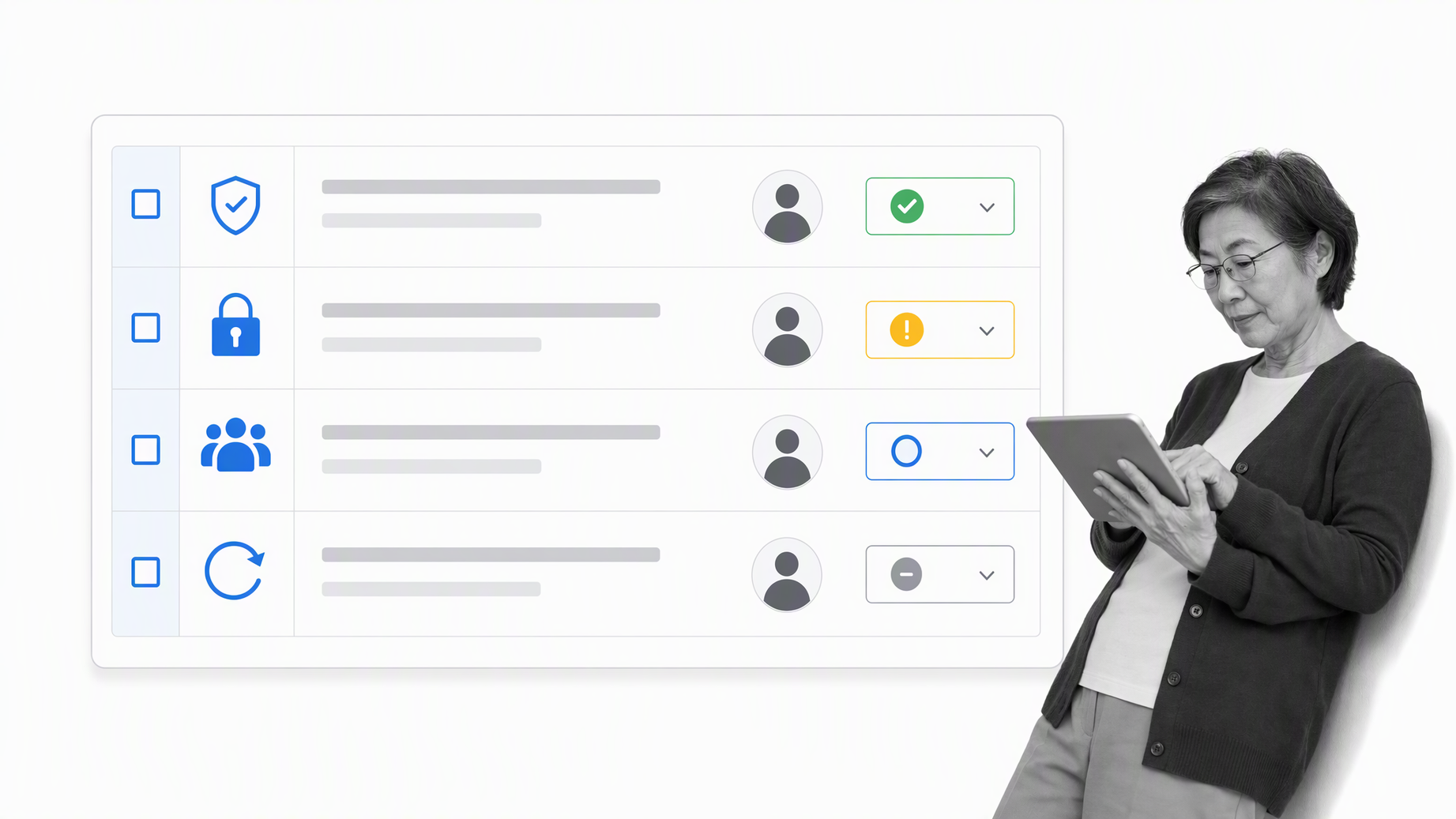
An HR policies checklist can track drafting, legal review, stakeholder approval, publication, employee communication, and acknowledgment. Policy work needs careful version control because the wording may change while a review is underway. Use an HR policies checklist template for a small review, then move to a controlled document management system when version, access, approval, and acknowledgment evidence matter.
7. Daily checklist template
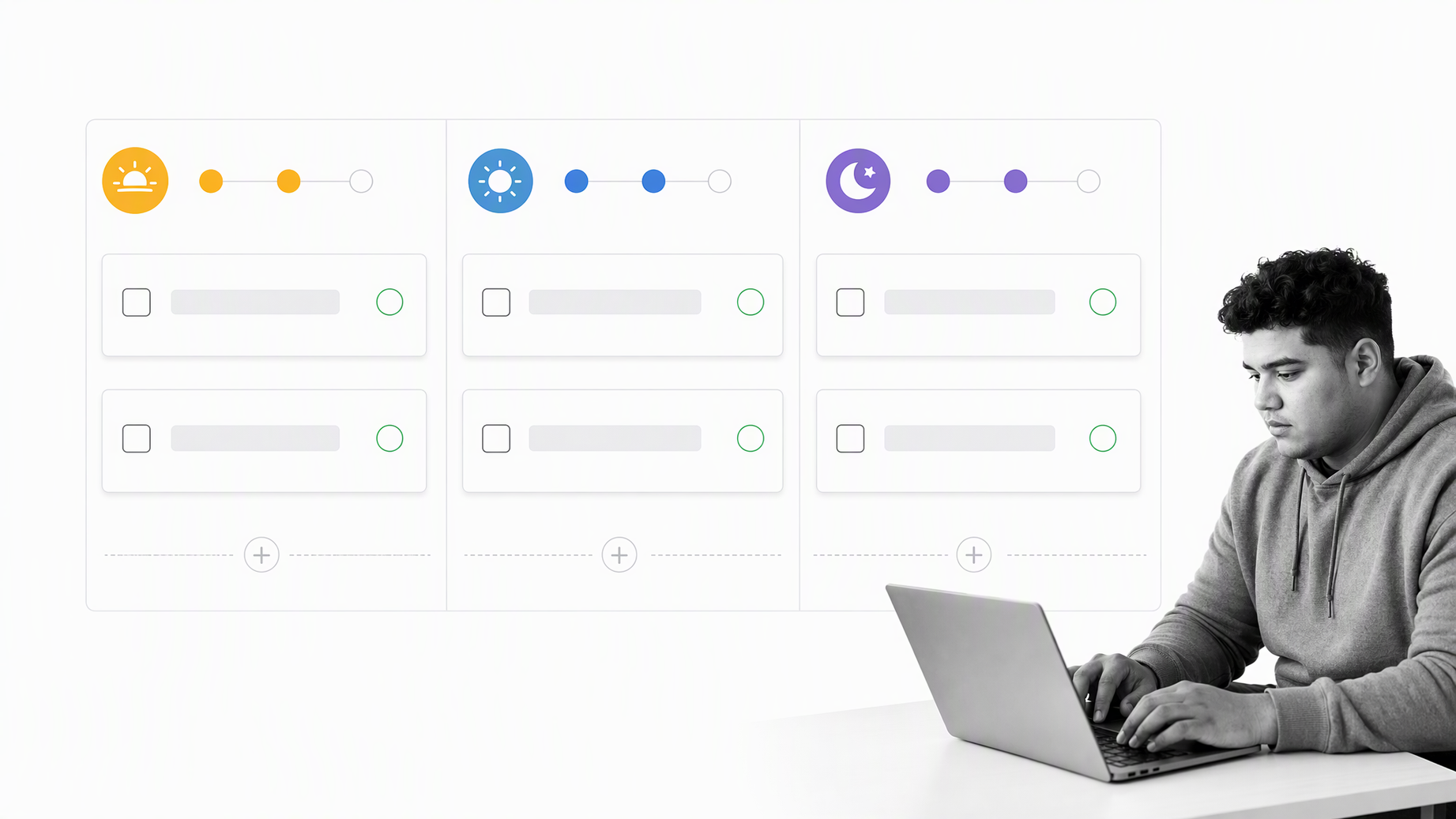
A daily checklist protects recurring routines from interruption. Opening checks, customer support triage, end-of-day reconciliation, and workplace readiness are good candidates. Keep the list short enough to complete and separate true daily controls from occasional tasks. A daily checklist template gives the routine a consistent home.
8. Onboarding checklist template
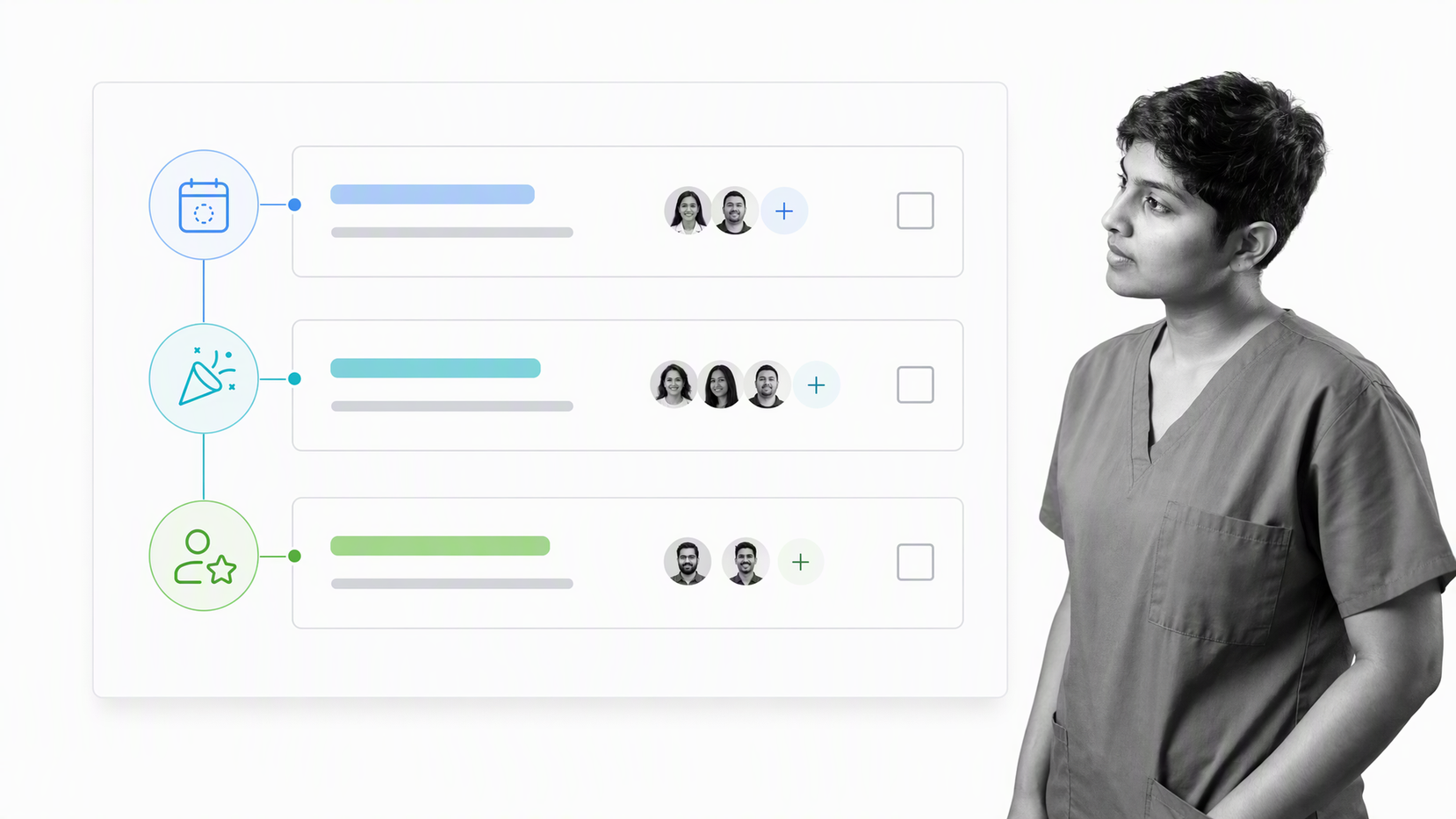
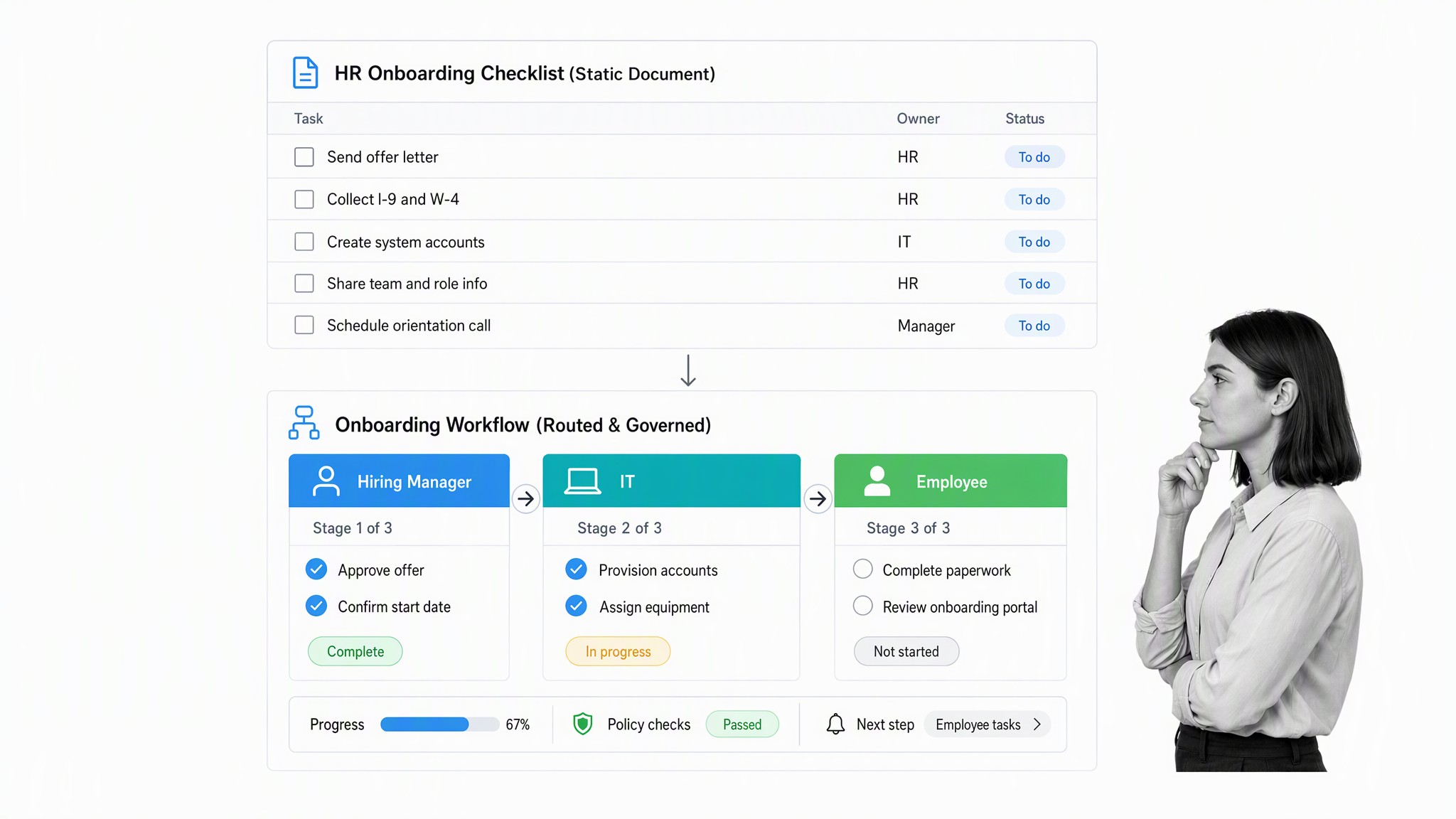
An onboarding checklist coordinates work across HR, IT, payroll, security, the hiring manager, and the new employee. It should cover pre-start preparation, first-day access, role training, policy acknowledgment, introductions, and early feedback. An onboarding checklist template can support a single hire, while a recurring employee onboarding process needs owners, dependencies, deadlines, and evidence across many runs.
Google Docs vs Process Street
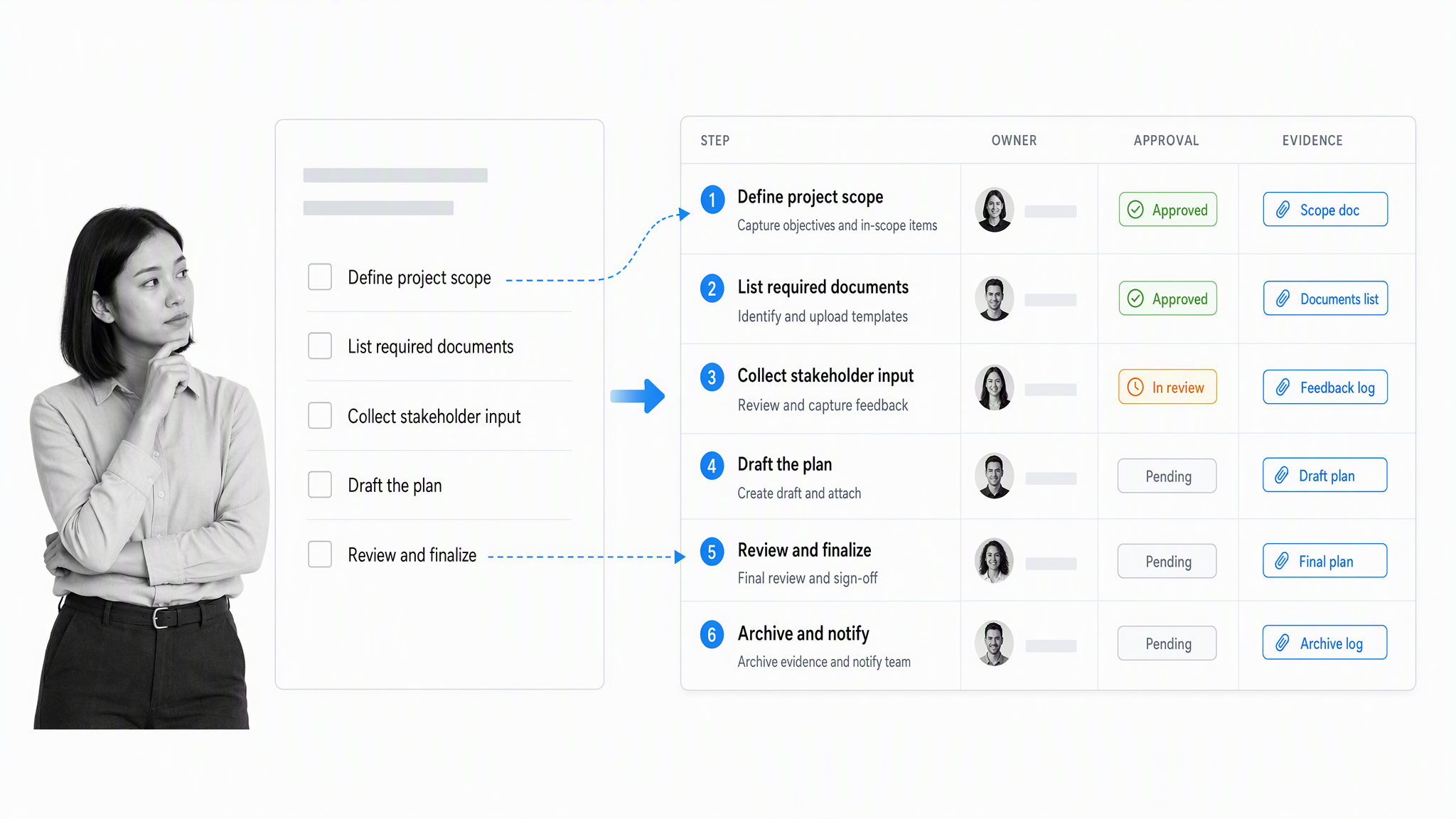
Google Docs and Process Street both help people follow recorded steps, but they solve different levels of operational work. Google Docs is strongest when the document is the center of collaboration and the checklist is lightweight. Process Street is strongest when the checklist must become a repeatable workflow with controlled execution.
Which tool wins depends on the work. The future of checklist execution is not one universal format; it is choosing the lightest tool that still provides the coordination, control, and proof the task requires.
Google Doc checklists are a great starting point for quickly creating a basic checklist for straightforward tasks. Issues arise, however, once you introduce an element of complexity. A checkbox list can be clean and useful, yet it has limited depth when the work needs multiple assignments, feedback cycles, or authorization. The better equipped tool is the one that can cater to the actual workflow rather than forcing every situation into the same document function.
- Use Google Docs for flexible notes, collaborative writing, short shared lists, and tasks where participants can coordinate informally.
- Use Process Street for recurring operations that need assignments, required fields, conditional routing, approvals, evidence, deadlines, visibility, and an audit trail.
- Use both when a Google document is an input or working artifact inside a governed workflow. Link or attach the document at the relevant step, then keep execution and approval in the workflow.
Consider an essay production checklist. A basic document can outline research, drafting, revision, and submission. The difficulty begins when a supervisor’s feedback changes the number of drafts, comments need to stay connected to the correct version, and work cannot move forward until approval. The original checklist becomes messy because it was designed as a list, not as a routed review system.
A feedback and approval example
In a governed workflow, the supervisor’s comments are recorded with the work, the writer receives a revision task, and the next stage remains blocked until approval. Conditional logic can repeat the revision path when another draft is required. The workflow preserves who approved what and when, while the document remains available as the content artifact.
The same pattern appears in employee onboarding, policy review, quality inspections, vendor approvals, and compliance evidence collection. A Google Docs checklist may be enough for one person or one low-risk instance. It becomes difficult to manage when work repeats across many people, branches according to answers, or needs proof that a control was performed.
How Process Street supports governed checklists
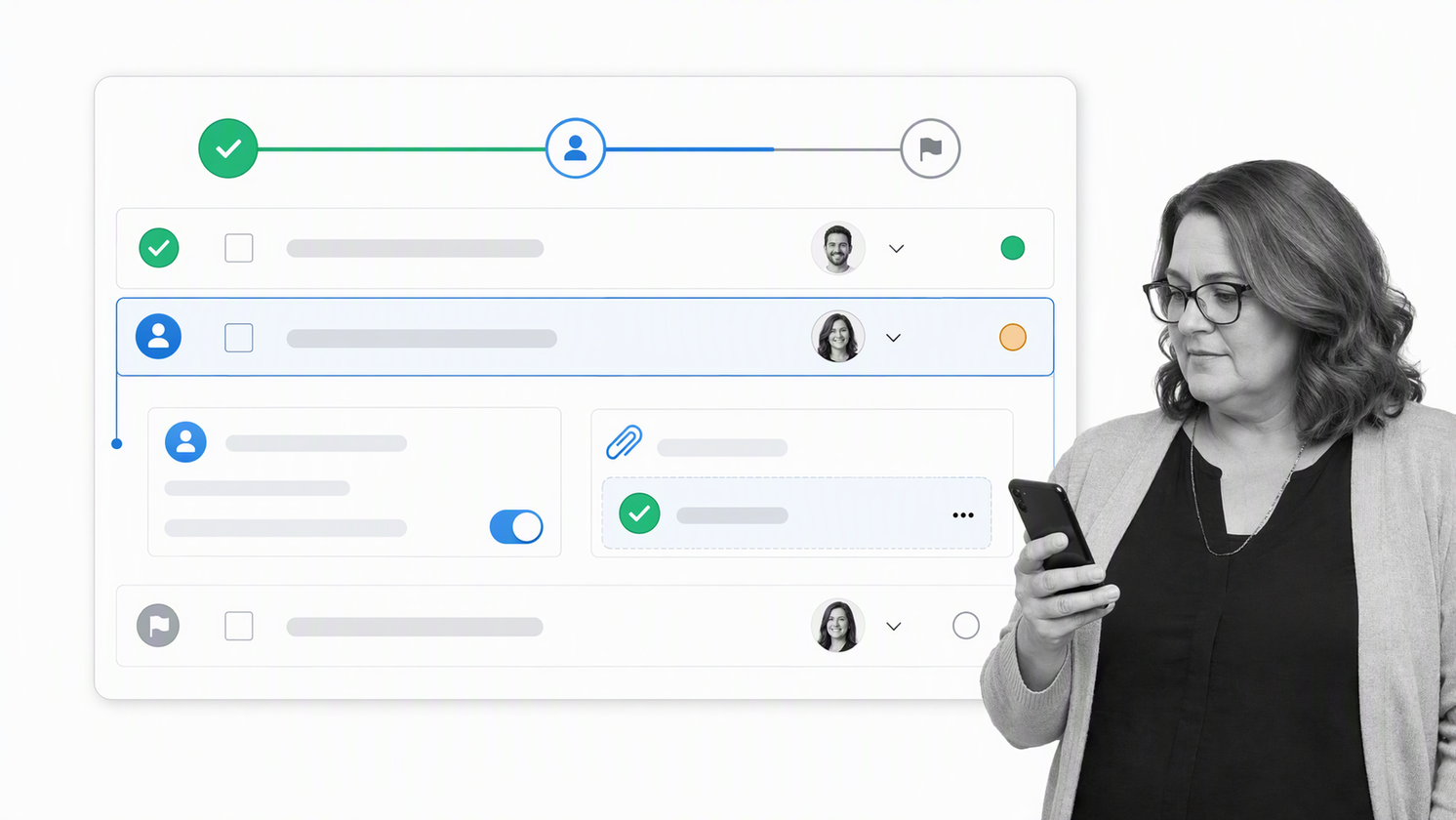
Process Street is a single Compliance Operations Platform with Docs and Ops capability areas plus built-in AI. Docs helps teams create, control, approve, publish, and maintain policies and procedures. Ops turns those instructions into workflows that assign work, collect data and evidence, route approvals, and show the status of every run.
A team can begin with a reusable checklist, then add owners, due dates, required fields, conditional logic, approval tasks, integrations, and reporting as the operation matures. Built-in AI can help teams find and use operational knowledge and support workflow execution while the governing process remains visible and controlled.
Role assignments allow tasks to be pre-assigned within a team, so work can be delegated and the progress of each team member monitored. Dynamic due dates can calculate a deadline from an earlier event, and reminders are automatically sent to the relevant individual. Approvals can support a single decision, multi-stage approvals, or sequential approvals. Comments let participants mention team members, while form fields keep information recorded in one place so authorized colleagues can access it as required.
Those controls encourage teamwork, collaboration, and clear accountability without turning the checklist into a static object. A run can be adaptable when answers change, yet still preserve the required order and authorization. This is useful for business process management because the workflow can harness complexity instead of hiding it in scattered comments, personalized emails, or separate files.
This matters when a checklist is part of a larger checklist tool decision. The question is not only whether an item can be checked. It is whether the system can connect the instruction, operator, evidence, decision, and outcome. That connection is what turns a list into reliable operations.
Choose the checklist maker that fits the work
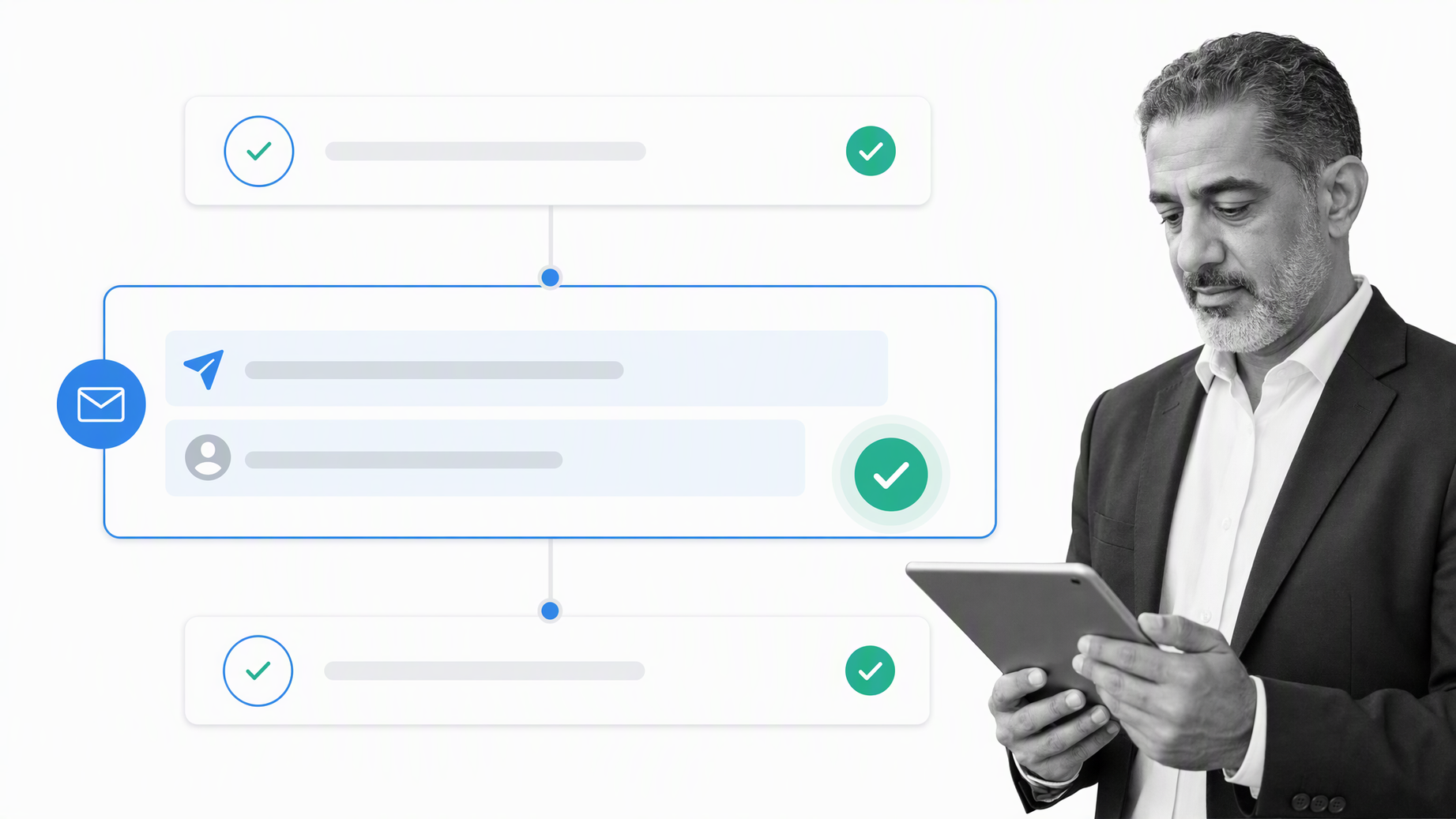
A Google Docs checklist is a strong starting point for digitized checklists. It is familiar, fast to create, and easy to share. Use it when the work is lightweight, the document itself is important, and the participants can coordinate completion without formal controls.
Before creating a checklist, decide whether you need a simple prompt or an adaptable system. A simple prompt keeps attention on the immediate task. An adaptable system allows tasks to change owner, supports collaboration between participants, and can streamline work that needs approval. Being aware of that difference early prevents a basic tool from being stretched into a complicated workflow it was not designed to manage.
Choose Process Street when the checklist represents a recurring business process, especially one with multiple owners, approvals, dependencies, evidence, or compliance requirements. Most business operations become more complex than a static list as volume and accountability grow.
Whichever tool you choose, keep the checklist specific, observable, and easy to improve. Record the critical steps, define what complete means, give each decision an owner, and review the system when the work changes.
Process Street template examples
Process Street includes a library of reusable templates for teams that want to move beyond a static Google Doc. The templates below show how the same checklist principle can be adapted to marketing, finance, human resources, and management systems. They are starting points, not fixed rules. Edit the instructions, owners, due dates, required evidence, and approval paths to match the operation.
Marketing workflow examples
- A/B Testing for planning a hypothesis, experiment, analysis, and decision.
- Content Promotion Checklist for coordinating channels and follow-up.
- Creating a Newsletter for drafting, review, testing, and release.
- PPC Keyword Competition Analysis for repeatable research and selection.
- Updating Old Blog Content for SEO for a controlled content maintenance cycle.
These examples make campaign goals and objectives visible while connecting content marketing, channel execution, review, and measurement. A marketing team can arrange tasks in the order work should happen, add comments where judgment is needed, and require approval before publication.
Finance and due diligence examples
- How to Start a Corporation Checklist for formation tasks and documents.
- ISA Audit Checklist for structured audit preparation and evidence.
- Know Your Customer Checklist for identity and risk review.
- Purchase of a Business for coordinating a transaction.
- Startup Due Diligence for a Venture Capitalist for consistent investment review.
Finance processes often contain authorization, documentation, and review requirements that a bulleted list cannot enforce. Required fields prevent a run from moving forward without key information, assignments send work to the correct owner, and approval tasks record the decision. Integrations can connect the workflow to other applications while the run remains the visible system of record.
People and management system examples
- Developer Onboarding Checklist for Startups for access, training, and team integration.
- Employee Background Check for controlled screening steps.
- Employee Discipline Checklist for a consistent and documented response.
- Office Conflict Resolution Checklist for structured review and follow-up.
- Environmental Management System Implementation for establishing controls and responsibilities.
- Management Systems Audit Checklist for planning, conducting, and recording an audit.
- Risk Management Process for identifying, assessing, treating, and monitoring risk.
Other adaptable people operations templates include an Accountant Job Description Checklist, Call Center Employee Onboarding Checklist, Customer Service Interview Process with Questions, and Customer Service Manager Job Description. Teams can also standardize a DISC Assessment Structure, Diversity Hiring Process, Diversity Initiatives Quarterly Improvement Process, Diversity Management Monthly Audit, Diversity Training Process, or Unconscious Bias Training Guide.
People and management system workflows benefit from consistency, privacy controls, accountability, and retained evidence. For example, an onboarding run can coordinate IT access, policy acknowledgment, training, introductions, and manager check-ins without relying on one person to remember every handoff. A management systems audit can keep findings, corrective actions, owners, and approvals connected from assessment through closure.
Google Docs checklist FAQs
Can you make a checklist in Google Docs?
Yes. Google Docs has a native checklist control. Add it from the toolbar or Format menu, or type @checklist. You can mark rows complete and choose whether completed text is crossed out.
Can Google Docs checklist items be assigned?
On eligible Google Workspace accounts, checklist items can be assigned to collaborators with due dates and connected to Google Tasks and Calendar. Availability can depend on the account and administrator settings.
When should a team use Process Street instead?
Use Process Street when work needs repeatable runs, required fields, owners, approvals, conditional routing, evidence, controls, or an audit trail. Google Docs can remain the content artifact inside that workflow.
The post Google Docs Checklist vs Process Street Checklist: The Future is Now, Which Tool Wins? first appeared on Process Street | Compliance Operations Platform.


0 Commentaires