Evernote vs OneNote for note-taking, researching, and organizing comes down to how you want to think. Treat note-taking researching and organizing as one connected workflow. Evernote is the stronger choice for capturing web research, filing it with notebooks and tags, and finding it later. OneNote is better when you want a freeform digital canvas for handwriting, mixed media, and notes that feel more like paper. Both can be excellent, but they reward different habits.
Process Street writer Benjamin Brandall arrived at this comparison after accidentally throwing his MacBook out of a moving car, spending two years on Windows, and then returning to a Mac. He expected to leave Microsoft software behind. Instead, OneNote surprised him, while his once well-indexed Evernote scrapbook had become a heap of Untitled Quick Notes. That tension between effortless capture and deliberate organization still defines the choice.
If you only need a quick answer, choose Evernote for a structured research archive and OneNote for flexible page layout. If your needs overlap, the details below show where each note-taking app is genuinely different.
| Decision point | Evernote | OneNote |
|---|---|---|
| Best fit | Structured capture and a searchable archive | Freeform pages, handwriting, and Microsoft 365 work |
| Organization | Notes, notebooks, stacks, and flexible tags | Notebooks, sections, section groups, pages, and subpages |
| Web research | Strong Web Clipper with filing and annotation controls | Useful Web Clipper for saving pages into notebooks |
| Writing surface | Linear note editor with headings, lists, media, and tables | Spatial canvas with movable containers, ink, and mixed media |
| Search | Advanced syntax, filters, saved searches, and attachment text | Notebook or section scopes, page text, and tags |
| AI | AI features for search, editing, and recall, depending on plan | Copilot features for eligible Microsoft 365 plans |
| Cost shape | Free and paid tiers with plan-specific limits | Core app is free; storage and Copilot depend on Microsoft services |
The comparison is not a universal scorecard. A writer collecting hundreds of sources has different priorities from a student annotating lecture diagrams or a Microsoft 365 team sharing meeting notes. Start with the type of information you capture, then consider how you expect to retrieve and reuse it.

Evernote for structured capture and retrieval
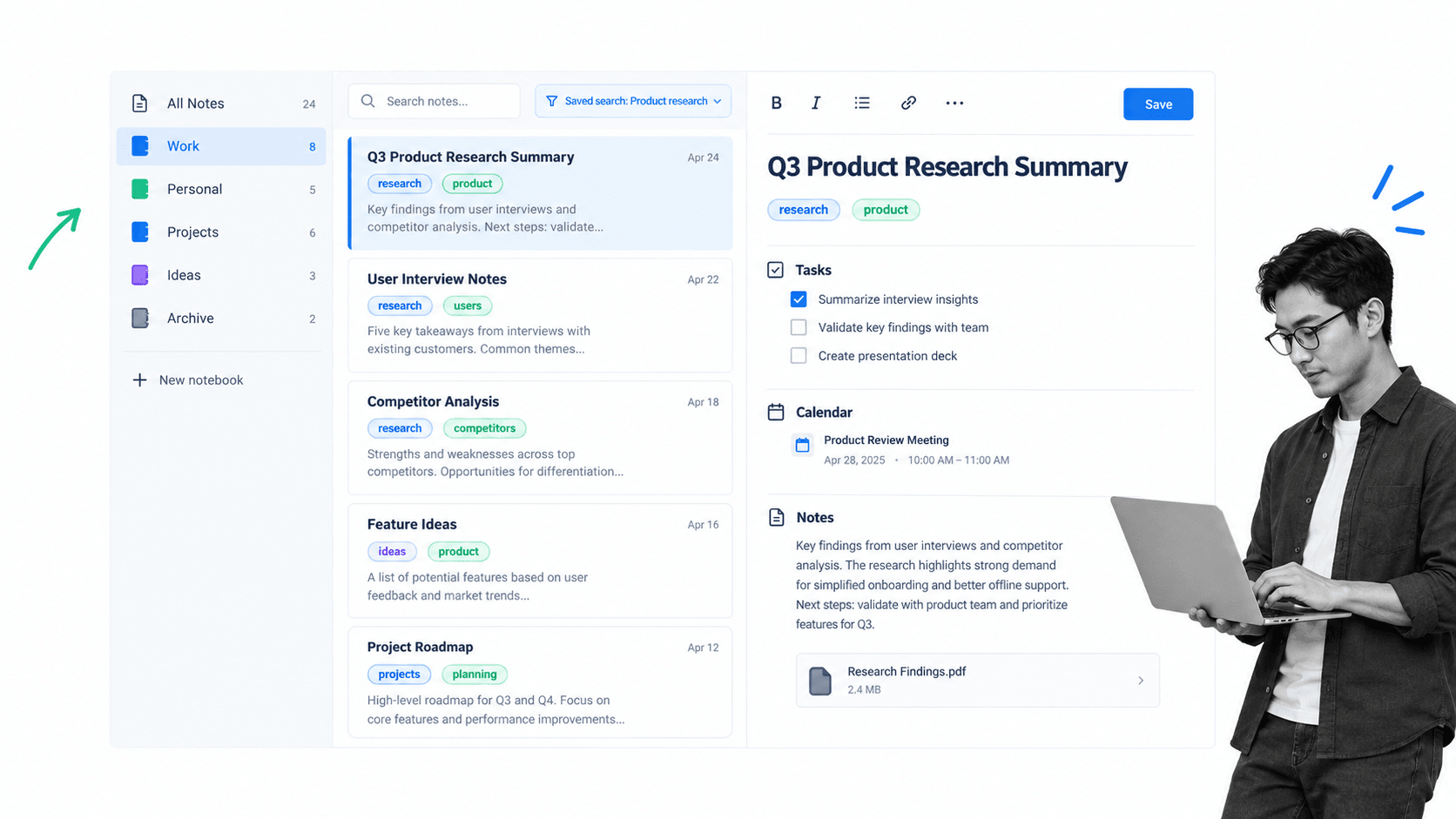
Evernote is a cross-platform note-taking app built around capture, organization, and retrieval. A note can hold formatted writing, images, files, audio, tables, tasks, and clipped web content. Notebooks create broad containers, while tags let the same note participate in several contexts without duplicating it.
That combination makes Evernote useful as an Everything Bucket, the old nickname for an app that accepts almost any kind of information. The convenience is real, but so is the risk. If every screenshot, receipt, idea, PDF, and draft lands in a default notebook, the archive can become a briefcase stuffed with unmarked papers.
Capture web research with intent
The Evernote Web Clipper remains one of the clearest reasons to use the product. It can save an article, simplified article, full page, bookmark, or screenshot, then assign a notebook and tags at capture time. That is faster than saving an image file, naming it, moving it into a folder, and later wondering why it was saved.
The useful habit is to separate capture from curation without abandoning either. Send disposable screenclips to a dedicated clippings notebook. Give durable research a project tag as it enters the system. A generic inbox can work, but only if you process it often enough that meaningful notes do not disappear under piles of unindexed data.

Use a small notebook structure and flexible tags
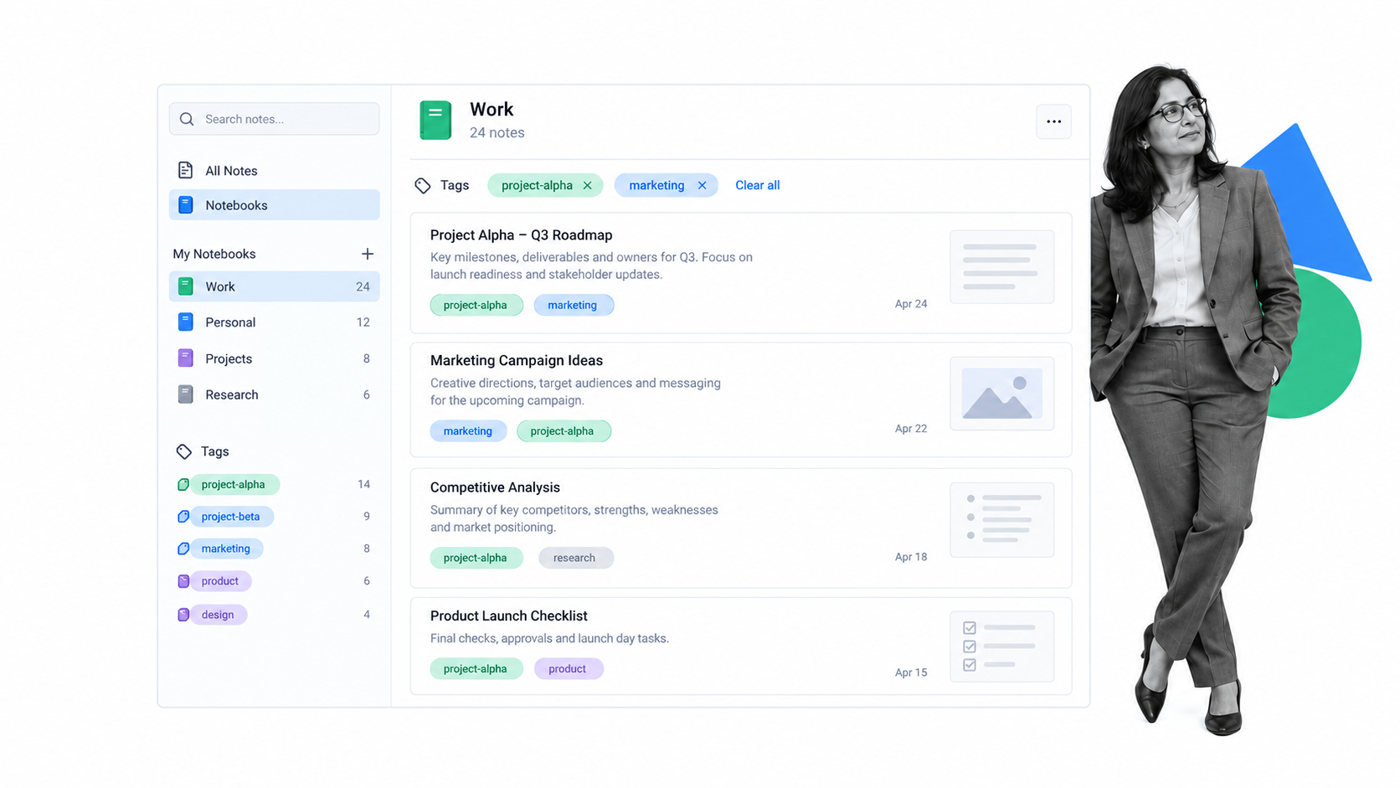
Notebooks are best for stable life verticals such as work, family, university, or a major client. Tags are better for changing contexts such as a specific blog post, campaign, topic, status, or research question. A note can live in only one notebook at a time, but it can carry several tags.
Benjamin originally created a notebook for every blog post and placed them inside a Blog Post Scrapbook stack. The structure looked tidy at first, then became difficult to scroll and remember. The better pattern is a few durable notebooks plus tags that connect research to projects. Jason Frasca made the same qualitative case in his guide to Evernote notebooks: too many notebooks create their own navigation problem.
Search is the reward for consistent capture
Evernote search can combine keywords with notebook, tag, creation date, attachment, and other filters through advanced search syntax. Depending on the plan and content, it can also find text inside supported images and documents. Saved searches make recurring retrieval faster.
Search cannot fully rescue a careless archive, but it reduces the pressure to remember which notebook contains a note. That matters when the collection reaches thousands of notes and filenames or titles are inconsistent.

The editor is more capable than its old reputation
Earlier versions deserved criticism for feeling locked to a grid and awkward for serious writing. The current note editor supports headings, lists, tables, code blocks, media, and other structured elements. Evernote also documents Markdown shortcuts and copy-paste behavior, although it is not a full plain-text Markdown environment or a dedicated distraction-free writing app like iA Writer.
That is usually enough for meeting notes, project proposals, outlines, and working drafts. Writers who spend six hours a day in a minimal editor may still prefer to draft elsewhere and keep sources in Evernote.
AI features help retrieve and reshape notes
Evernote AI features can help search across a collection, summarize material, and edit note content. Availability and usage depend on the account and plan. The practical value is not that AI replaces a notebook system. It is that a cited answer or concise summary can shorten the path back to the source material you already saved.

Avoid the Everything Bucket trap
The Everything Bucket criticism is not that flexible capture is useless. It is that a convenient place to commingle structureless data can remove the small moment when a person decides what an item is for. Alex Payne’s case against Everything Buckets argued that computers work best with structured data and that a filesystem without deliberate structure encourages people to throw everything in and trust search to sort it out.
That described Benjamin’s archive. His Evernote had been reduced from a well-indexed scrapbook of research to a heap of Untitled Quick Notes thrown deep into the default notebook. Armed with a screenshot hotkey, he had quickly built piles of screenclips and buried meaningful notes he planned to refer back to. The app had excellent features, but it could not create good habits for him.
His first response was to use notebooks instead of tags. A notebook stack looked like the perfect place to house many small notebooks, including one for every blog post. It became a second organization problem. Scrolling through the list was harder than remembering a useful tag, and notes related to two projects could not sit in two notebooks at once.
The improved structure used one notebook per life vertical and tags for specific work. A work notebook could contain research tagged for a link-building project, an article, a proposal, or meeting notes. A dedicated Screenshots notebook could absorb disposable captures without pushing durable research out of sight. The precise labels matter less than having a rule that separates reference material from temporary clutter.
This also clarifies where a specialized writing tool fits. Benjamin once paired Evernote with Alternote, a Mac client that later ended active development, because it offered a selective, distraction-free writing experience. Alternote used Evernote data to create a second, minimalistic instance for the actual note side of things, with selective sync, Markdown support, H1 and H2 formatting, and fewer visual distractions. That workaround is no longer a sensible recommendation. The durable lesson is to let Evernote organize research, then draft in its improved editor or move into a current writing app when a minimal environment is more important.
Screenclips were the source of most of the mess. Benjamin used Evernote precisely because he did not want to save an image file somewhere, open it again, and upload it to its destination. That friction disappeared, but so did the pause that might have produced a useful title, tag, or destination. Almost every major Evernote problem had a solution, yet each solution depended on making a decision at capture time or during a regular inbox review.
The practical fix was to push screenclips into their own notebook. His earlier default notebook was called Inbox, and he never processed it because it was already too full of rubbish. For a person whose notes are mostly screenshots, a default notebook called Screenshots can be more honest. Material intended only for saving or dragging into Slack once can remain there, while project research is tagged and moved when it earns longer-term value.
A notebook stack is still useful when it represents a stable boundary, but it should not become a license to create a new container for every thought. Notes cannot be in two notebooks at once, while a note can have multiple tags. When an archive holds thousands of notes, it is also difficult to remember which notebook received a specific item. A small set of predictable notebooks reduces that memory burden.
Drafting and research can live in the same digital space, but they do not have to use the same interface. A writer might collect sources, tag clips with the name of an article, organize the research into an outline, and then move the final blog post draft into a focused editor. The system is successful when each stage has a clear home, not when one application performs every possible task.
OneNote for a flexible digital canvas
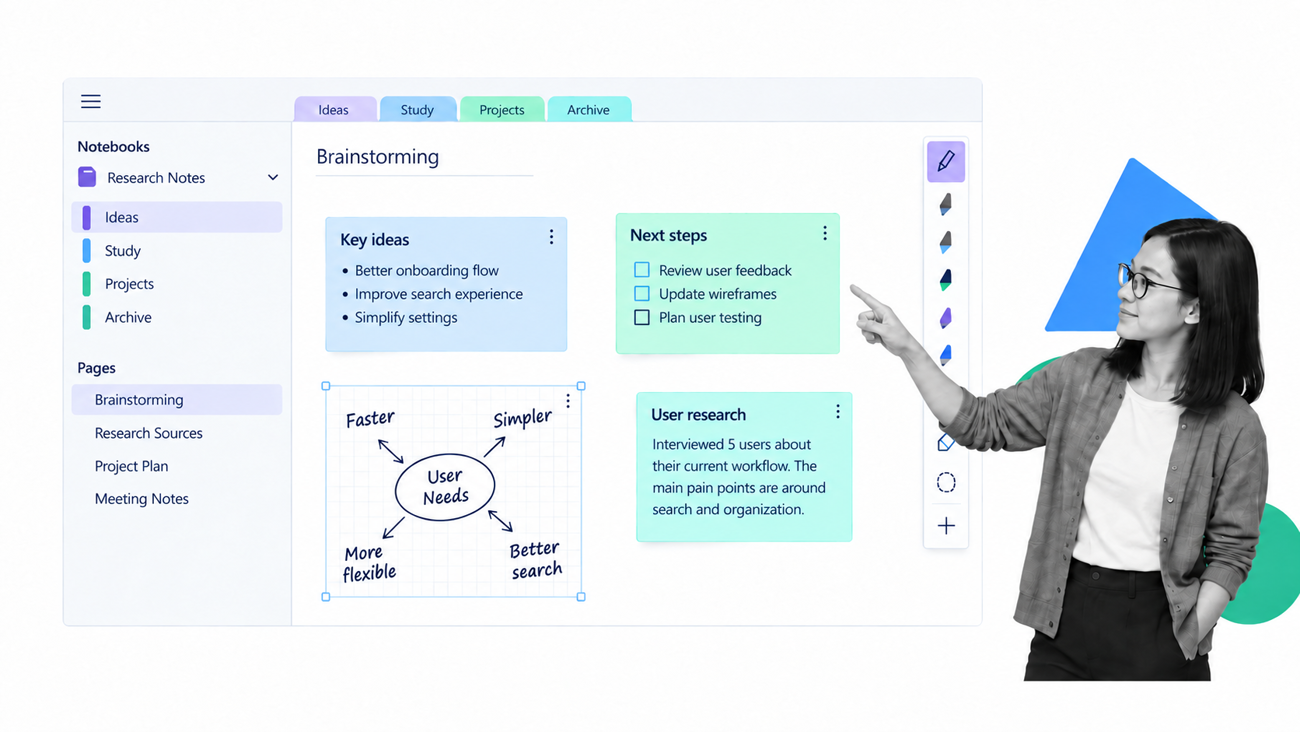
Microsoft OneNote organizes information as notebooks, section groups, sections, pages, and subpages. That hierarchy resembles old-school tabs inside manila folders, but each page is a spatial canvas rather than a fixed document. You can click almost anywhere and create a movable note container.
The interface can initially feel like Microsoft Word with a sidebar and a crowded ribbon. Spend time with the page itself, though, and the design starts to make sense. The hierarchy supplies structure while the canvas stays informal.
Write anywhere on the page
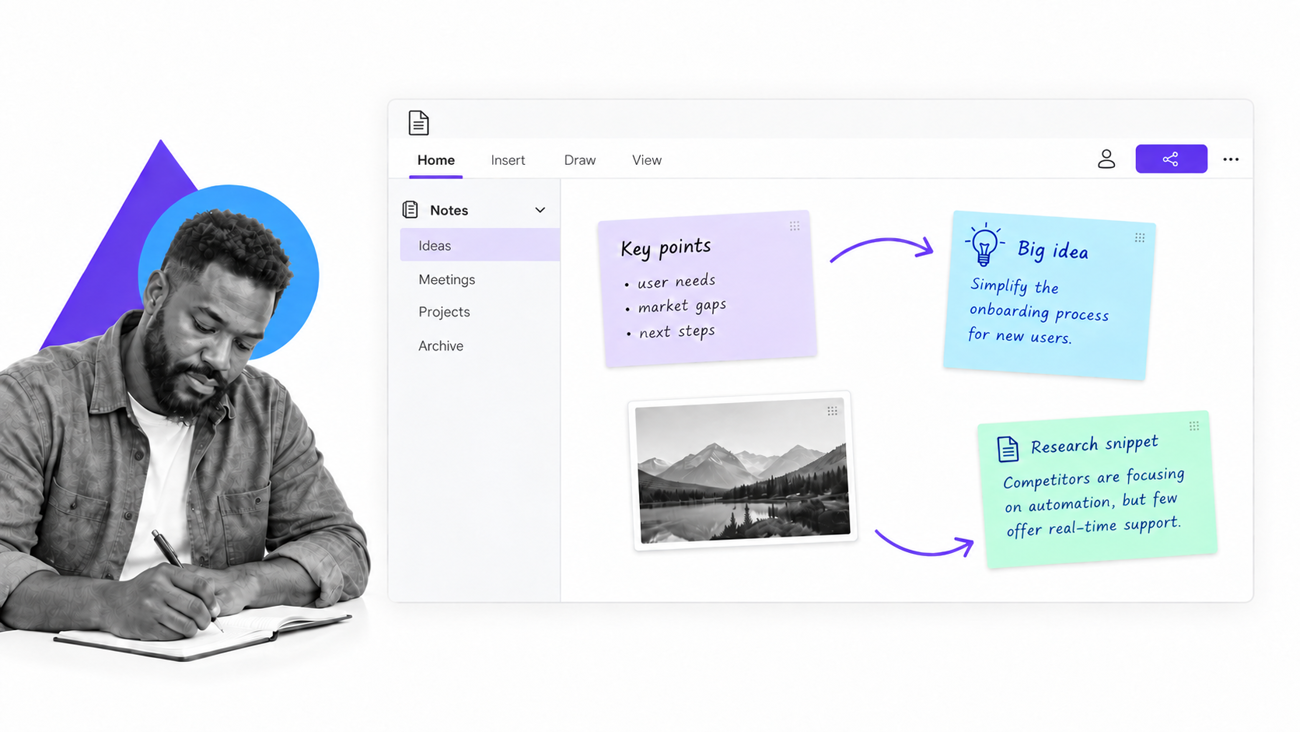
OneNote makes it easy to place text in the center, move a quote to the right, draw an arrow, and keep a source beside the idea it supports. That paper-like layout is valuable for brainstorming, informal planning, lecture notes, and early drafts that feel too constrained in a linear editor.
The freedom has a tradeoff. A page with too many scattered containers can become hard to scan, especially on smaller screens. Use the canvas to reveal relationships, not merely to avoid alignment.
Build a one-page research scrapbook
OneNote is particularly good at keeping several pieces of research visible on one page. You can paste excerpts, screenshots, annotations, and your own interpretation together instead of switching between separate notes. For a visual thinker, boxes placed off-center can fit the way the brain is wired better than a stack of uniformly formatted pages.
The OneNote Web Clipper can save web content into a chosen notebook, so Evernote no longer has the category to itself. Evernote still offers a more capture-centered workflow; OneNote’s advantage is what you can do with the material once it is on the page.

Search by scope, text, and tags
OneNote search is more capable than the old claim that it could only find page text. Microsoft documents searching across notebooks and narrowing the scope, while the app also supports tags for marking items such as questions, ideas, and follow-ups. The exact controls vary by platform, so teams should test the desktop, web, and mobile versions they plan to use.
Evernote still has the edge for advanced archive retrieval, saved search logic, and a workflow centered on tags. OneNote search is usually sufficient when the notebook hierarchy is already meaningful and the user remembers the general section or project.

Handwriting and ink favor the canvas
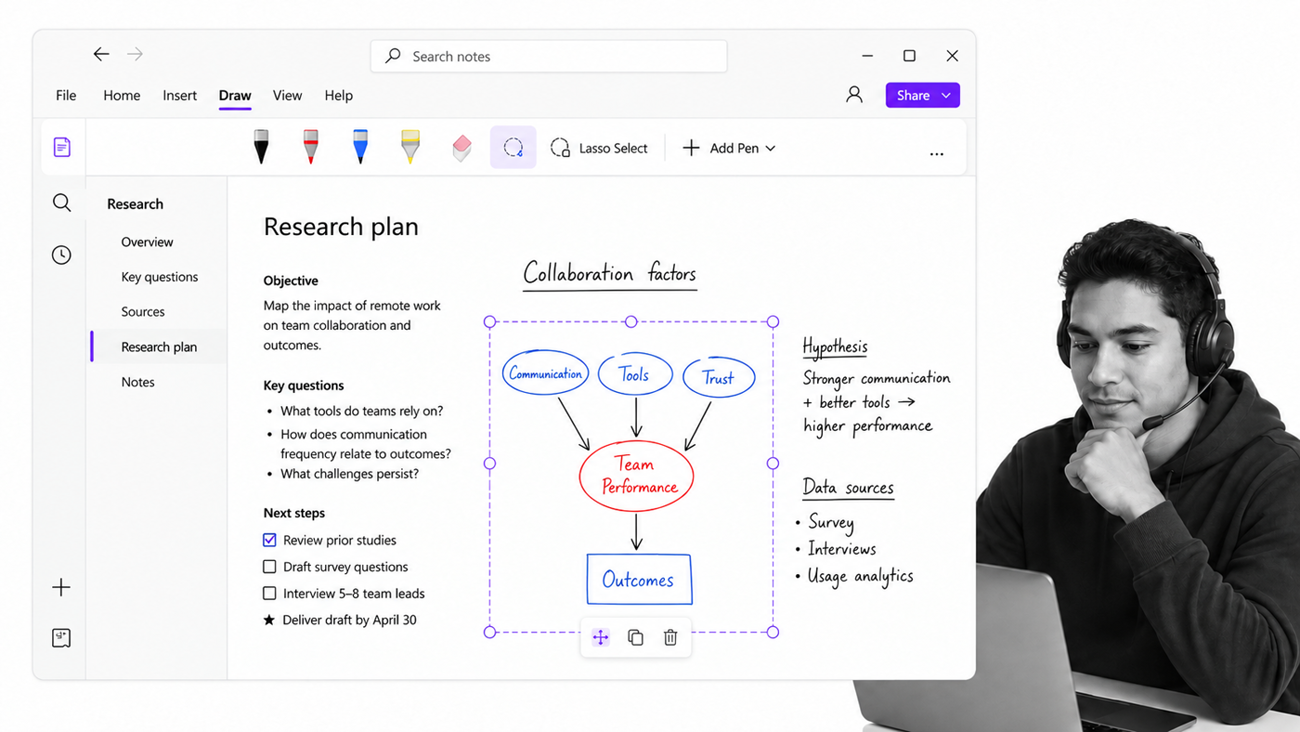
OneNote’s ink tools support handwritten notes, sketches, highlighting, and diagram markup alongside typed text. This is a natural fit for a tablet and stylus, classroom work, design critique, equations, and any subject where position carries meaning. You can lasso and move ink rather than treating the page as a static scan.
Copilot depends on Microsoft 365 eligibility
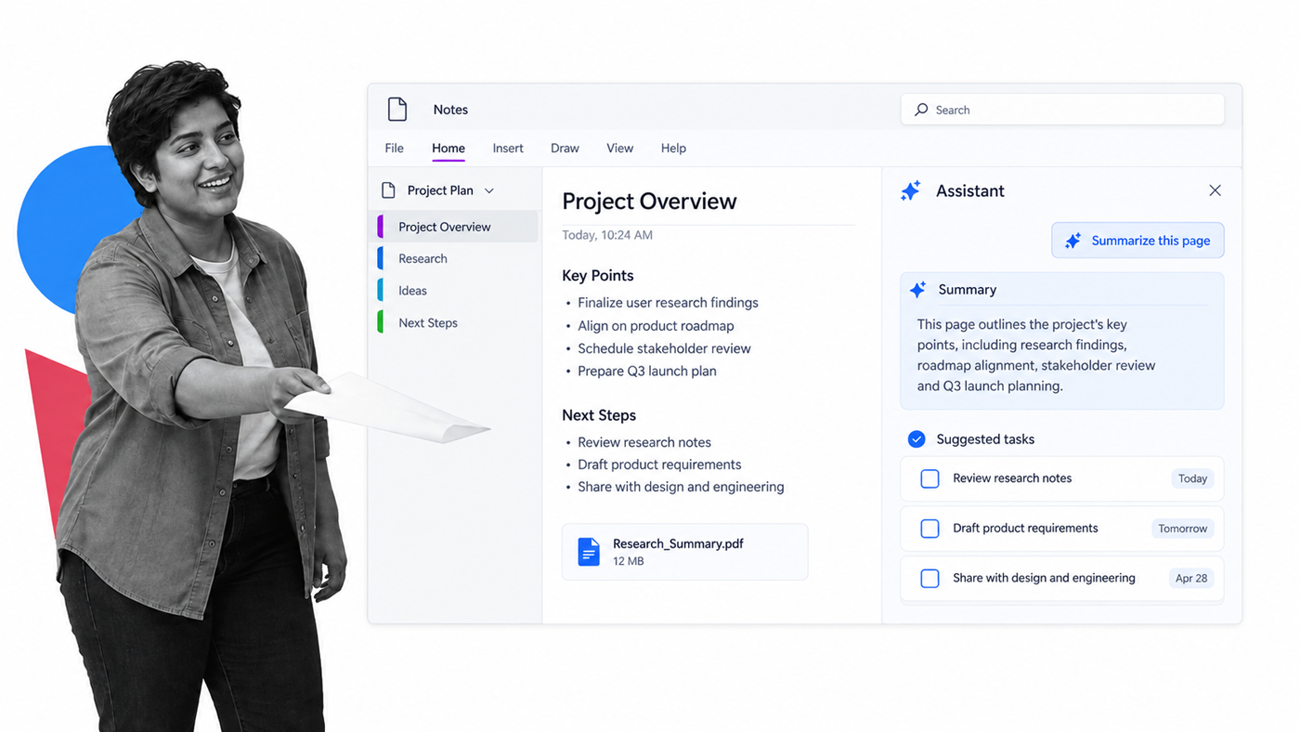
Copilot in OneNote can summarize pages, generate ideas, rewrite content, and turn notes into task-oriented output for eligible Microsoft 365 accounts and plans. It is most useful when the source page already contains specific context. Treat the result as a working draft and verify it against the original notes.
Why the paper-like layout changed the verdict
Benjamin expected to dismiss OneNote after a quick look. The ribbon and sidebar felt dated, and the blank page did not immediately advertise its usefulness. After spending a Saturday using Evernote and OneNote back to back, he found the notebook structure refreshing. Sections inside a notebook felt like old-school tabs in manila folders, and the blank slate discouraged him from creating another thousand notebooks full of rubbish.
The most important difference was the ability to write anywhere on a page instead of being locked to left, right, or center alignment. That made planning and drafting feel less formal. A source could sit beside the paragraph it supported. A question could remain visible above a cluster of answers. A screenshot could be placed near an annotation instead of hidden behind another note title.
For collecting and organizing research on a single page, the canvas behaved like a clipping glued to paper. Boxes of information stayed visible and accessible without clicking through a notebook. Placing a supporting point off-center or to the right of the main layout matched the way his brain was wired better than switching to another note.
Search and tagging still determined the boundary between the products. Evernote offered the stronger archive model through suggested searches, in-text search, tag search, recent searches, filters, and saved searches. OneNote offered a more natural scrapbook for brainstorming, freeform note-taking, informal layout planning, and gathering material on one page. The apps had drastically different uses, which is why a single winner never told the whole story.
The hierarchy also helped because organization was visible before search began. A notebook could contain sections for major subjects, and those sections could hold pages and subpages. Tags remained available inside the page rather than carrying the full weight of the filing system. Starting over with a blank slate made it easier to be careful about the structure than repairing a cluttered archive after a year of abuse.
That does not make OneNote a superior database. Its strength is the loose relationship between elements on a page. It can keep a rough outline, a pasted quotation, a screenshot, a sketch, and a next action in view at the same time. For a person shying away from planning in an environment that feels too formal, that informality can be the feature that makes the note useful.
The same freedom can produce a different kind of clutter, so a simple convention helps: one page for one outcome, a clear title, and sections that match durable areas of responsibility. When a page becomes a one-page scrapbook, its center should still express the main question or conclusion. Supporting boxes belong around that center because they clarify it, not because the canvas has empty space.
How to make the final choice
Choose Evernote if your day revolves around clipping and organizing web resources, collecting screenshots and documents, tagging material across projects, or searching a large archive. It rewards a capture habit, provided that you give durable information enough structure to find again.
Choose OneNote if you want freeform note-taking, handwriting, brainstorming, informal layout planning, a one-page scrapbook, or close integration with Microsoft 365. It rewards spatial thinking and visible context more than strict filing.
- For writers and researchers: Evernote is usually better for collecting sources; OneNote is often better for arranging a complicated idea on one page.
- For students: OneNote has the advantage for ink, diagrams, and class notebooks; Evernote is compelling for a searchable archive of readings.
- For Microsoft 365 teams: OneNote fits naturally with the surrounding ecosystem and account model.
- For mixed-device personal use: test offline behavior, storage limits, and the exact features of the free and paid plans before migrating.
Using both is reasonable when the boundary is clear. OneNote can hold the freeform scrapbook where ideas are grabbed together on a page. Evernote can collect clippings, screenshots, and final research notes. What fails is not the two-app setup itself, but an undefined system where the same material is scattered between tools without a rule.
If neither model fits, compare a broader set of note-taking tools against the same criteria: capture, organization, search, writing surface, collaboration, offline access, AI, and ecosystem.
A workable two-app system
A two-app system works when each product has a sharply defined job. Evernote can be the place for collecting and organizing clippings and screenshots. OneNote can be the place for grabbing things together on one page and arranging them in a way that fits a more spatial train of thought. The dividing line should be obvious enough that a new item has one natural destination.
For example, web resources for a writing project can enter Evernote through the clipper and receive a project tag. The durable archive holds the original sources, searchable text, and attachments. When it is time to brainstorm the argument, a OneNote page can gather the strongest quotations, screenshots, questions, and a rough layout. The final draft can then move into the writing environment chosen for publication.
This preserves Evernote’s value for clipping and organizing web resources without asking it to behave like an infinite sheet of paper. It also preserves OneNote’s value as a freeform scrapbook without asking it to become the authoritative archive for every receipt, reference, and PDF. Each tool is used for the task its interface makes easiest.
The arrangement needs a review rhythm. Process the Evernote inbox, remove disposable screenclips, promote useful material into durable notebooks and tags, and archive projects that are finished. In OneNote, close or file pages whose planning job is complete. Otherwise, the system simply creates two separate piles of dross.
People who prefer one source of truth should not force the split. Evernote can handle outlines and working drafts, especially now that its editor supports richer formatting. OneNote can hold organized research when the notebook and section hierarchy is applied consistently. The right answer is the smallest system that preserves the distinctions you actually need.
Before committing, run the same small project in both apps. Clip three articles, save a PDF, write a page of notes, add two tags, search for a phrase inside an attachment, move material on the page, and check the result on a second device. That practical test exposes friction that a feature list cannot show.
What the hands-on experiment exposed
The accident mattered to Benjamin’s test because he could not afford another Mac and had suffered with a Windows machine for two years before getting a Mac again. He made a solemn oath never to use Windows software again, then found himself enjoying a Microsoft product even when there was a viable non-Microsoft alternative. The surprise forced a better question than brand loyalty: which app made his real note-hoarder routine easier?
Evernote was still a fantastic tool, and its good points were obvious. The major problems came from the gap between collecting and organizing. For an organizational tool, it was remarkably easy to fill the default notebook with clutter. His busy Evernote environment held screenclips, actual notes, writing drafts, and research without a dependable boundary. The result was not a product failure so much as a habits problem.
Creating notebooks felt like the way to repair the damage caused by a year of loose capture. In practice, notebooks became difficult to scroll, and the notebook stack hid the scale of the mess. Tags were the more flexible answer because notes could participate in several projects. A generic clippings folder, stable life verticals, and project tags supplied enough structure without demanding a new notebook for every article.
OneNote offered another solution. Its paper-like layout made it easier to informally sketch ideas, while segments within a notebook provided visible structure. Boxes placed off-center could stay on an additional page or beside the main layout section. For planning, brainstorming, and a one-page scrapbook, this felt closer to a desk covered with useful material than a list of relevant notes returned by search.
The experiment also showed why search should be tested with real material. In Evernote, suggested searches, in-text searches, tag searches, recent searches, and saved filters supported a large archive. In OneNote, section searches and in-text searches worked alongside notebook scope and tags. Platform differences still matter, so a person using OneNote for Mac should verify the precise filter and tag controls instead of relying on an old limitation.
Neither app removes the need to organize properly. Evernote can become a briefcase stuffed with unmarked papers. OneNote can become a canvas full of boxes with no visual center. A clear capture rule, a small number of containers, consistent tags, and a review routine are more important than the feature count.
This is also why an Evernote comparison should include actual writing instead of treating every note as a file. Research means little if the writer cannot turn it into a proposal, blog post, or meeting note. The current editor is a capable actual note surface, but a favorite writing app may still offer better focus. A distraction-free mode is a preference, not proof that the research system is broken.
The better part of using both products back to back is discovering where friction moves. Evernote makes capture so quick that a person can run up piles before noticing. OneNote makes layout so loose that boxes can multiply across a page. In either app, meaningful notes need a purpose, a recognizable title, and a route back into the project they support.
A default notebook should match the material that arrives most often, and other notes should move elsewhere through an explicit rule. A person collecting browser material might automatically save clips to a Screenshots or Clippings notebook, tag the active project, and process anything referred back to later. This keeps temporary captures from crowding important notes only meant for durable reference.
The final test is retrieval. Can you find the source without remembering the note’s title? Can you identify why it was saved? Can you distinguish finished research from active planning? Can another person understand the structure? If the answer is no, adding another notebook, section, or tag will not fix the underlying decision.
A strong setup should also support ordinary outputs without ceremony: project proposals, blog posts, meeting notes, research briefs, and informal sketches. It should be an enjoyable writing experience when the task is small and make it easy to move into a favorite writing app when the task grows. The tool serves the work, not the other way around.
At first glance, Benjamin thought OneNote looked like Microsoft Word with a sidebar, had a quick laugh, and nearly never bothered with it again. Had he not chosen it for an Evernote comparison, he might never have known its usefulness. Instead, the product was actually quite good for the purpose he needed: a blank page for arranging ideas, old-school tabs for navigation, and another way to organize material before it became a draft.
An earlier verdict called OneNote search sadly lacking because the Mac version could not search or filter by tag in the expected way. That limitation should not be repeated as a current fact. Search, tag, and scope controls have changed across releases, and the supported behavior must be judged on the platform in use.
Evernote’s older writing critique listed no H1 or H2, no Markdown support, no distraction-free writing mode, and everything locked to a grid. The current editor resolves several of those complaints, while the remaining distinction is philosophical: Evernote is a structured editor, not OneNote’s freeform canvas.
The old advice was to go ahead and clutter your Evernote up as long as important notes stayed elsewhere. That was too permissive. Unless you plan on using screenshots for anything other than saving or sharing once, isolate them from durable research and review the pile before it becomes invisible. Proper organization is what makes material useful when it is referred back to.
Turn useful notes into repeatable work
A note-taking app is excellent for capturing and shaping knowledge. It is not the same thing as an operating system for controlled execution. Once research becomes an approved procedure, recurring review, or assigned action, the work needs owners, due dates, approvals, evidence, and a reliable record.

Process Street is a single Compliance Operations Platform with Docs and Ops capability areas plus built-in AI. Docs keeps policies, procedures, and guidance governed and accessible. Ops turns that approved knowledge into assigned workflows with conditional logic, approvals, evidence, automations, and tracked completion. Built-in AI helps teams draft and improve operational content inside those controls.
The boundary is simple: capture insights in the note-taking environment that best matches your brain, then move stable knowledge into a governed document and connect it to the workflow that puts it into practice. That keeps a useful scrapbook from becoming the place where important work goes to disappear.
Start a 14-day free trial to connect your team’s knowledge with repeatable, accountable work.
The post Evernote vs OneNote: The Best App for Note-Taking, Researching and Organizing? first appeared on Process Street | Compliance Operations Platform.


0 Commentaires