These Gmail tips are for people who already live in their inbox and want it to feel less like a queue they chase all day. Gmail works best when you combine fast manual control with smart automation: shortcuts are still useful, filters and labels still do the heavy lifting, and Gemini can help with drafting, search, and thread summaries when your account supports it.
The best setup is not one magic extension. It is a stack of small habits: fast keyboard control, precise search, strict labels, careful follow-up, and a few automations that turn repeat email work into a process. Here are 25 Gmail tips you’ve probably never heard before, or have not used well enough yet.
Gmail Tip #1: Learn the Keyboard Shortcuts
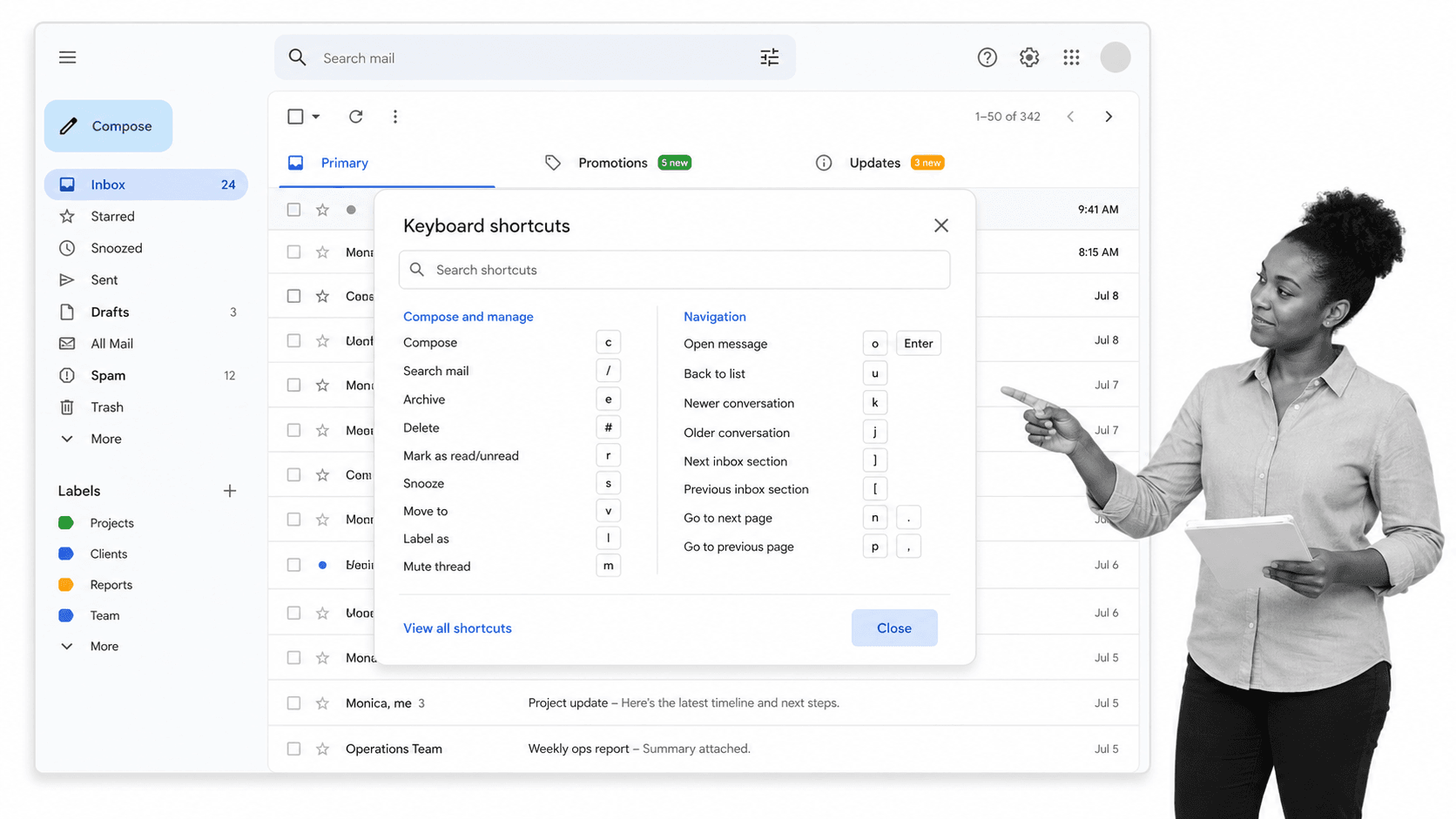
If you want to move faster in Gmail, start by turning on keyboard shortcuts. They save the most time because they remove the constant mouse movement between inbox, compose, archive, search, reply, and send.
Open Gmail settings, go to General, turn keyboard shortcuts on, and save changes. Then learn the small set you will use every day: c to compose, / to jump into search, e to archive, r to reply, a to reply all, f to forward, j and k to move between conversations, and ? to open Gmail’s shortcut reference.
Google keeps the full list in its Gmail keyboard shortcuts guide. ShortcutFoo is still useful if you want to drill shortcuts like a game, but Gmail’s built in help is enough for most people.
Gmail Tip #2: Add a Share by Email Shortcut to Your Browser
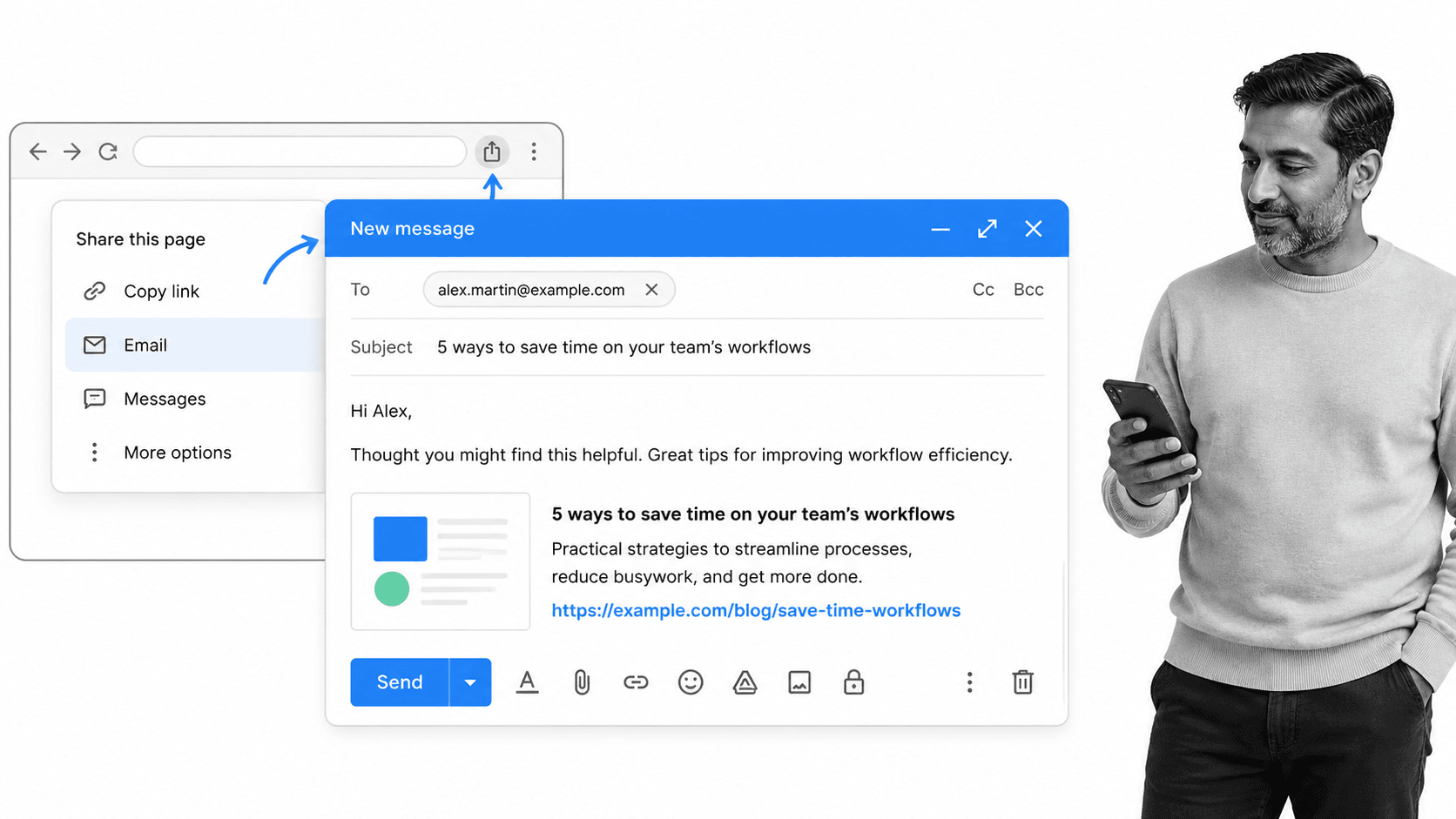
Mobile browsers make sharing by email obvious. Desktop browsers often bury it. If you frequently email links to teammates, clients, or yourself, add a browser shortcut that opens Gmail with the page title and URL already loaded.
Chrome users can use Google’s Send from Gmail extension. Firefox users can use the browser’s email link behavior or a current add-on that opens a mail compose window. The goal is simple: remove the copy, open, paste, subject line routine.
This is small, but it matters. The more friction you remove from capture, the less likely useful context disappears in a tab you planned to revisit.
Gmail Tip #3: Use a Desktop Gmail App to Avoid Tab Overload
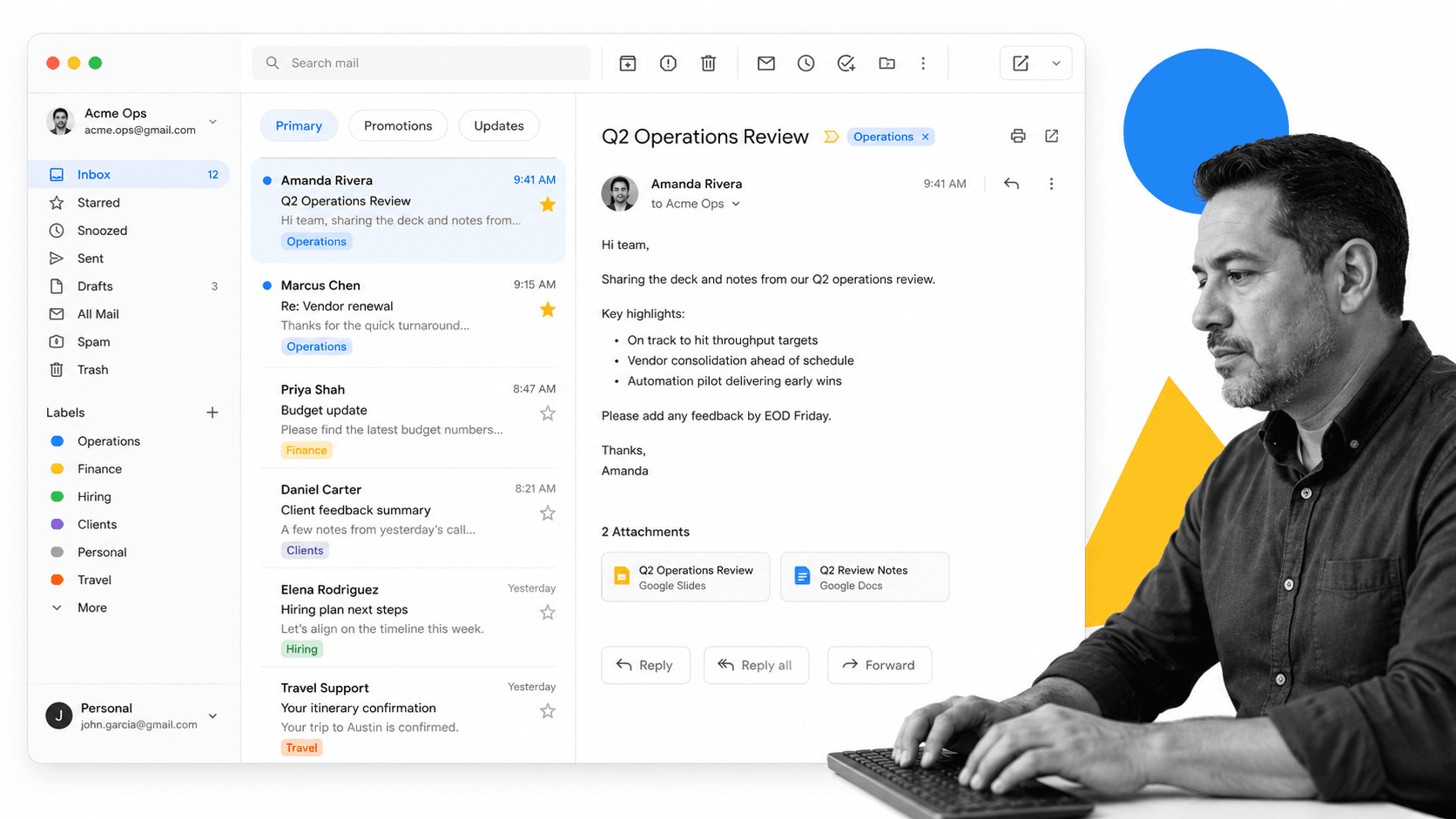
If Gmail lives in one of 40 browser tabs, it will get lost. A dedicated desktop Gmail client gives email its own window, badge, keyboard focus, and notification controls.
For Mac users, Mimestream is a strong Gmail native option. Kiwi for Gmail is available for teams that want Gmail, Calendar, Drive, Docs, Sheets, and Slides in a dedicated desktop workspace. If you already use Mailplane, check its support status before relying on it for critical work.
The point is not the app itself. The point is reducing tab switching so email becomes a controlled work surface instead of another browser distraction.
Gmail Tip #4: Use Search Operators to Find Anything Fast
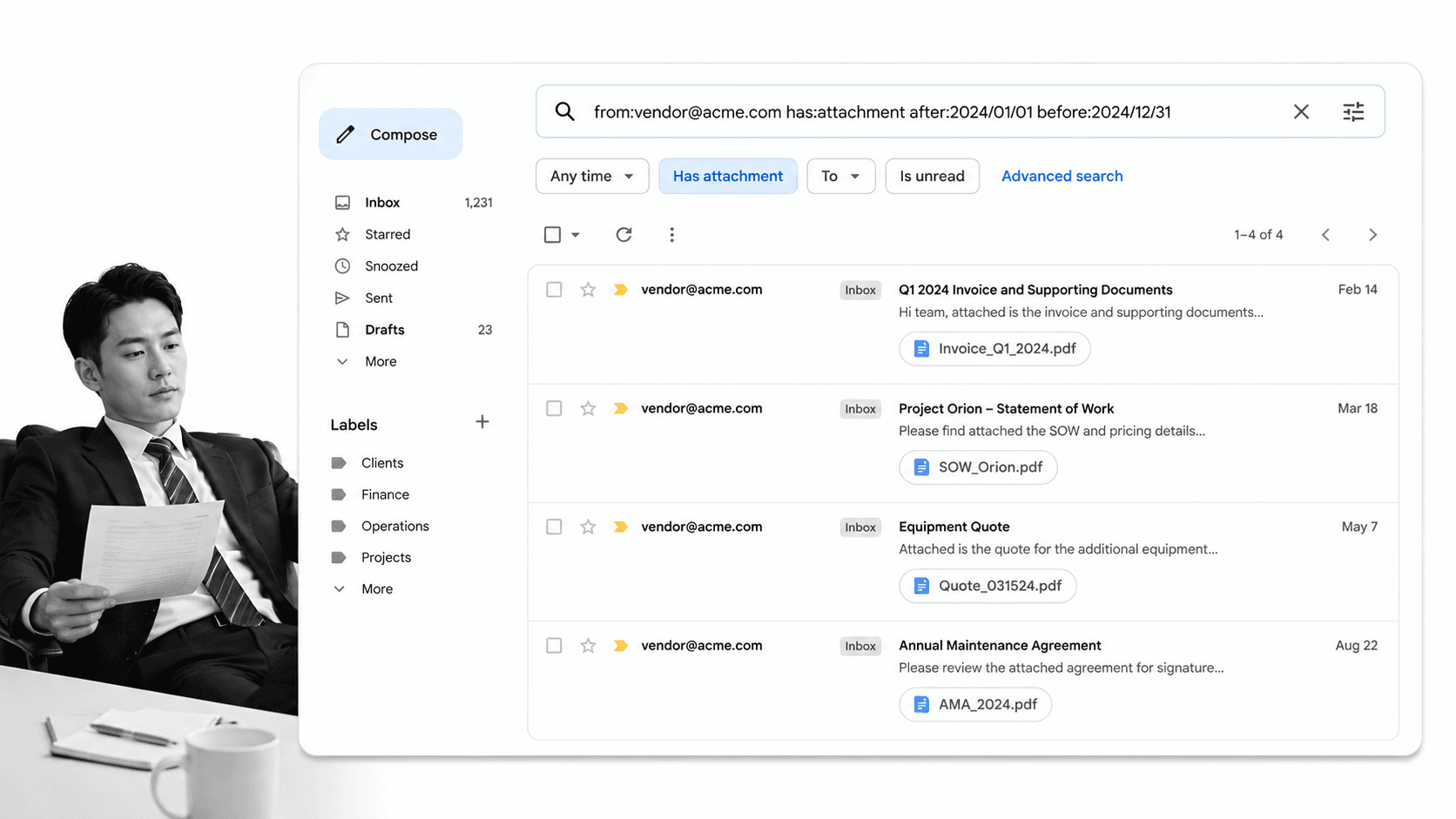
Gmail search is much more powerful than a keyword box. Search operators let you narrow by sender, recipient, date, attachment, label, size, or phrase.
Try searches like from:alex newer_than:30d, has:attachment larger:10M, label:receipts older_than:1y, or subject:invoice filename:pdf. You can combine them until Gmail behaves like a database instead of a pile of messages.
Google maintains the official Gmail search operators guide. Learn five operators and you will stop scrolling for old emails.
Gmail Tip #5: Pair Filters and Labels to Keep Your Inbox Clean
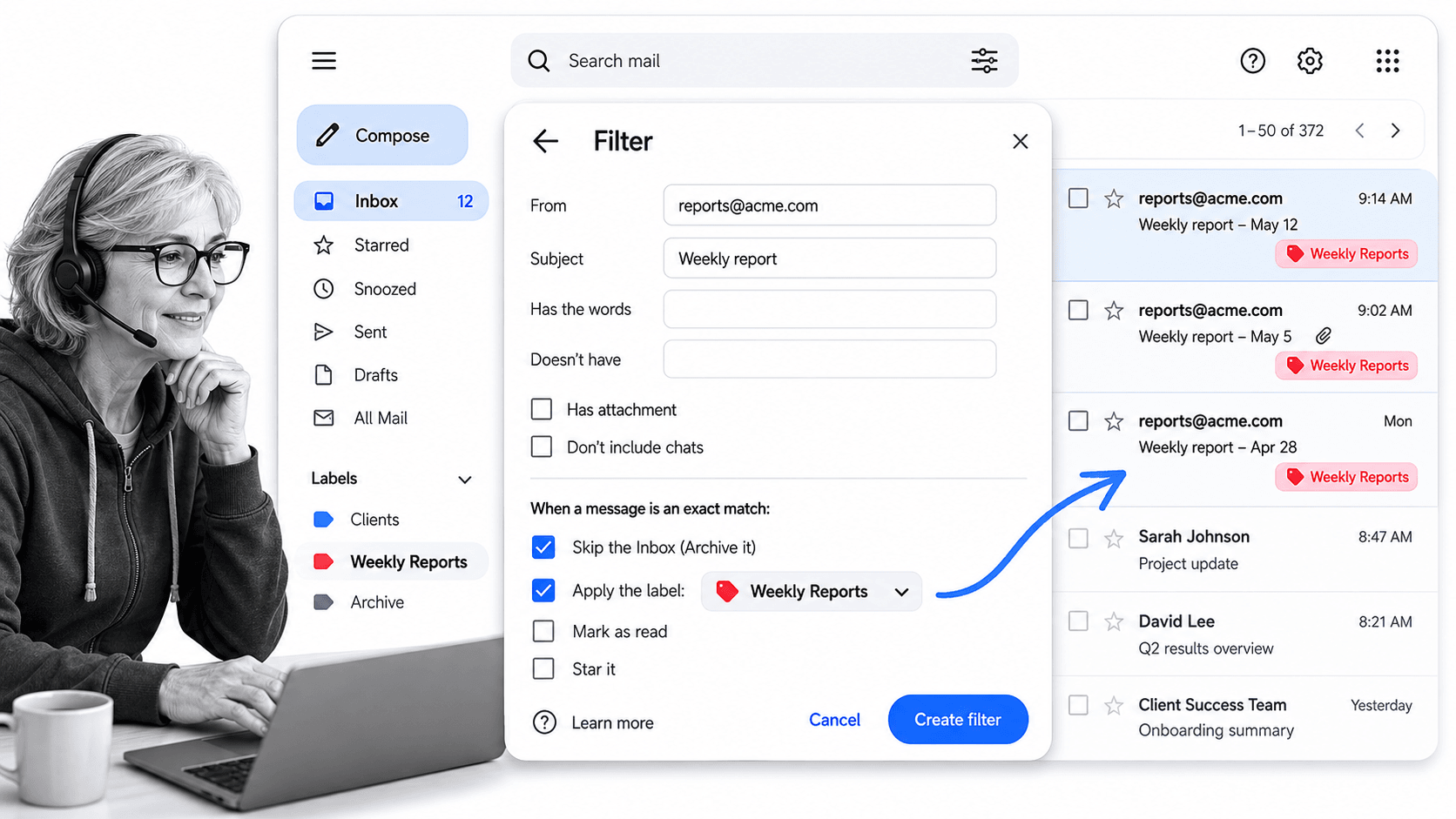
Filters and labels are still the core Gmail productivity system. A filter decides what happens when a message arrives. A label makes the message easy to find later.
Use filters for repeatable flows: newsletters, invoices, receipts, alerts, support notifications, partner updates, job applicants, vendor emails, or daily digests. Apply labels automatically, skip the inbox when appropriate, mark low priority messages as read, and forward critical messages into the right process.
A practical example: subscribe to a TED newsletter, then filter messages from that sender into a Learning label so they never compete with customer or team messages. The same pattern works for marketing reports, finance notices, and compliance alerts.
Gmail Tip #6: Undo Sent Emails to Avoid Embarrassment
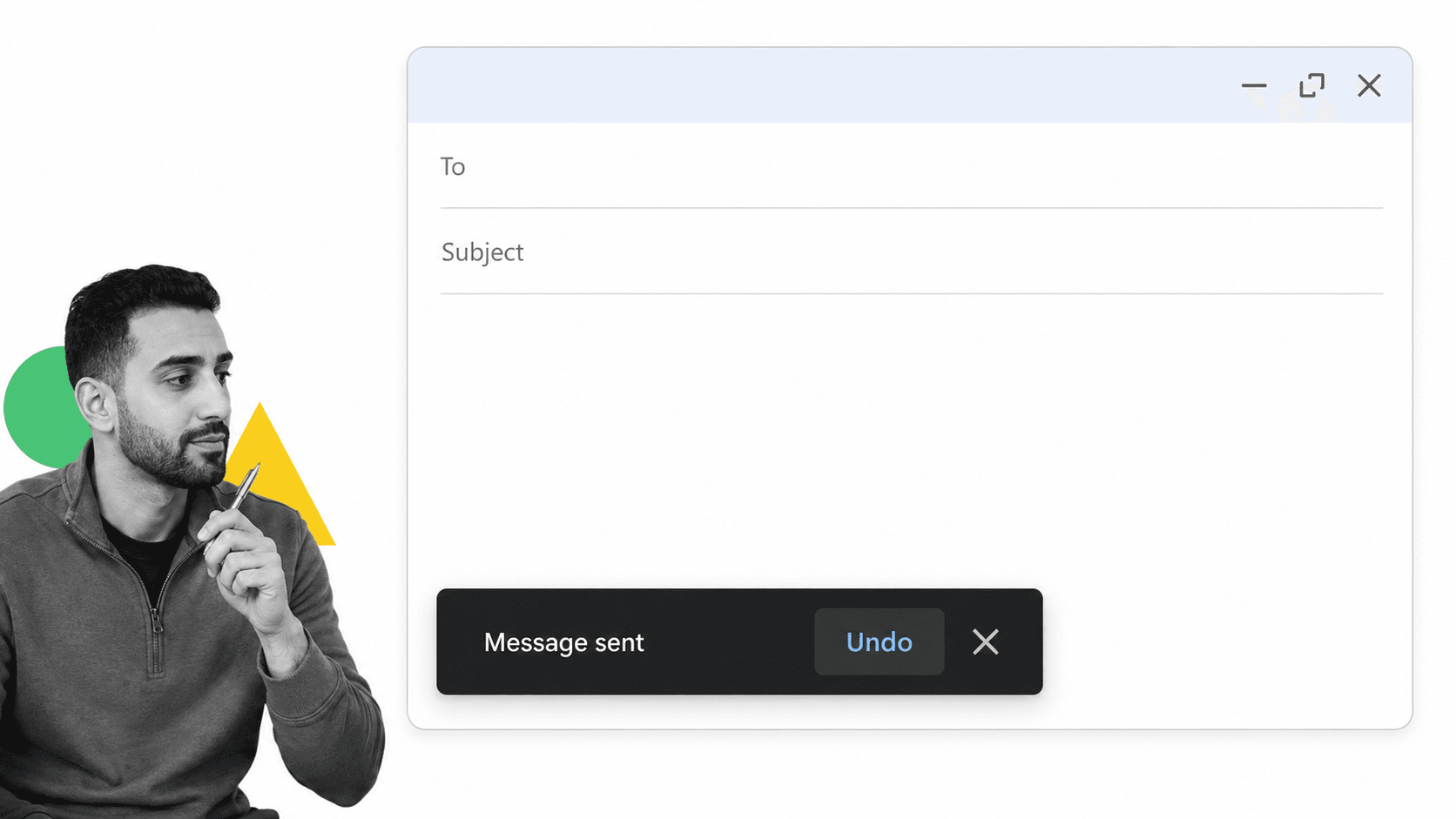
Undo Send is one of Gmail’s simplest high value settings. It gives you a short cancellation window after you hit send.
Set the cancellation period to 20 or 30 seconds in Gmail settings. That gives you enough time to catch the missing attachment, wrong recipient, typo, or tone problem without creating a long artificial delay in normal sending.
It will not fix sloppy communication, but it does catch the mistakes everyone makes when they move quickly.
Gmail Tip #7: Reduce Mental Strain with Inbox Categories
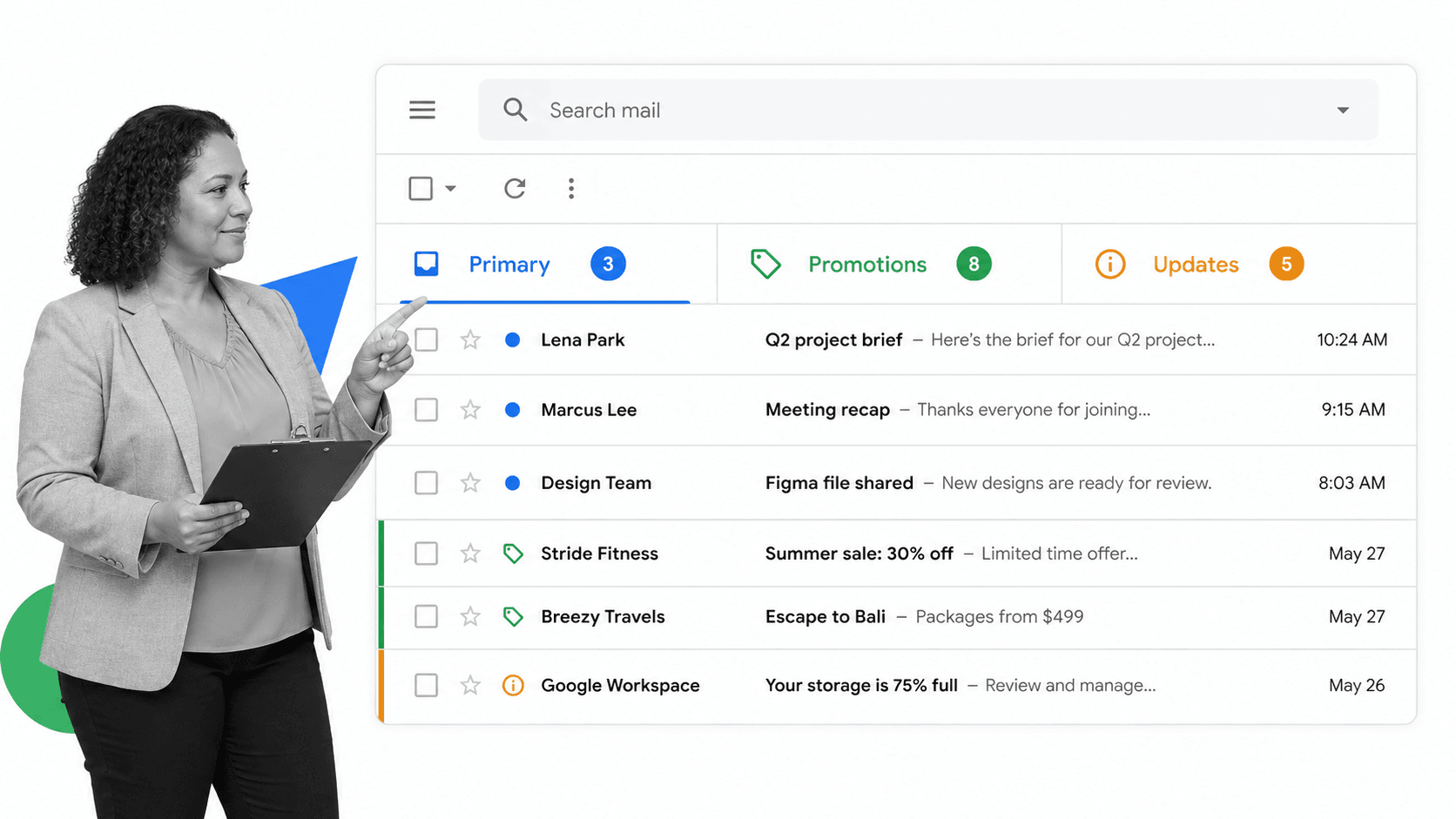
Gmail categories split messages into Primary, Promotions, Social, Updates, and Forums. Some people turn them off because they want one clean inbox. Power users often do the opposite: use categories to reduce decision fatigue.
Keep important human messages in Primary. Let newsletters, alerts, social updates, and forum notifications land elsewhere. Then process each category in batches instead of letting every message fight for the same attention.
Categories are not perfect. They are useful because they create first-pass triage before you touch anything.
Gmail Tip #8: Prioritize Unread Emails
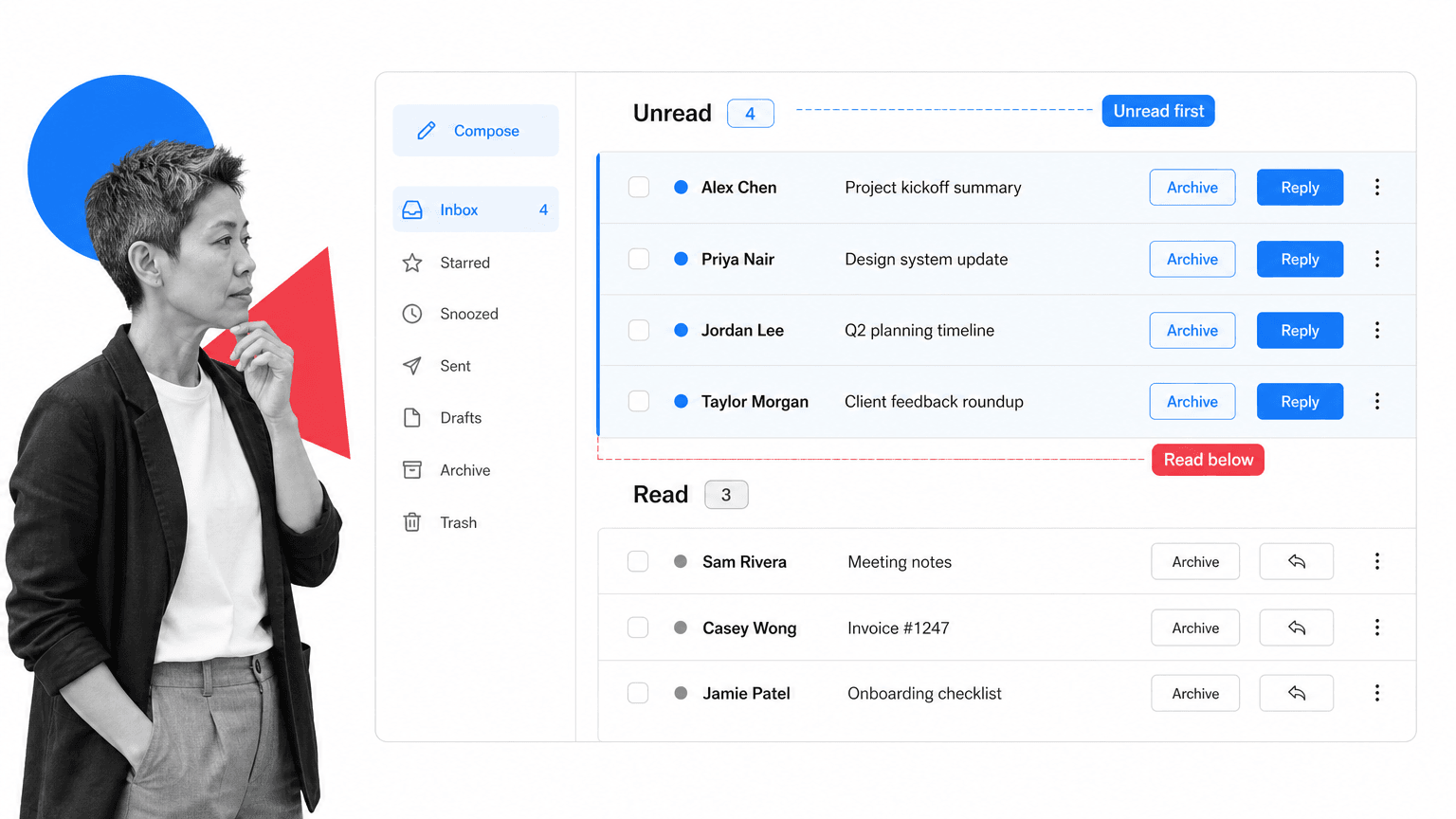
If unread messages matter most, configure Gmail’s inbox type around them. The Unread first inbox puts fresh work at the top and keeps the rest of the inbox available below it.
This is useful when you are clearing a backlog, coming back from travel, or working through customer replies. It is less useful if you rely heavily on stars, labels, or priority inbox, use it as a mode for moments when unread volume is the problem.
The fastest cleanup pattern is simple: scan unread, archive anything informational, label anything that needs later context, and turn real work into a task or workflow.
Gmail Tip #9: Decide Which Emails Are Important
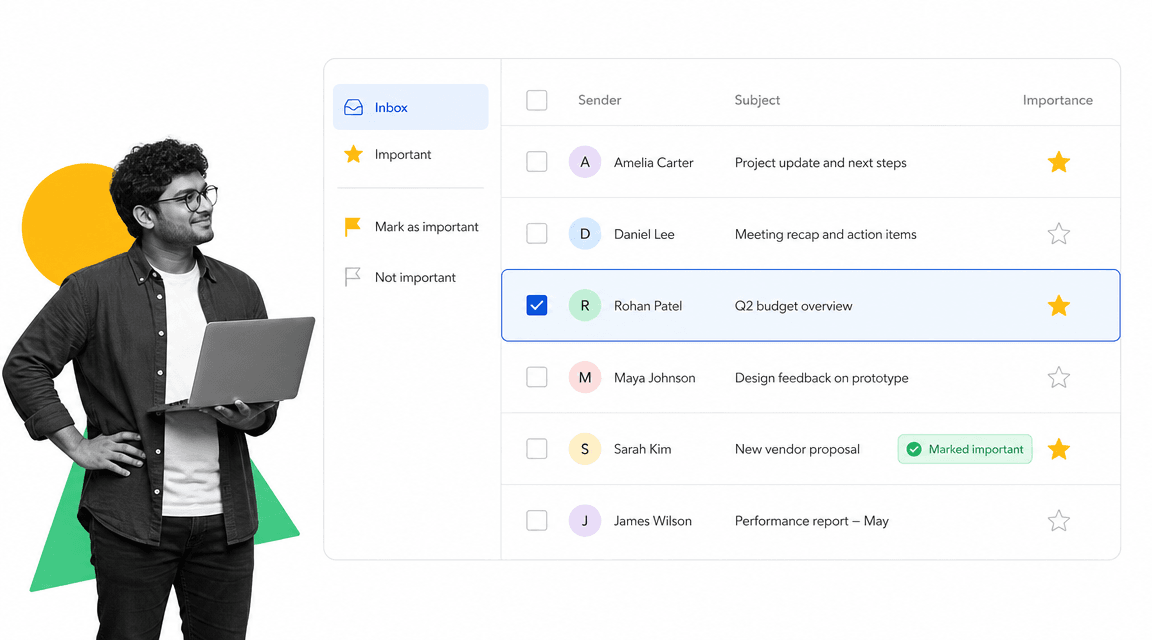
Gmail predicts importance using signals like who you email, which messages you open, and what you mark as important. You can train it by correcting the yellow importance marker.
Use the marker deliberately. If Gmail marks a newsletter or notification as important, correct it. If a customer, board member, vendor, or team lead is missed, mark it important. Over time, the inbox gets better at separating noise from real work.
Google explains the underlying behavior in its importance markers help page.
Gmail Tip #10: Use Send and Archive to Reach Inbox Zero
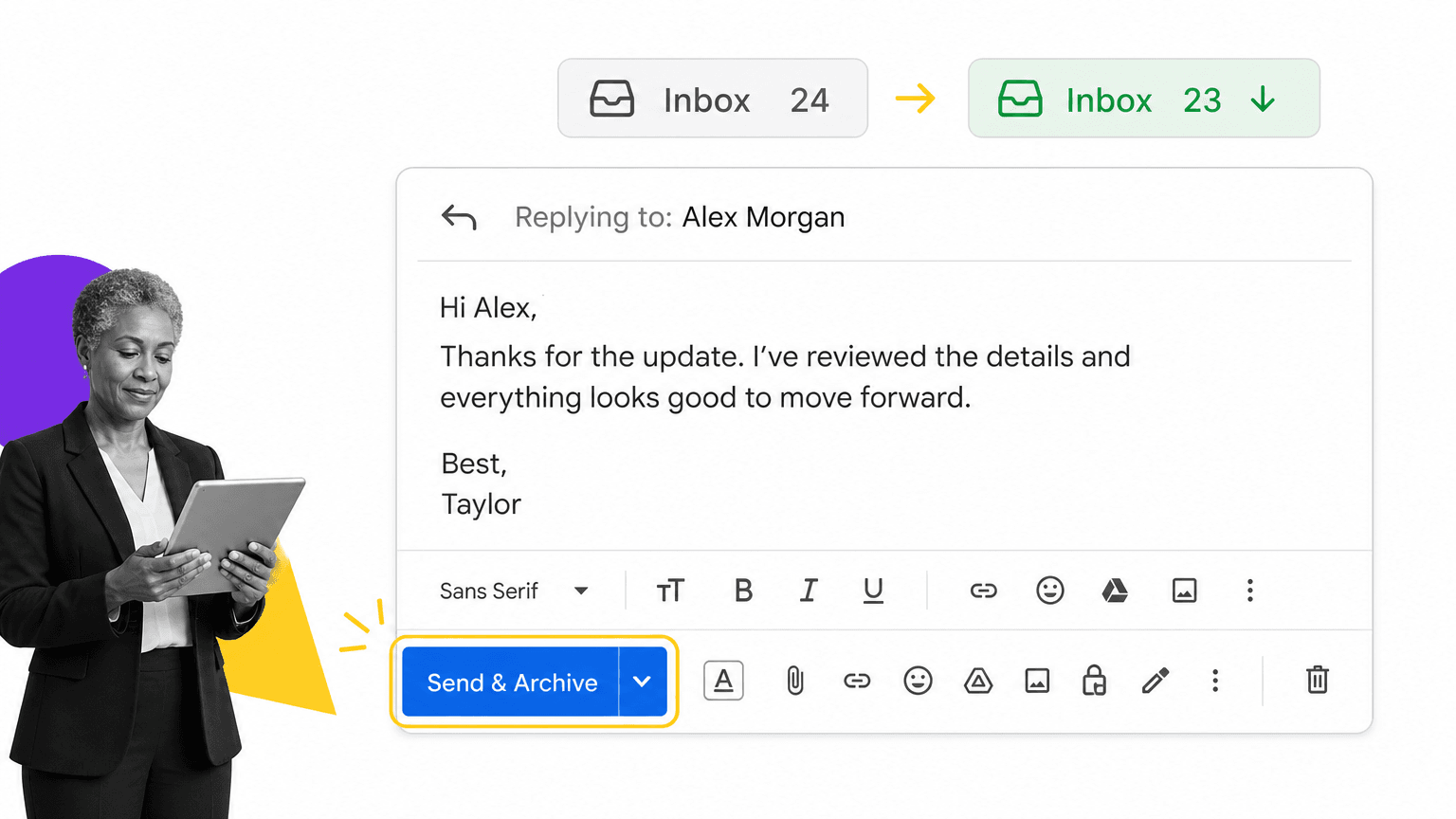
Most replies do not need to stay in your inbox after you send them. Turn on Send and Archive so Gmail archives the thread immediately after your response.
This keeps your inbox focused on work that still needs attention. If the person replies, the thread returns. If they do not, it stays out of the way.
Inbox zero is not about having no work. It is about making the inbox show only work that still needs a decision.
Gmail Tip #11: Use Aliases to Create Refined Filters
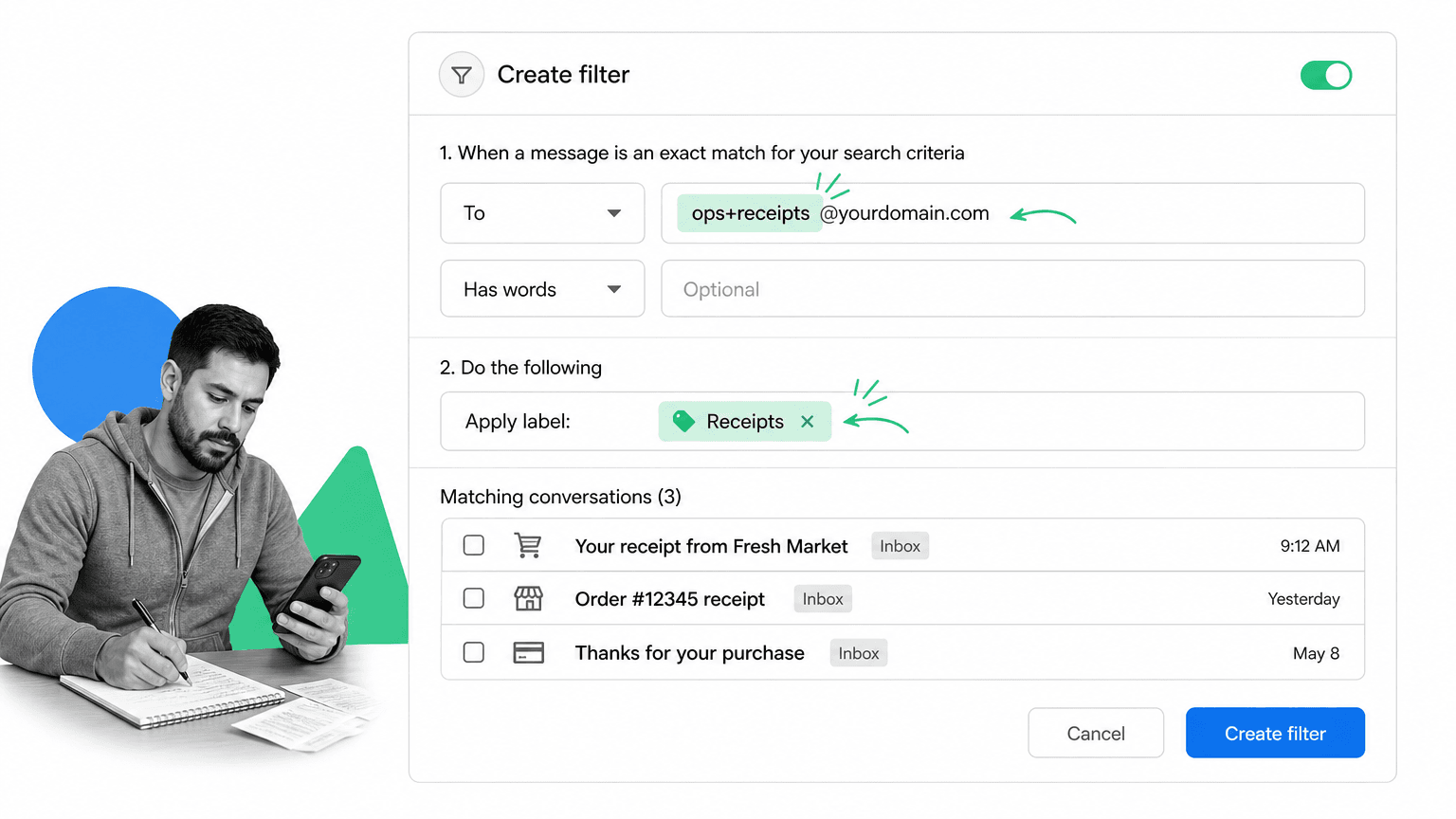
Gmail aliases let you add a plus sign and extra text before the at sign in your address. For example, a person could use a receipts alias for purchases, a newsletter alias for subscriptions, and a hiring alias for applicant tracking.
Messages still land in the same Gmail account, but each alias can trigger a different filter. That means you can label, archive, forward, or star messages based on why you gave out that address.
This is one of the cleanest ways to separate recurring email streams without creating new inboxes.
Gmail Tip #12: Save Time with Templates
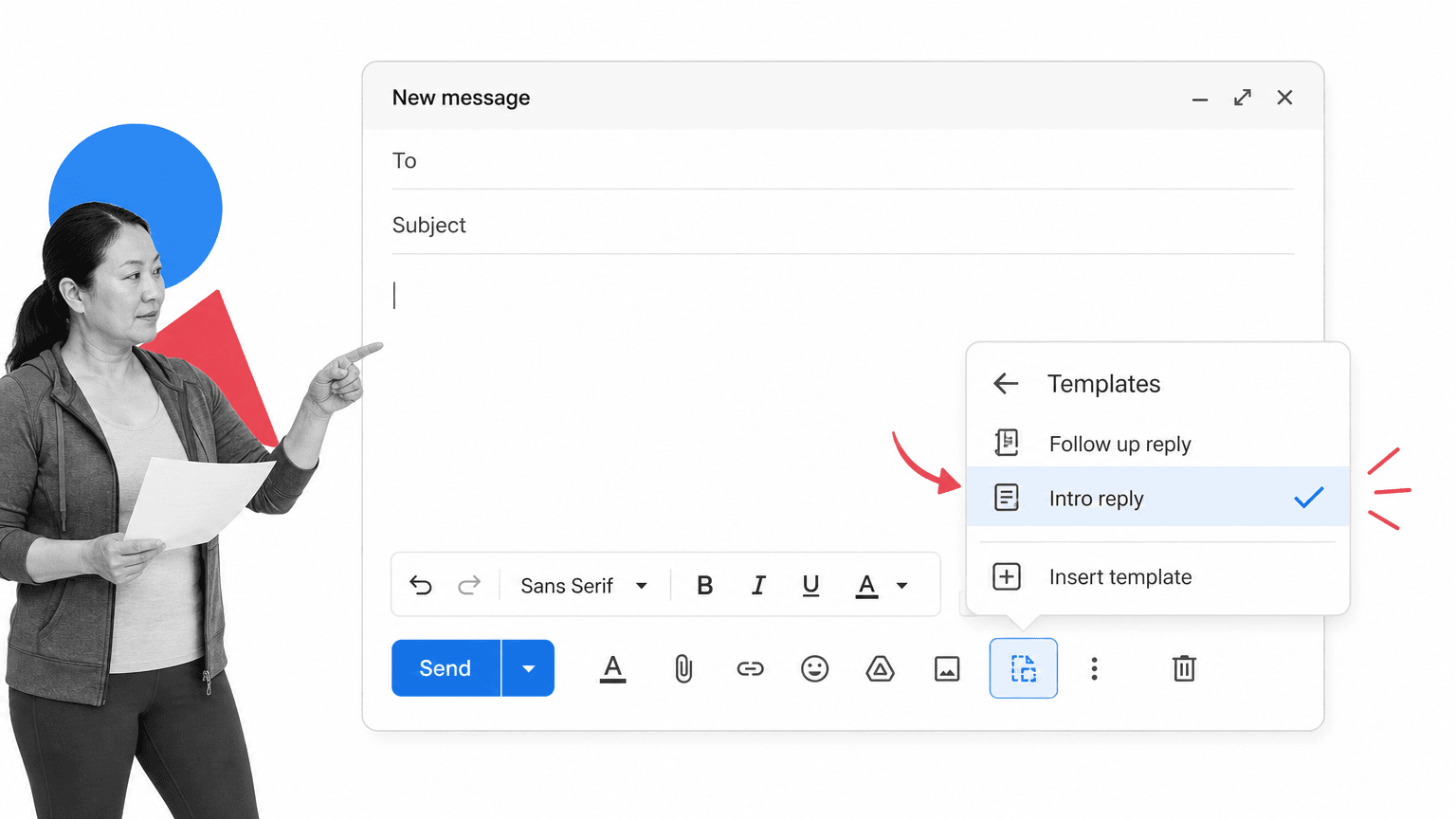
Gmail used to call this feature canned responses. Today, the feature is called Templates. Use it for messages you write more than twice: status updates, scheduling replies, customer handoffs, internal requests, recruiting responses, vendor confirmations, and follow-up notes.
Enable templates in Gmail settings, then write a message, open the three-dot menu in the compose window, and save it as a template. Keep templates short. A good template should remove repetitive structure, not make every reply sound generic.
Templates are especially useful when paired with filters. A labeled message can tell you which response pattern to start from.
Gmail Tip #13: Protect Yourself from Phishing with Sender Verification
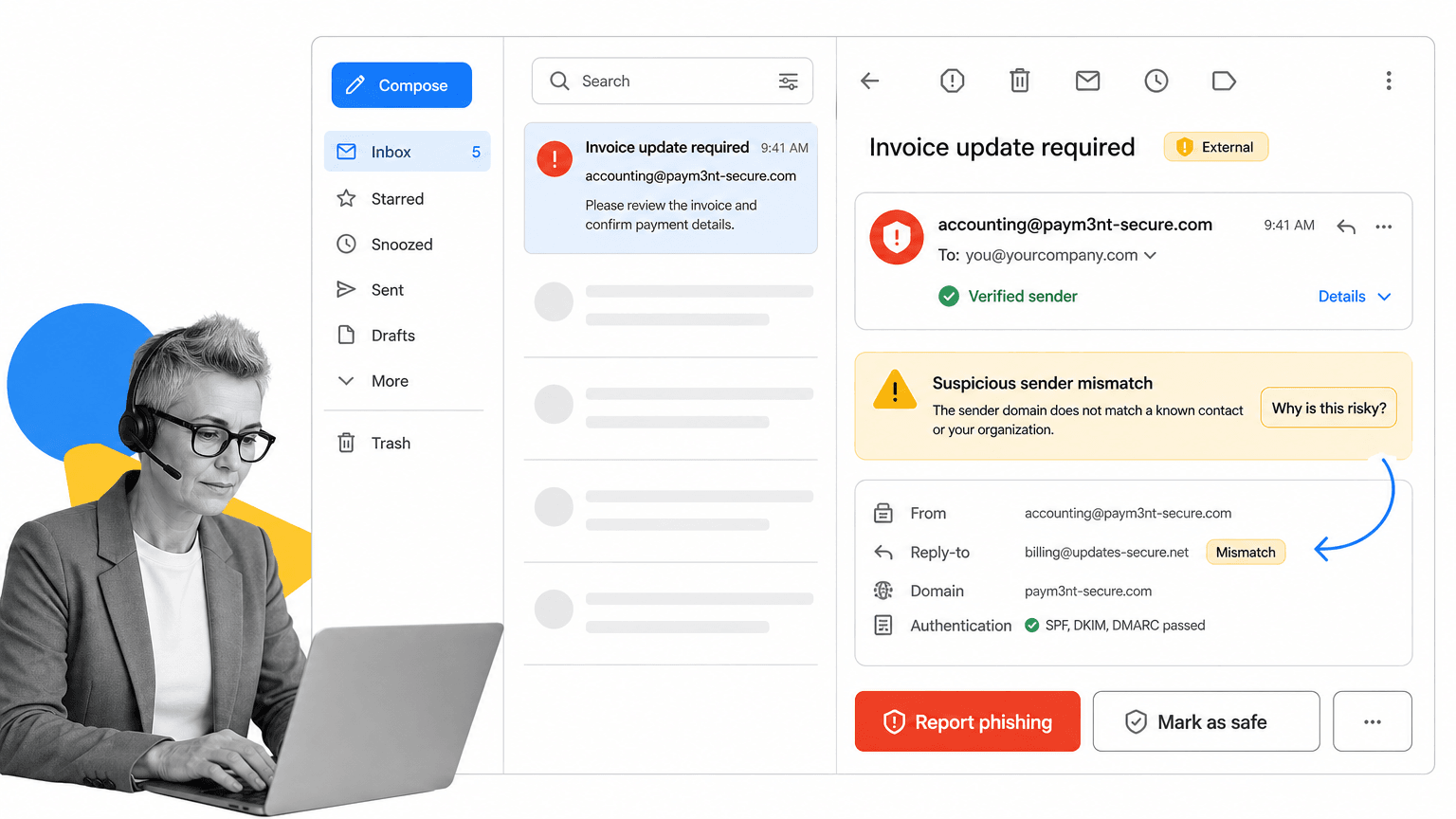
Gmail has become much better at warning users about suspicious senders, spoofed domains, and authentication problems. Still, you need to treat email identity as a security signal, not a guarantee.
Look for Gmail warnings, verify domains before clicking links, and be cautious when a message asks for money, login details, signatures, payroll changes, or urgent access. For brand messages, Gmail may show verified sender indicators when the sender has the right authentication in place.
Google’s sender verification guidance is the current reference. The safest habit is still to verify sensitive requests through a second channel.
Gmail Tip #14: Customize Keyboard Shortcuts
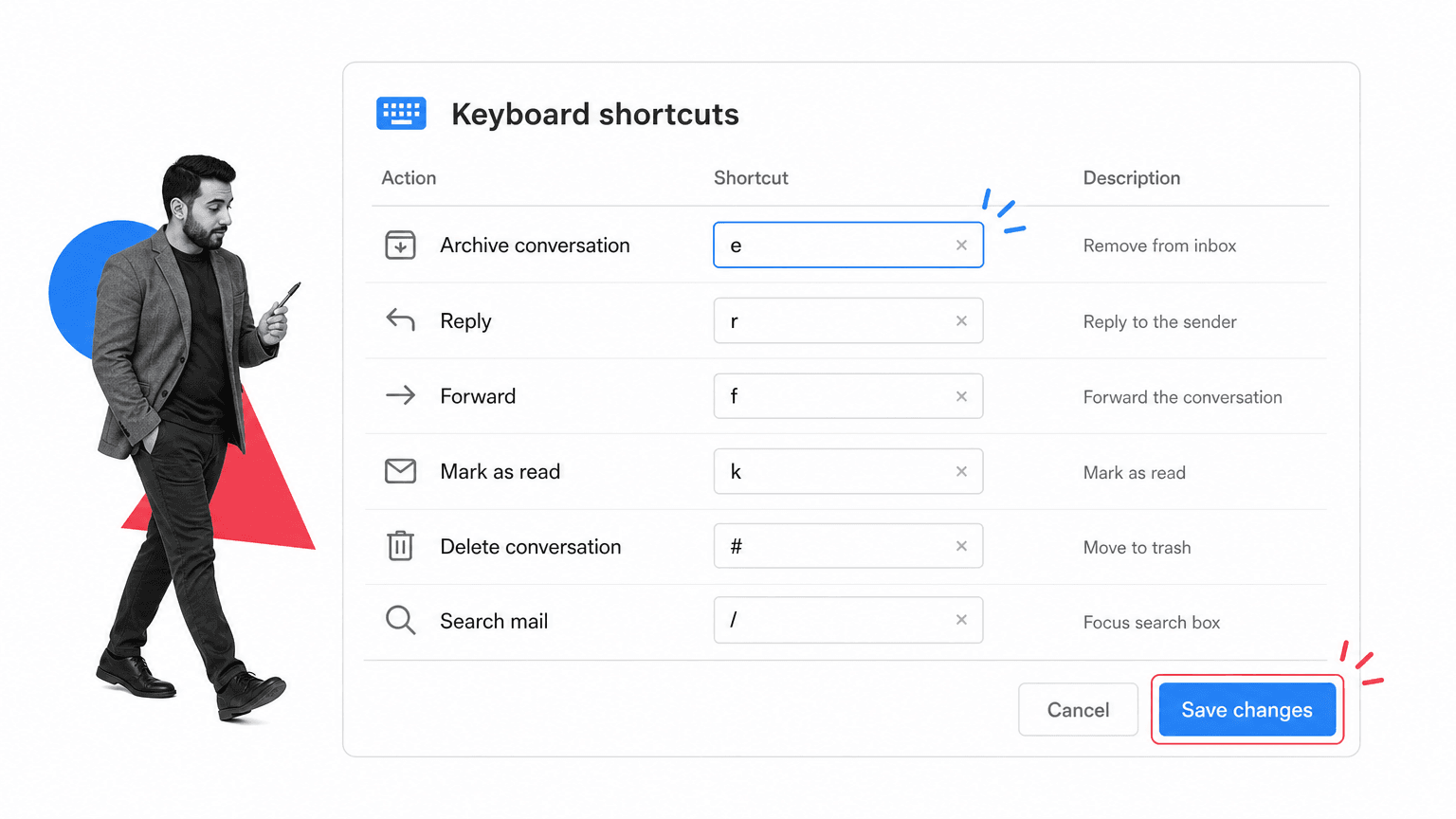
Once the default Gmail shortcuts are muscle memory, customize the ones that do not fit how you work. This is useful if you archive constantly, use labels heavily, star messages as a triage state, or move between inbox sections all day.
Turn on custom keyboard shortcuts in Gmail settings if your account has the option, then change the mappings that slow you down. Do not customize everything. Change the few actions you use dozens of times per day.
The best shortcut system is the one you remember under pressure.
Gmail Tip #15: Consolidate Email Accounts with Multiple Inboxes
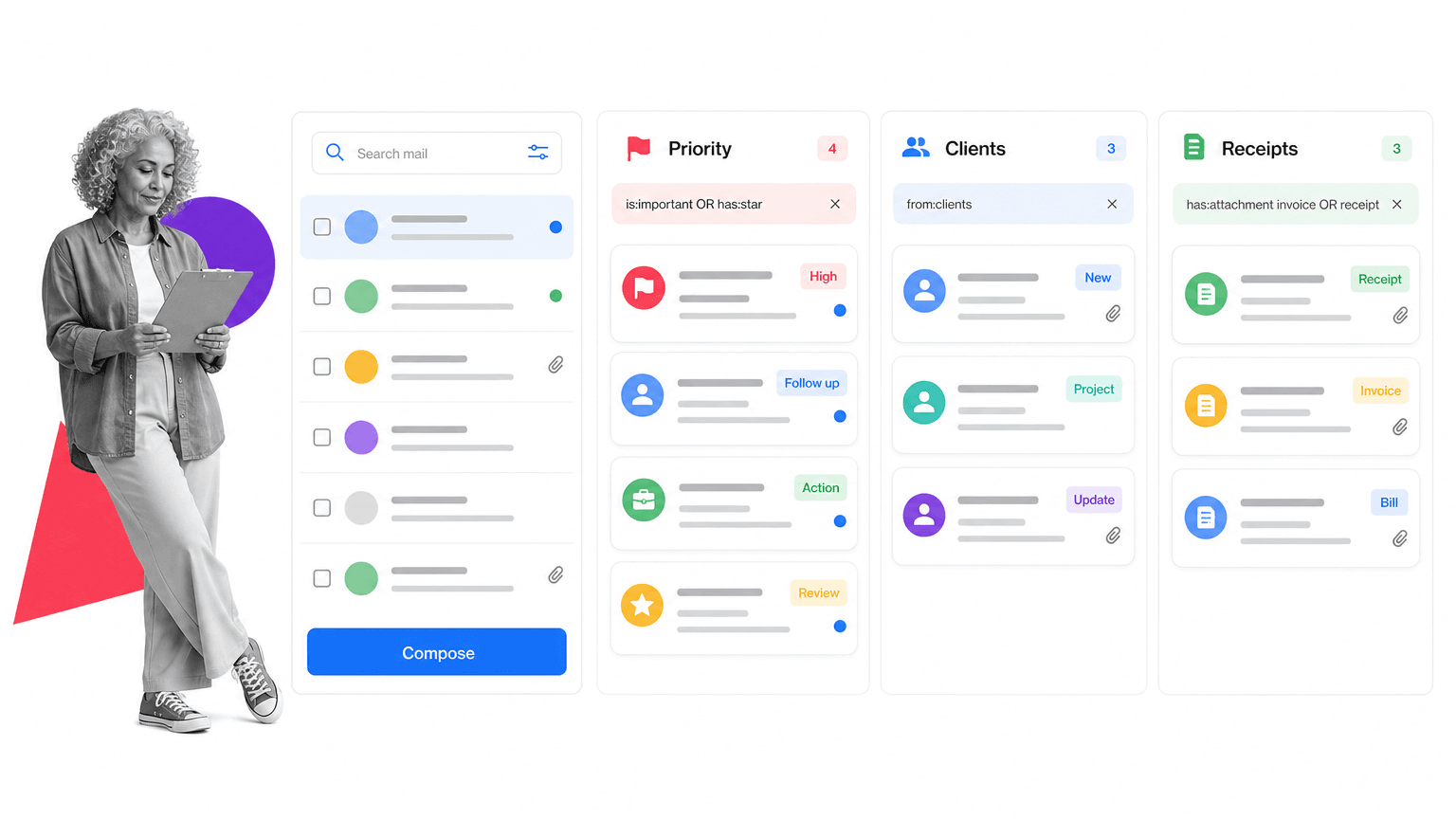
Multiple Inboxes lets you create extra inbox panes based on search queries. It is useful for separating different roles without leaving Gmail.
You can create panes for starred messages, messages sent to a specific alias, messages from a key domain, unread messages with a certain label, or messages that match a project keyword. This gives you a control panel without creating more accounts.
If you manage several identities from one Gmail account, also review Gmail’s Send mail as settings so replies come from the right address.
Gmail Tip #16: Follow Up Without Keeping Everything in Your Inbox
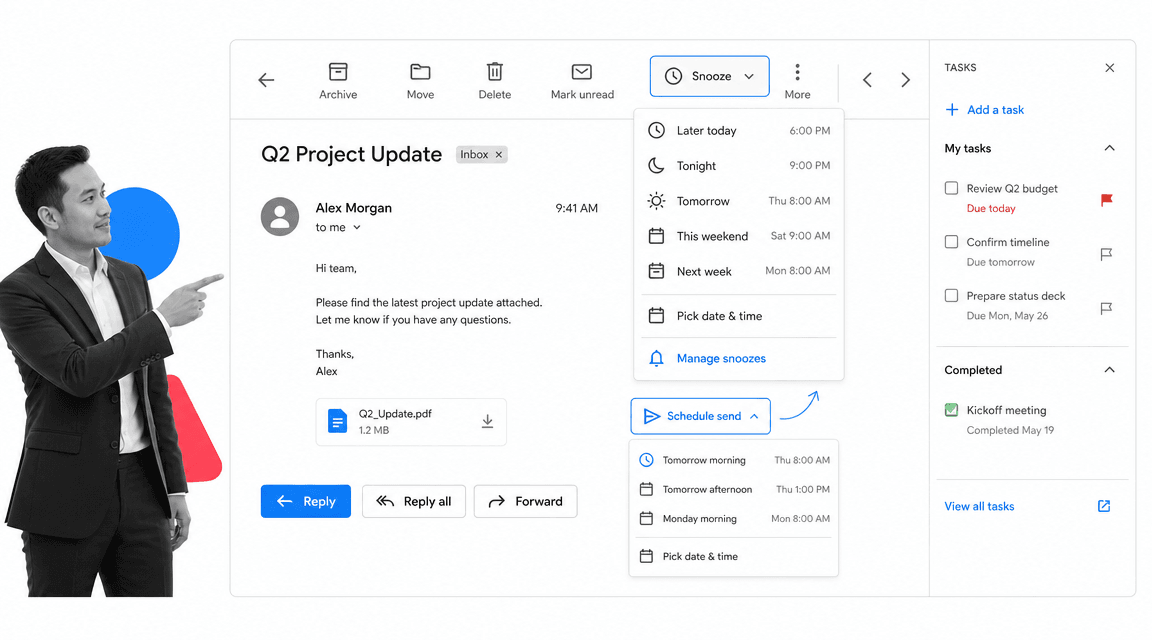
Gmail has native follow-up options that cover many day-to-day needs: Snooze, Schedule Send, Tasks, Calendar reminders, and stars. Tools like FollowUp.cc and Boomerang can still help when you need specialized recurring reminders or tracking.
Use Snooze when the thread should return to your inbox at a specific time. Use Schedule Send when the message is ready but should land later. Use Tasks when the email represents actual work. Use a third-party follow-up tool only when you need more specialized recurring reminders or tracking.
The mistake is leaving every pending thread in your inbox as a reminder. That turns the inbox into a noisy task manager.
Gmail Tip #17: Send Large Attachments with Google Drive or Dropbox
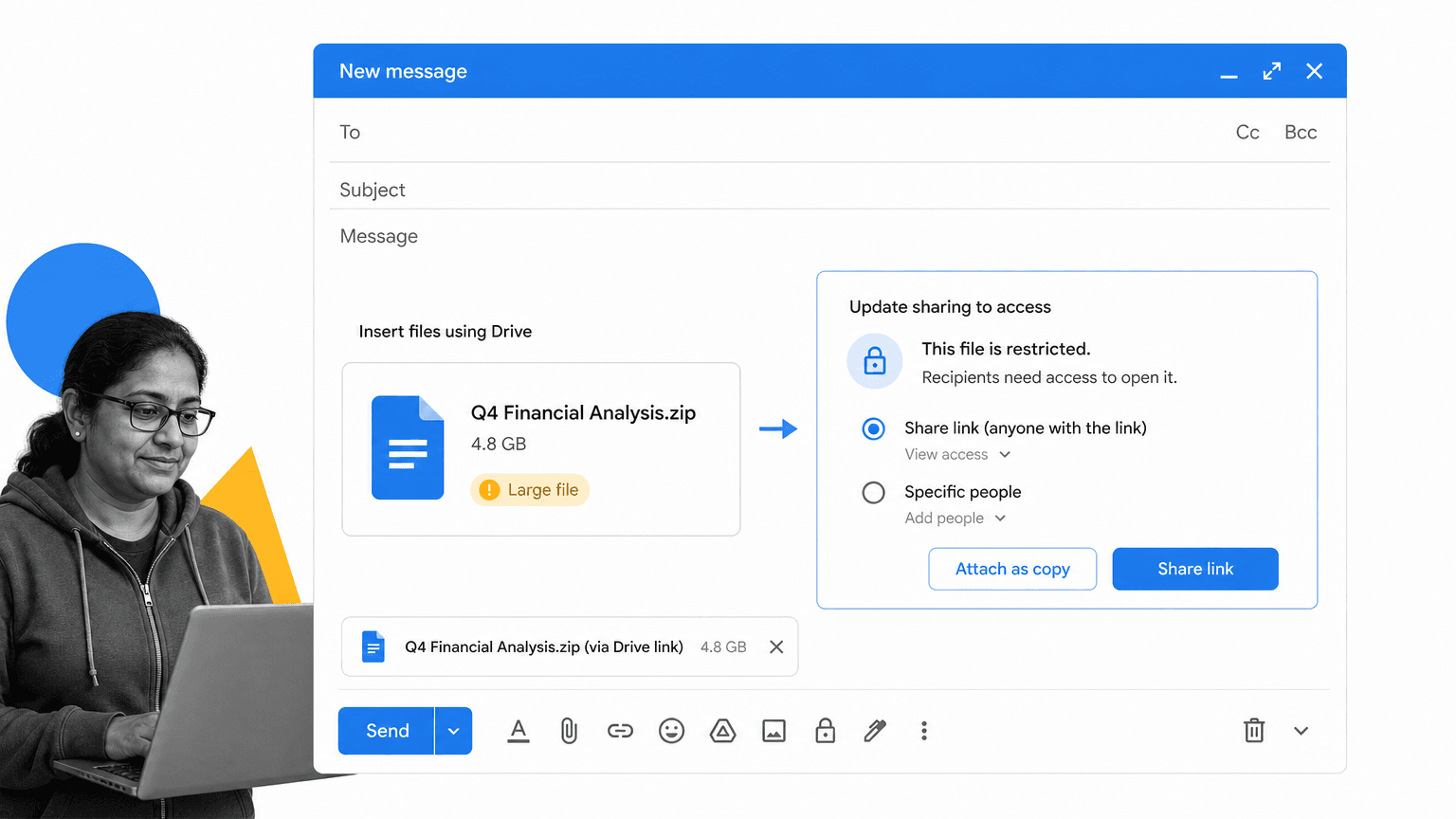
Gmail handles large files through Google Drive. Attach the file from Drive, set permissions carefully, and send the link instead of forcing a huge attachment through email.
Dropbox also supports Gmail workflows through its current Gmail integration guidance. Use it when your team already works in Dropbox and the file should stay there.
The practical rule: send links for working files, not copies. It keeps version control cleaner and reduces attachment clutter.
Gmail Tip #18: Send and Receive Mail from Another Address
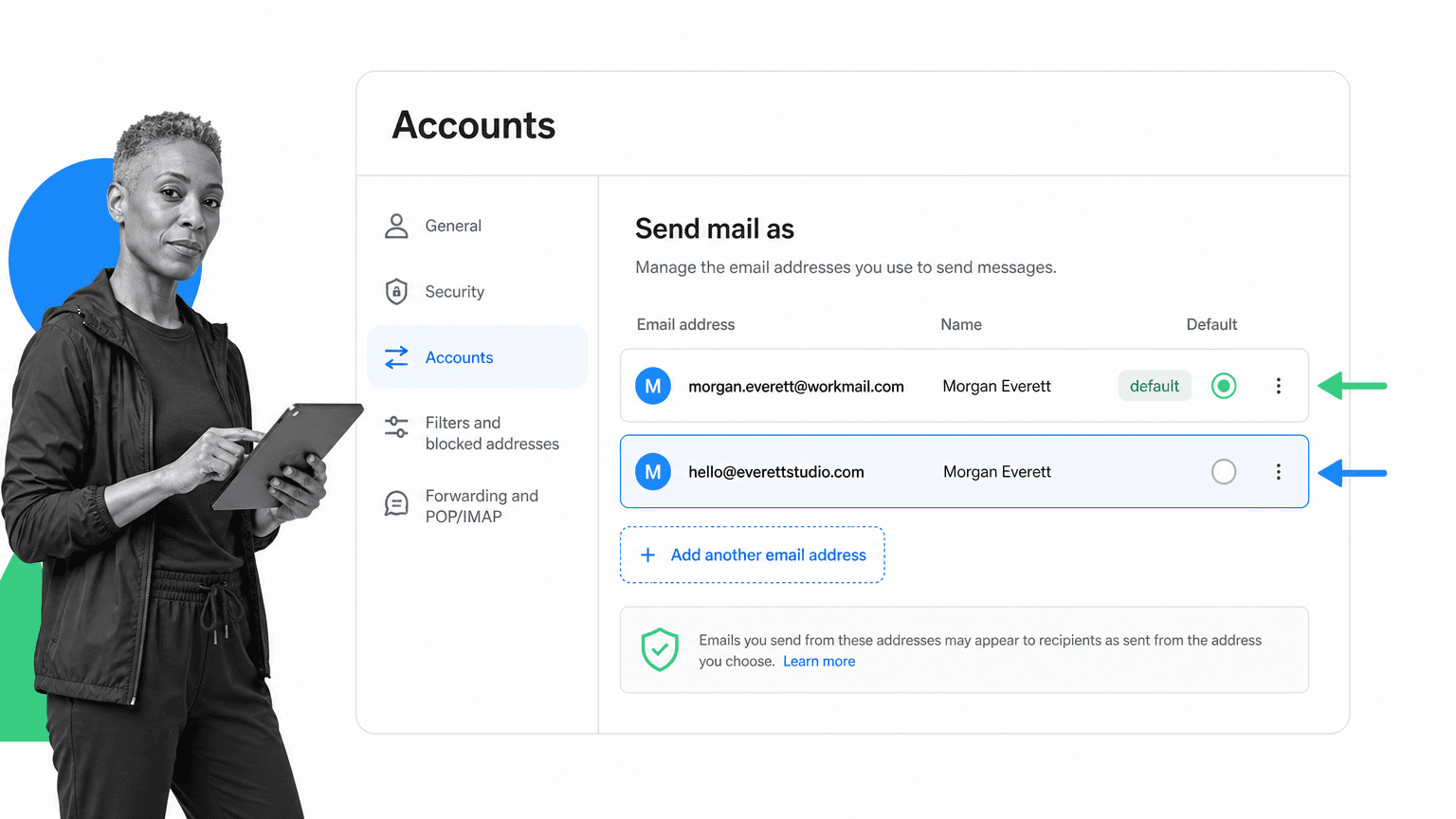
Gmail can send mail from another address you own. This is useful if you manage personal, team, support, recruiting, or project-specific addresses from one Gmail workspace.
Set it up under Accounts and Import, verify ownership, and choose the right default behavior for replies. Be careful with this setting if you manage customer-facing aliases. The wrong sender identity can create confusion fast.
For recurring team work, shared inbox software may be better than piling every identity into one person’s Gmail account.
Gmail Tip #19: Connect Gmail to Repeatable Workflows
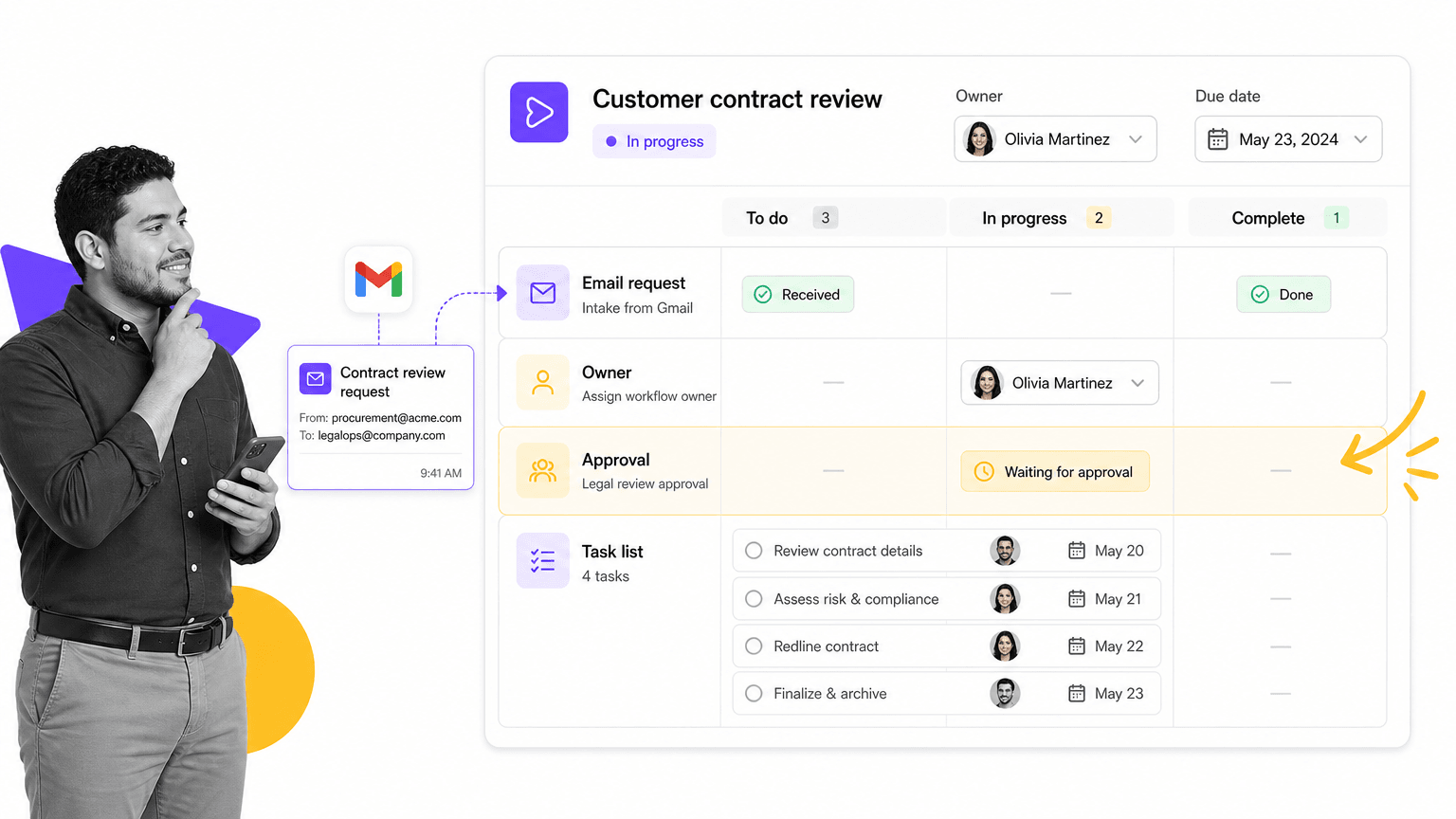
Some emails should not stay as emails. A customer escalation, invoice approval, employee onboarding request, vendor security review, or sales handoff should become a workflow with an owner, steps, due dates, and a record of completion.
For operational work, connect Gmail to a workflow system instead. Process Street’s workflow automation lets teams turn repeatable email-driven tasks into tracked, auditable processes, with Docs for procedure control, Ops for execution, and Cora for AI oversight. Lightweight automation tools can still help with simple notifications, but accountable work needs owners, steps, due dates, and proof.
The dividing line is simple. If the email creates accountable work, do not leave the work trapped in the thread.
Gmail Tip #20: End Spelling Mistakes with Grammarly
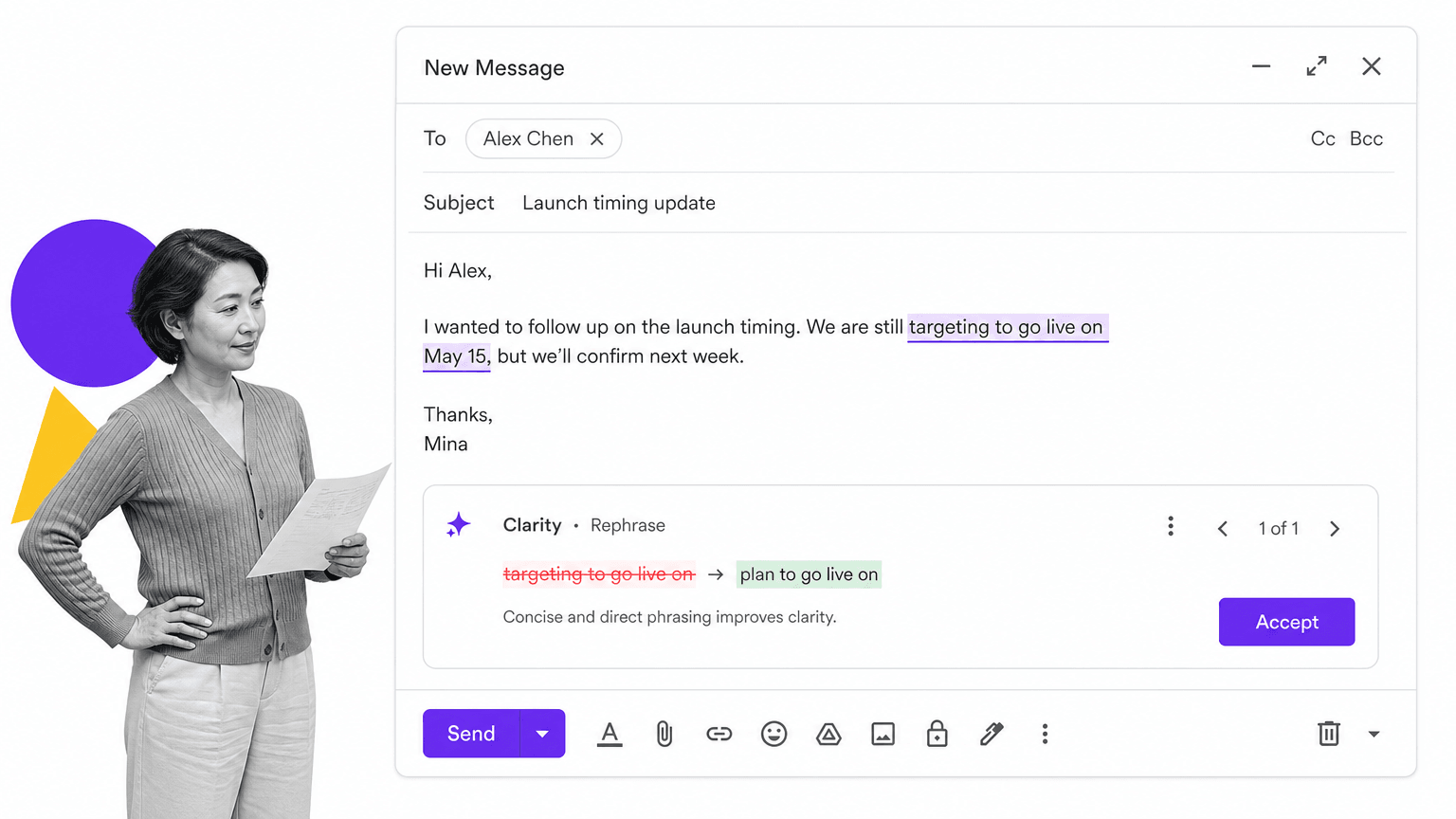
Gmail has built-in spelling and grammar help, and Gemini can help rewrite drafts when your account includes it. Grammarly is still useful if you want a writing layer that follows you across Gmail, docs, browsers, and other web tools.
Use Grammarly for the final polish, not as a replacement for thinking. It is good at catching typos, tone issues, repeated phrases, and clunky sentences. It is not good at deciding what you should say.
The best workflow is draft quickly, tighten manually, then let grammar software catch what your eyes missed.
Gmail Tip #21: Add Contact Context Before You Reply
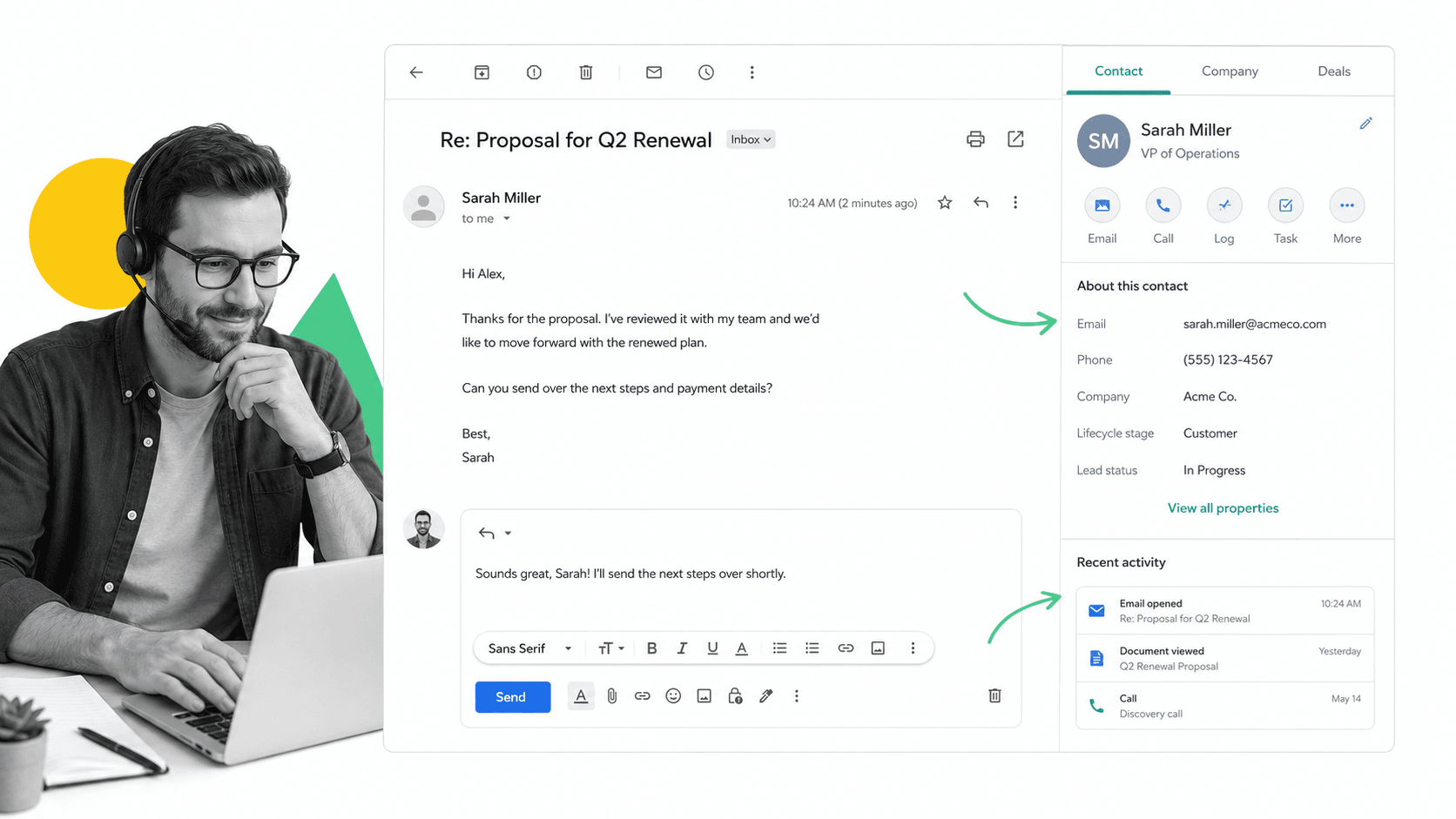
Before replying to a prospect, partner, or customer, you often need company and contact context. The best option is usually the system your team already trusts for CRM or sales intelligence.
Modern options include the HubSpot Sales Gmail extension for CRM context and the Apollo Chrome extension for Gmail for sales intelligence. Use these carefully and keep privacy expectations in mind.
The goal is not to stuff every reply with personalization. It is to avoid replying blind when context is available.
Gmail Tip #22: Use Gmail Offline When You Are Not Connected
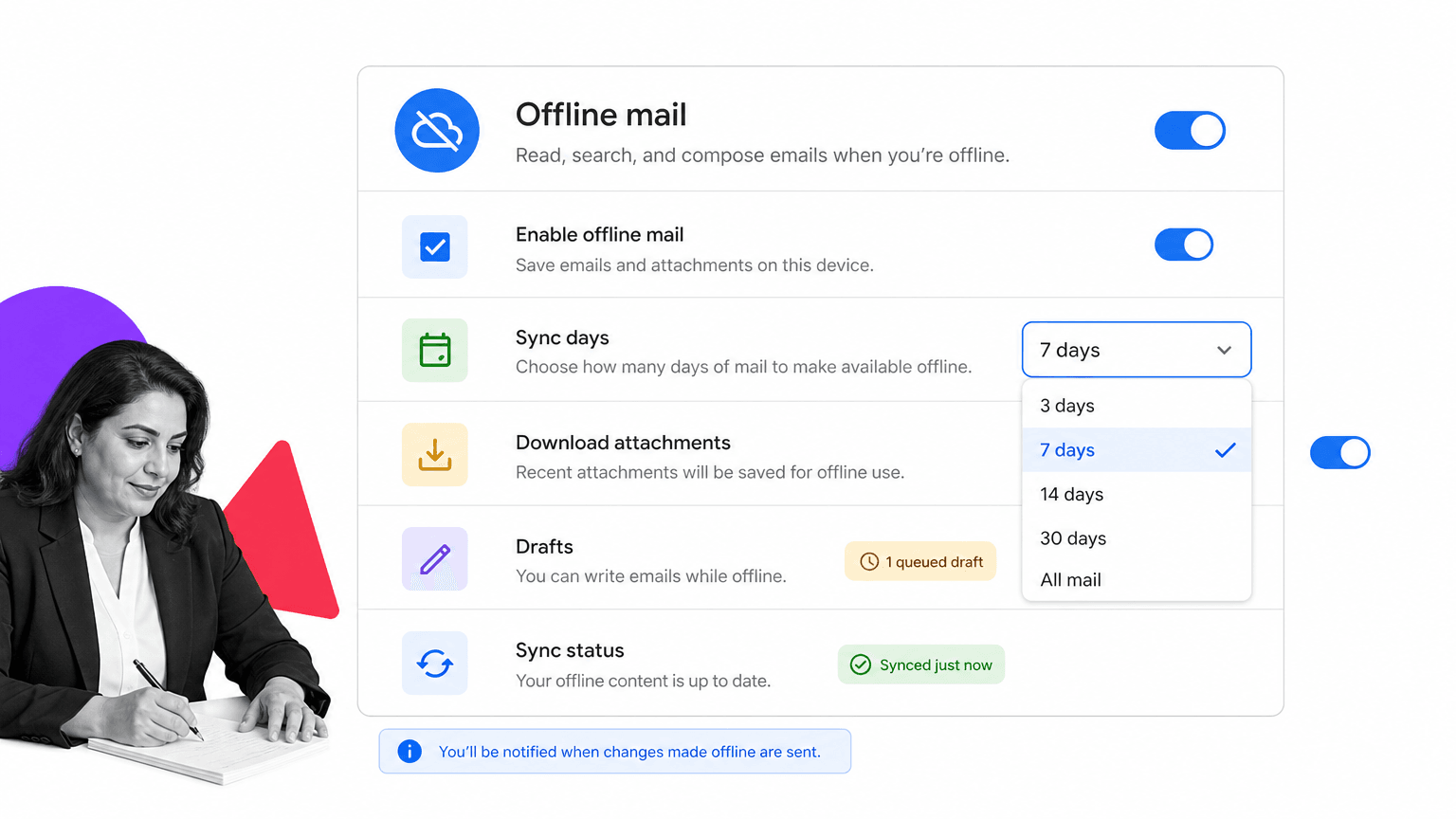
Gmail has native offline support in Chrome.
Follow Google’s current Gmail offline setup guide, choose how many days of mail to store, and bookmark Gmail so you can open it without a connection. You can read, search, and draft while offline. Gmail sends queued messages when you reconnect.
This is useful for flights, travel days, poor Wi-Fi, and deep work sessions where you want access to old messages without live inbox noise.
Gmail Tip #23: Bulk Unsubscribe from Unwanted Email
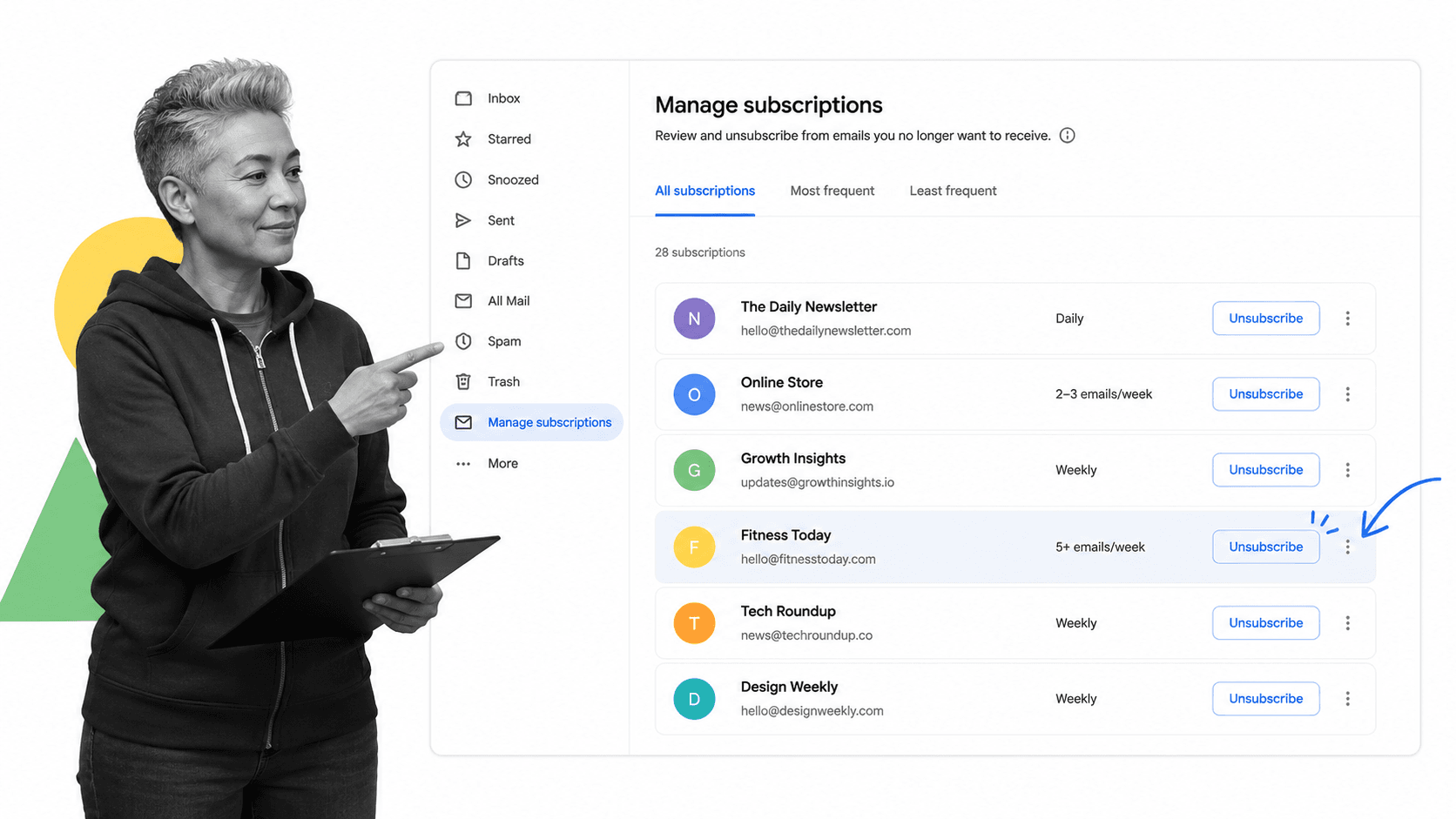
Start with Gmail’s native unsubscribe prompts, filters, and newer subscription management features. Be cautious with any third-party service that asks for broad mailbox access.
When Gmail shows an unsubscribe link, use it. For senders that ignore unsubscribe requests, create a filter that archives, labels, or deletes future messages. For newsletters you still want, filter them into a reading label instead of letting them interrupt your inbox.
The cleanup rule is simple: unsubscribe when you never want the sender again, filter when you want the content but not the interruption.
Gmail Tip #24: Use Current Gmail Features Instead of Inbox by Gmail
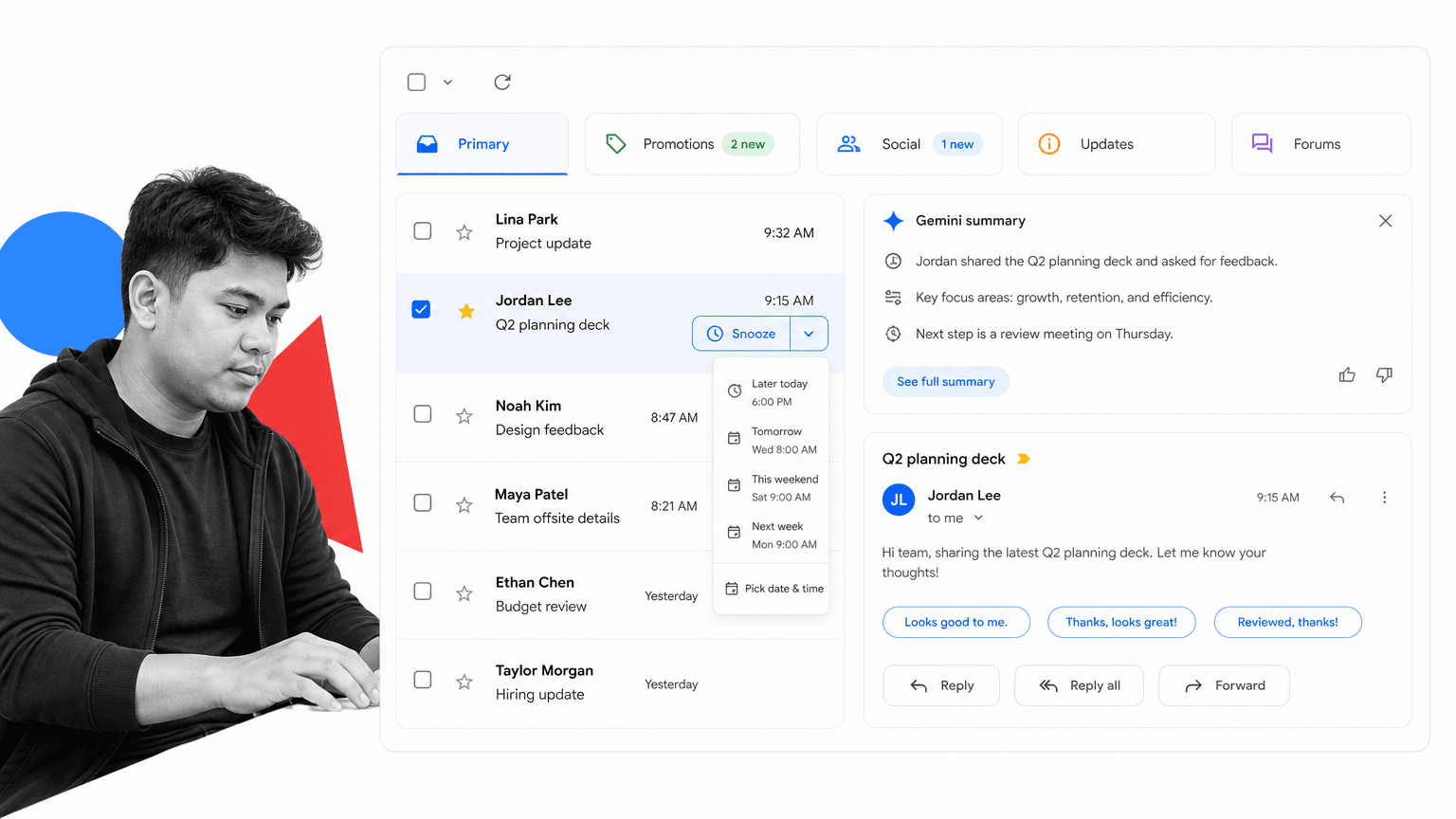
Many of the best Inbox by Gmail ideas now live inside Gmail: snoozing, categories, hover actions, bundles through labels and filters, smart replies, and cleaner mobile workflows.
Recreate the useful behavior inside Gmail. Use categories to split message types, labels to group workflows, snooze for later action, and Gemini summaries when supported to catch up on long threads.
The lesson from Inbox still holds: your email client should help you decide what matters now, what can wait, and what should disappear from view.
Gmail Tip #25: Track Your Usage with Email Analytics
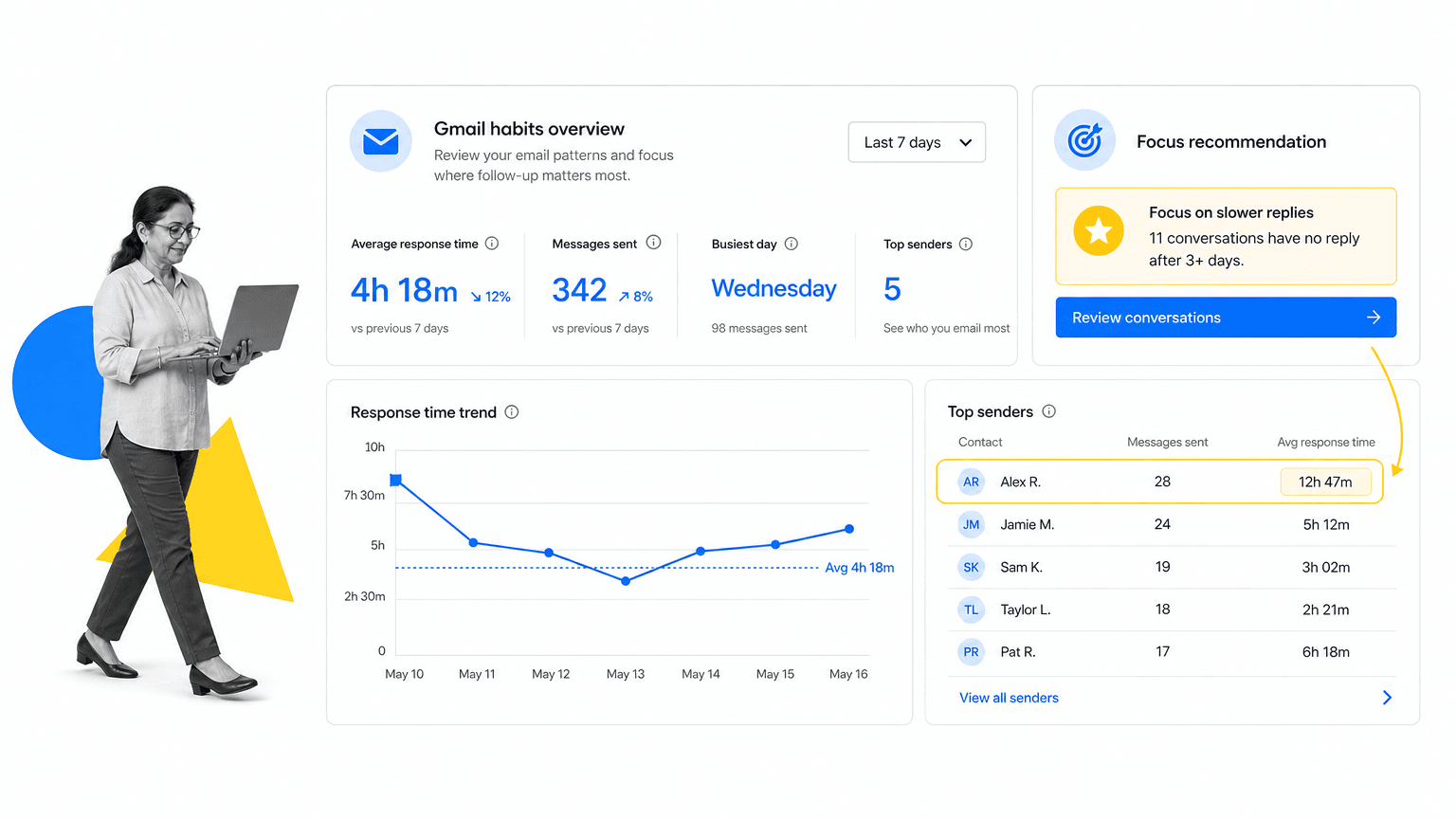
If you want analytics, use a current tool like Email Meter or the reports available through your Workspace environment.
Track practical numbers: response time, messages sent, messages received, busiest days, thread volume, and who consumes the most inbox attention. Then change one behavior at a time.
Data is only useful if it changes the way you work. If analytics show that one type of message dominates your week, create a filter, template, workflow, or delegation rule for it.
Frequently Asked Questions
What are the essential Gmail keyboard shortcuts to learn first?
Start with the shortcuts that replace the mouse for everyday actions: c for compose, r for reply, a for reply-all, f for forward, e for archive, # for delete, ! for spam, j and k to move between messages, n and p to step through a conversation, / to put the cursor in search, and the arrow keys after enabling keyboard shortcuts in settings. Master these first; advanced shortcuts pay off only after the basics are muscle memory.
How should I set up Gmail filters and labels to clean up my inbox?
Build filters for the senders and patterns that hit your inbox every week: receipts, shipping notifications, social media alerts, app signups, newsletters, and recurring reports. Give each filtered stream a clear label and decide whether it should appear in Primary or be archived on arrival. Treat labels like mini-inboxes: separate invoices, applicants, action items, travel, and vendor notices into their own folders. The more you correct miscategorized messages, the better Gmail predicts the next one.
What is the best way to handle repetitive Gmail replies?
Use templates (the feature formerly called canned responses) for answers you write more than twice a month. Keep a small set: a professional answer for common questions, a friendly note for colleagues, and a short reply for scheduling. Sound like yourself, not a script. If a template feels too rich or too robotic, cut it back so it works as a starting point rather than a finished reply.
How do I keep Gmail storage and security in good shape?
Once a quarter, search for messages with large attachments, old photos, oversized PDFs, and videos, then delete or archive in batches. Watch for blue verification icons on senders, but do not trust them on their own. If a message asks for money, credentials, permissions, or sensitive information, verify the request through a separate channel before responding, even when the sender looks familiar.
When should I move work out of Gmail into a workflow tool?
Anytime a message creates accountable work that other people need to complete. Email is good for conversation and notification; it is not designed to track owners, due dates, and approvals. When a customer email becomes a task, when an invoice needs review, or when an onboarding step needs a checklist, move it into a workflow system so the work is owned, scheduled, and auditable. A workflow management system is the right place for that, not your inbox.
How do I avoid sending the wrong message or to the wrong person?
Turn on Undo Send and set the cancel window to 30 seconds. Use send-and-archive to clear sent threads from your inbox immediately. If you manage multiple accounts or aliases, double-check the From address before hitting send so messages do not leave from the wrong identity. For sensitive replies, scheduled send buys you a review window before the message actually leaves.
The post 25 Gmail Tips You’ve Probably Never Heard Before first appeared on Process Street | Compliance Operations Platform.


0 Commentaires