
If you’re using less than half the buttons in your Microsoft Outlook inbox, you’re doing it wrong. These three vital Microsoft Outlook tips will not make you an expert overnight, but they will change how your inbox behaves.
You probably use Outlook for email because it comes with Microsoft 365. But Outlook is more than just an email service. It’s productivity and organization software built into the tools you use every day: emails, to-do lists, calendars, templates, and repeatable actions.
Outlook’s convenient features do not mean anything unless you know how to use them. Read these Outlook tips, and say hello to a calmer inbox, faster repeat work, and a clearer way to make sure important emails get done.
Here’s how you level up.
1. There are two different ways to get rid of distractions
One often-cited Harvard Business Review summary covered a simple finding: college students made more errors after hearing their phones buzz, even when they did not check the message. Just the thought that something else required attention distracted them from their primary task.
An unread email works the same way. It is an itch you want to scratch. When you hear the familiar ping and see the rectangle pop up on the side of the screen, you want to click on it, but it is making you worse at your job.
Make the most of Outlook by using these features to get rid of email distractions.
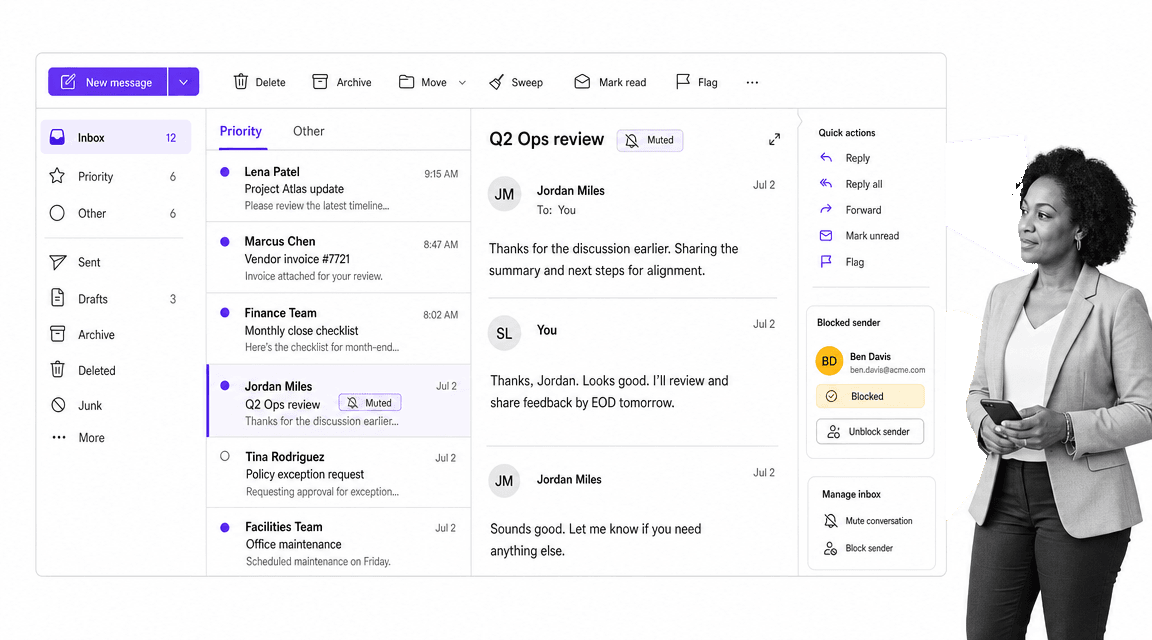
No more reply-all nightmares
Your co-worker emails the office asking who wants to join your boss’s birthday party planning committee. You cannot make it, but before you know it, your computer is pinging like crazy with reply-all messages. Jane is bringing the cake, and everyone has an opinion about the flavor.
You need to get rid of this distracting email chain, but you do not want to mark your co-workers as spam. The answer is simple: use Outlook’s Ignore conversation feature.
Once you ignore a message chain, the constant pinging stops, and you can go back to work in peace. It does not remove a sender forever. It moves that one chain of messages to your Deleted Items folder, including future emails that come in on the same thread.
Use Ignore when the conversation itself is the problem. Use rules and blocked-sender controls when the sender, sender domain, or message type is the problem.
Rid your inbox of recurring noise
To get rid of criminally annoying senders you just cannot shake, whether they are spammers, alumni donation letters, or automated promotions, put them on your blocked senders list or route them with rules.
Outlook’s blocked senders and junk email settings handle personal inbox cleanup. Microsoft 365 admins can manage organization-wide sender controls through Defender for Office 365’s Tenant Allow/Block List.
If the same kind of message keeps getting through, build an Outlook rule. Rules can move newsletters, alerts, status emails, receipts, and reports into the right folders automatically, so the inbox stays focused on work that needs a human decision.
2. Keep your click count down
In your office, you do not grind your coffee beans and filter the coffee by hand unless you are a coffee connoisseur. You do not spend time on something that could be done much more quickly by a machine.
It should be the same with easy tasks on your computer. Why take your time with the small stuff when you could automate it? Automation improves the consistency of your work, and it saves your attention for the mental heavy lifting you need to do well.
Keep your click count down, and spend your time at work on the decisions that actually need you.
Schedule meetings without the back-and-forth
It should not take hours of back-and-forth to set up a 15-minute meeting. Outlook can already check availability inside your organization, and current Outlook workflows include calendar sharing, Scheduling Assistant, and Scheduling Poll.
If you work across platforms or office networks, a cross-calendar add-in like FreeBusy can still help. Once everyone can share availability cleanly, you can add meetings to emails with fewer clicks and less inbox clutter.
The point is not one add-in. The point is to stop using your inbox as a manual scheduling machine.
Don’t bake emails from scratch
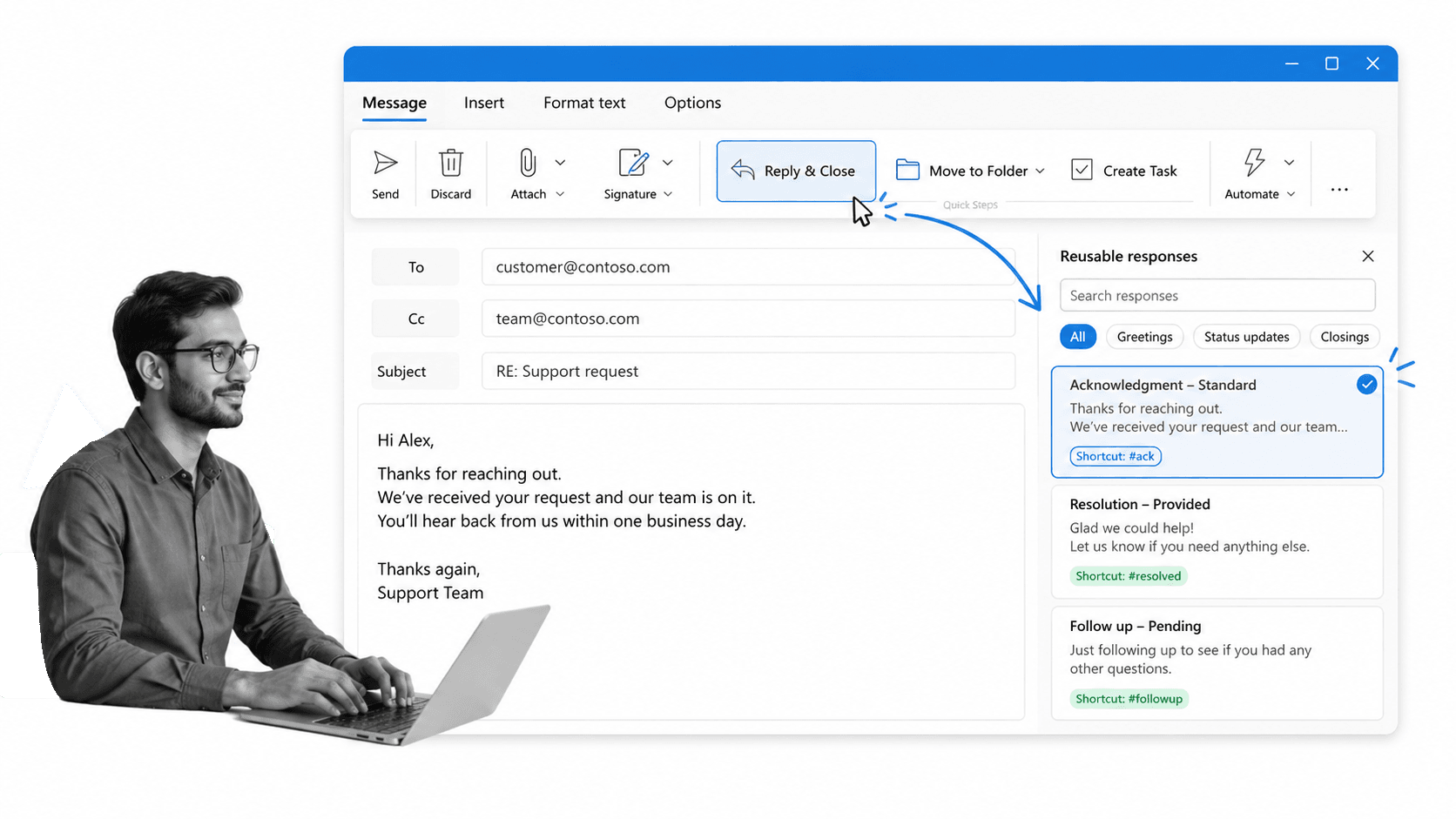
With reusable Outlook content, you can save and insert form letters into your emails. Once you create templates for your generic emails, all you have to do is update the recipient’s name, details, and context before you press send.
Outlook supports reusable text through Quick Parts and email templates. The old habit is to open a previous email, copy the body, paste it into a new message, and hunt for the parts that need changing. The better habit is to save the reusable block once and insert it cleanly.
Spend a few seconds plugging in the client’s name and information, instead of a few minutes composing another form letter and making sure it is typo-free.
Use Quick Steps to create one-click tasks
Using Quick Steps, you can turn email tasks you complete over and over again into one-click actions. Creating a Quick Step makes an easy-to-access button for repetitive tasks, such as forwarding emails from top-billed clients to your manager, moving vendor updates to a project folder, or marking a status email as handled.
To make one, choose the action you want to automate, decide whether you need a shortcut, and save it. After that, the action takes less than one second to use.
Quick Steps is useful because most inbox work is not one-off. It is routing, filing, following up, and escalating. A one-click action turns those small repeated decisions into a system.
3. Be accountable for important emails
The setup of email makes it hard to prioritize. You do not keep your important documents in chronological order, folded between newsletters, advertisements, and chain letters from your aunt. If you did, they would get lost at the bottom of the pile.
It is natural to lose an email now and then. But when you are unprepared for a meeting because the agenda got buried in your inbox, the problem is not the email. The problem is that the work never became accountable.
Use these tools to make sure important information in your inbox stays visible, assigned, and eventually taken care of.
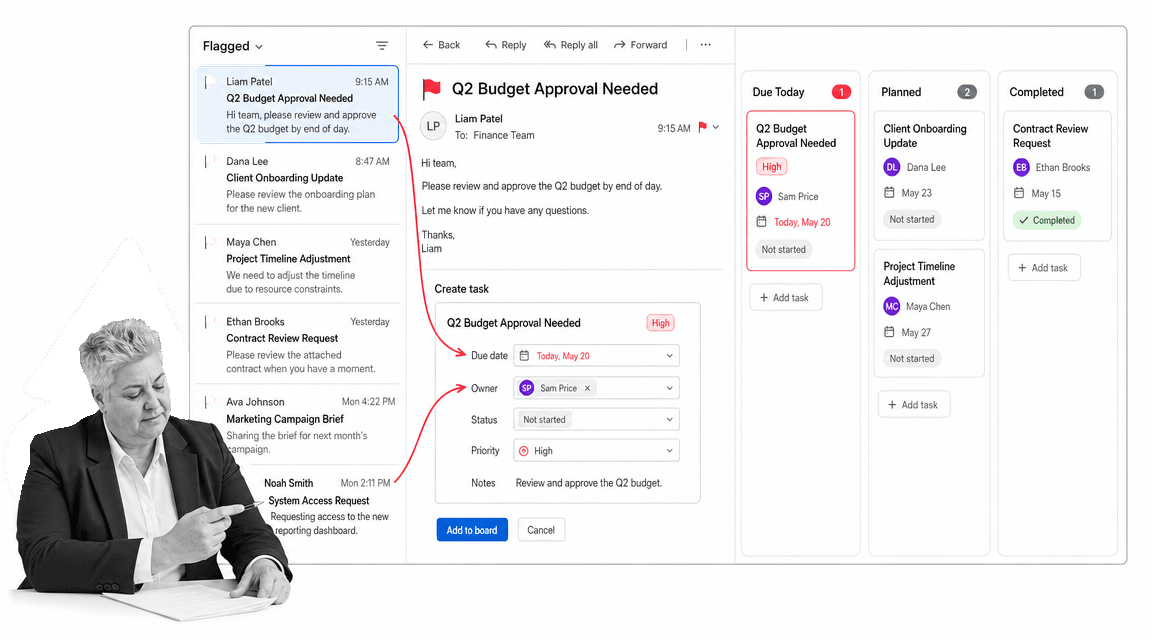
Turn your inbox into a to-do list
Outlook connects flagged email with Microsoft To Do. If you do not have time to take care of an email right away, flag it, add a due date, and put it into the same task flow as the rest of your work.
Once it is there, you can add more information, set a due date, add a reminder, and make sure it gets done. That is much better than trusting yourself to remember that the buried email mattered.
Keep your co-workers accountable
You can be as organized with your own Outlook tasks as you want, but that does not ensure your whole team is managing important emails properly.
For Microsoft-native team follow-up, Planner tasks can appear in To Do’s Assigned to me list. That helps connect inbox requests to team-owned work without relying on a stale third-party add-in.
For recurring team workflows, move the work out of email entirely. Process Street turns recurring procedures into assigned steps, due dates, approvals, automations, and audit-ready proof. Outlook can capture the request. A workflow makes sure the work happens the same way every time.
Level up again and again
These tools are only the start of how you become an Outlook power user. One of the best parts of Outlook is how easily you can expand it and personalize it, whether you use native features, Microsoft 365 add-ins, or workflow tools around it.
If you are an average Outlook customer, you use it in your day-to-day workflow to get tasks done. Making the most of Outlook’s built-in tools makes you a power user. You use it to make day-to-day tasks easier.
Microsoft Outlook tips FAQ
What is the best Outlook tip for productivity?
The best Outlook tip is to stop treating every email as equal. Use Ignore for noisy conversations, rules for predictable messages, Quick Steps for repeated actions, and flagged emails or Microsoft To Do for follow-up work.
What are Outlook Quick Steps?
Outlook Quick Steps are saved actions for repeated email tasks. A Quick Step can move, forward, categorize, flag, or reply to a message with fewer clicks.
Can Outlook turn emails into tasks?
Yes. In Outlook, flagged emails can appear in Microsoft To Do, where you can manage due dates, reminders, and follow-up work alongside your other tasks.
When should Outlook work move into Process Street?
Move Outlook work into Process Street when the work repeats, involves multiple owners, needs approvals, or needs proof that every step was completed. Email can start the process, but the workflow should run the process.
The post 3 Vital Microsoft Outlook Tips for Becoming a Power User Overnight first appeared on Process Street | Compliance Operations Platform.


0 Commentaires